 Fastero Dev Team
Kaggle Notebooks are free Jupyter-style notebooks that run in Kaggle's cloud, with GPUs, public datasets one click away, and nothing to install. They are among the most generous free options for machine learning work, and their limits are clearer than most, because Kaggle publishes nearly all of them.
The short answer: Kaggle Notebooks are free. A session runs for up to 12 hours on CPU or GPU and 9 hours on a TPU, with 4 CPU cores, about 30 GB of RAM and 20 GB of saved disk. You can add one P100 or two T4 GPUs, within a weekly quota users put at about 30 hours; your exact quota is in your account settings. An interactive session stops after 20 idle minutes, but Save & Run All runs the whole notebook as its own session, and notebooks can rerun daily, weekly or monthly, which consumer Colab no longer does. Kaggle fits learning, competitions and experiments on public data. It's a poor fit for a notebook that reads your company's database and that colleagues rely on.
Fastero
Jupyter notebooks for your team, with nothing to install.
Start a notebook or bring your .ipynb files. SQL cells query your databases with no password in the code, and a notebook runs now or on a schedule. Colleagues open it with their own login; viewers are free.
Try free →What you get for free
From Kaggle's notebook documentation, read on 31 October 2026:
| CPU | P100 GPU | T4 x2 GPU | TPU | |
|---|---|---|---|---|
| Accelerator | None | 1 Nvidia Tesla P100 | 2 Nvidia Tesla T4 | TPU v3-8 |
| CPU cores | 4 | 4 | 4 | 96 |
| RAM | 30 GB | 29 GB | 29 GB | 330 GB |
| Longest session | 12 hours | 12 hours | 12 hours | 9 hours |
Saved disk (/kaggle/working) |
20 GB | 20 GB | 20 GB | 20 GB |
| Weekly quota | None | About 30 hours, shared across GPUs | Same quota | About 20 hours |
The weekly figures come from users, not from Kaggle's docs, which publish no number. Your own quota and what's left of it are in your Kaggle account settings. It has moved over the years, so treat 30 hours as a guide.
Anything outside /kaggle/working is scratch space and disappears when the session ends.
Kaggle's limits, in practice
- Interactive sessions stop after 20 idle minutes. If the code isn't changed or run in that time, the session ends. That catches people out far more often than the 12-hour limit does.
- GPUs aren't guaranteed on demand. "Free GPU availability is limited: in busy times, you might be placed in a queue."
- New accounts need a verified phone number before GPUs and internet access work. If the Internet switch is missing from Settings, that's usually why.
- Some competitions need internet off when you submit, so install packages offline through the dependency manager for those.
- There's a limit on how many notebooks you can schedule. Kaggle doesn't publish the number; the Active Events pane lists what you have running.
- It's built around sharing. Notebooks can be private, but public datasets, competitions and other people's notebooks are the point of Kaggle, not private company data.
How to turn on a GPU
- Open a notebook and find the Settings pane in the editor.
- Under Accelerator, choose GPU (P100 or T4 x2), or TPU v3-8.
- The session restarts, which can take a few moments or several minutes if there's a queue.
Which to choose: two T4s have more total memory and suit work that can use both cards, while the single P100 is simpler for code written for one GPU. Switch back to None when you aren't training, because the quota runs while a GPU session is open, not only while code runs.
Keep a run going: Save & Run All
Kaggle has two ways to save a version:
- Quick Save takes a snapshot of the notebook as it stands, without running anything.
- Save & Run All starts a new session with a clean state and runs the notebook from top to bottom in its own session, within the same 12-hour limit. It keeps going after you close the tab, and its output is saved with the version.
So the usual pattern is to experiment interactively, then use Save & Run All for the long training run instead of keeping a browser tab alive.
Scheduling a Kaggle notebook
Kaggle can rerun a notebook by itself, which is rarer than it should be among free tools. Under Schedule a notebook to run in the editor's Settings, choose:
- By time: daily, weekly or monthly.
- When data changes: whenever a dataset the notebook uses is updated, at most once a day.
Daily is the shortest interval, so this suits a refreshed dataset or a weekly model rather than anything hourly. Results land in the notebook's new version; to send them anywhere, your code has to do it. More options in our guide to scheduling a Jupyter notebook.
Kaggle Notebooks vs Google Colab
| Kaggle Notebooks | Colab (free) | |
|---|---|---|
| Price | Free | Free; paid plans from $9.99 a month |
| GPU | P100 or two T4s | A T4 when available, by user reports; Google doesn't name one |
| GPU allowance | A weekly quota, about 30 hours by user reports | Not published: "very limited access" |
| Longest session | 12 hours | Up to 12 hours, depending on availability |
| RAM | About 30 GB | Not published |
| Saved disk | 20 GB in /kaggle/working |
None: use Google Drive |
| Keeps running with the tab closed | Yes, with Save & Run All | No; only on Pro+ |
| Runs on a schedule | Daily, weekly or monthly | No: Google switched it off in March 2026 |
| Datasets | Kaggle's public datasets attach in a click | Bring your own, usually through Drive |
| Google Drive | Not built in | Built in |
Choose Kaggle for a free GPU you can plan around, for competitions, and for working with public datasets. Choose Colab when your files live in Drive, or when you want to pay for faster GPUs: Colab Pro costs $9.99 a month for 100 compute units. The two also work together: Colab Pro subscribers can link accounts and get 15 extra Kaggle GPU hours a week, and Pro+ subscribers 30, as what Kaggle calls a limited-time experiment. Those hours don't use your Colab units.
Using both is common, because when one quota runs out the other is usually still there.
Jupyter notebooks for your team.
Start free →When you've outgrown Kaggle
- You need more GPU than the quota. Colab's paid plans are the cheap step up, and renting by the hour gets you a particular GPU. Our Colab Pro guide compares the prices.
- You need longer than 12 hours in one run. Save checkpoints to
/kaggle/workingand resume, or rent a machine. - You want a different free environment. See 12 Google Colab alternatives and where to run a Jupyter notebook online.
- The notebook is for a team, not a GPU. One that reads your company's database, runs every morning, and is read by people who won't open Kaggle.
That last one is a different job from training a model, and Kaggle was never built for it. Connecting a private database, keeping its password out of the notebook, giving colleagues a login, and putting the result on a dashboard are all left to you.
When the notebook is for a team
For training, keep Kaggle. Fastero is for the everyday notebooks: it's an AI and data platform where people and AI agents work together on a team's data, and its notebooks run next to that data:
- SQL cells query a workspace connection with its stored credentials and hand the result to Python as a pandas DataFrame, so no password sits in the notebook.
- Secrets reach cells as environment variables, in interactive and scheduled runs alike.
- Schedules: run a notebook now, or on any cron schedule, on the Free plan.
- Sharing: colleagues sign in and open it; viewers are free and can read without running or changing it. Promote to App turns a notebook into an app behind the same login.
- The rest of the work is there too: the same workspace holds the team's SQL, dashboards and Streamlit apps, and Claude can create, write, run and schedule its notebooks through Fastero's connector.
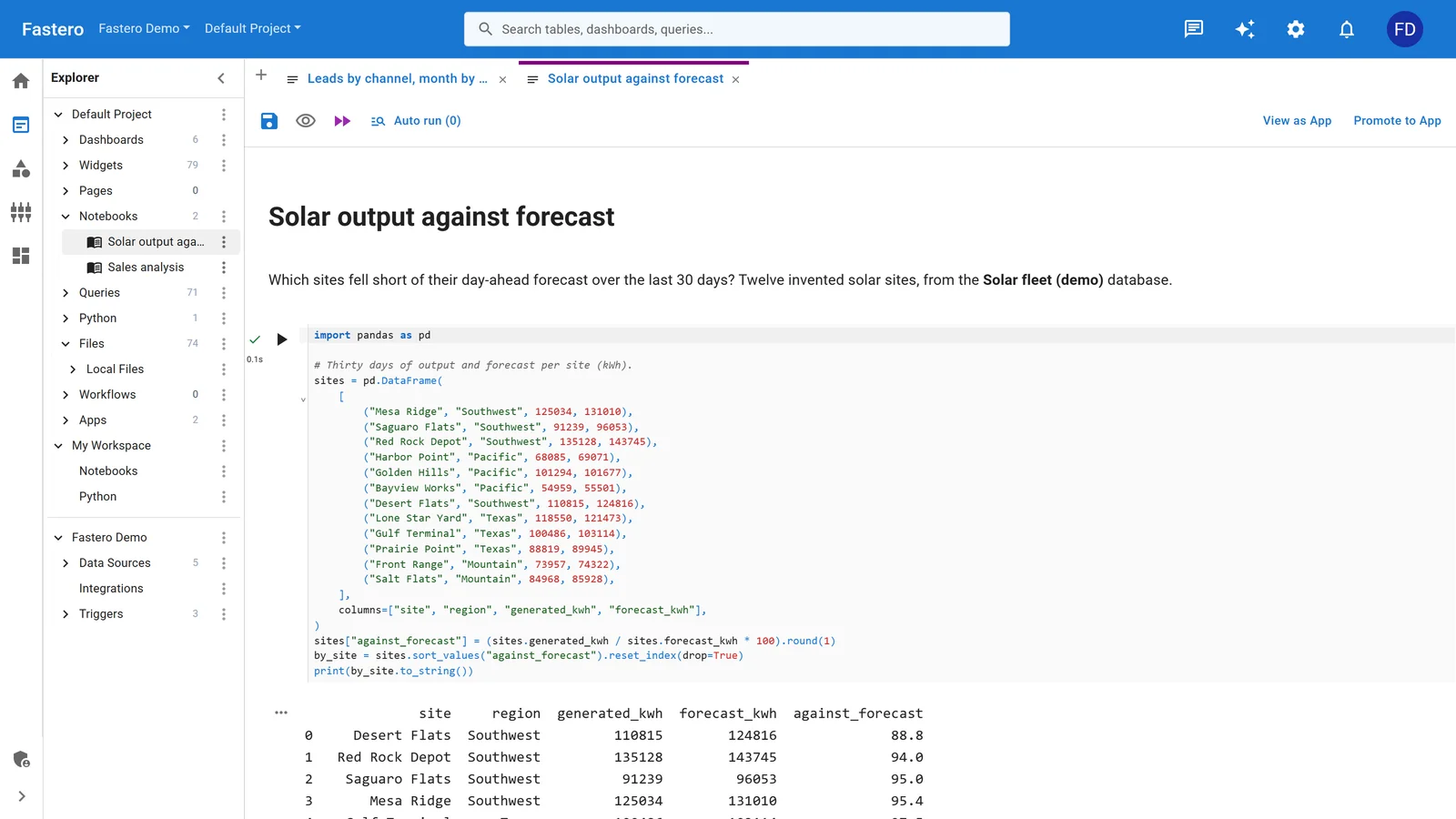
A notebook in a Fastero project, beside the project's queries and data sources. Sample data.
More on sharing a notebook with your team and SQL in a Jupyter notebook.
FAQ
Are Kaggle Notebooks free?
Yes, GPUs and TPUs included, within a weekly quota. Kaggle doesn't charge for notebooks. A verified phone number is needed before GPUs and internet access work.
How many GPU hours does Kaggle give you?
About 30 hours a week by most users' accounts, though Kaggle's documentation gives no number and the quota can change. Your own is in your account settings. Colab Pro subscribers can link accounts for 15 more hours a week, and Pro+ subscribers 30.
How long can a Kaggle notebook run?
Up to 12 hours on CPU or GPU and 9 hours on a TPU. An interactive session ends sooner if it sits idle for 20 minutes, so use Save & Run All for long jobs.
Does a Kaggle notebook keep running if I close the browser?
A run started with Save & Run All does, as its own session. An interactive session doesn't: it stops after 20 idle minutes.
What GPU does Kaggle use?
You choose between one Nvidia Tesla P100 and two Nvidia Tesla T4s. A TPU v3-8 is also available.
Can I schedule a notebook on Kaggle?
Yes. A notebook can rerun daily, weekly or monthly, or when a dataset it uses changes, at most once a day. Kaggle limits how many you can have scheduled.
Is Kaggle better than Colab?
For free GPU time you can plan around, yes: Kaggle states its limits, keeps runs going with the tab closed, and schedules notebooks. Colab is better if your files are in Google Drive or you want to pay for faster GPUs.
Can I keep a Kaggle notebook private?
Yes. Private notebooks can be shared with chosen collaborators, as "Can view" or "Can edit". Public notebooks can be read by anyone, and collaborators on them can edit.
Sources
Read on 31 October 2026:
- Kaggle — Notebooks documentation
- Google — Colab FAQ, Deprecation notice of scheduled notebooks
- GPU quota reports — Free cloud GPUs in 2026 (GPU Per Hour), Using Colab or Kaggle (fast.ai forums)
- Phone verification — Calvin University course lab
Try Fastero free — run everyday notebooks next to your team's data, on a schedule, and share them with a sign-in. No credit card required.