
The right way to share a notebook depends on what the other person has to do with it. Reading it needs nothing but a browser. Running it needs a Python environment with the same packages and data. Working on it with you needs both of you in the same place, with the same permissions.
The short answer: to let someone read it, export it to HTML with jupyter nbconvert --to html notebook.ipynb and send the file, or push it to GitHub and send the link. To let them run it, share it from Google Colab, or put an "Open in Colab" or Binder link next to it on GitHub. To work on it together, and to share it with people who should only see the results, use a team workspace — Fastero, Deepnote or Hex — where colleagues sign in with their own login and viewers are free. Whatever you choose, clear any outputs that show data or keys before it leaves your machine.
11 ways to share a Jupyter notebook
| Way | They can | They need | Cost |
|---|---|---|---|
| Send the .ipynb file | Read, run and edit their copy | Jupyter, VS Code or Colab | Free |
| Export to HTML or PDF | Read | A browser or PDF reader | Free |
| GitHub or a Gist | Read | A browser | Free |
| nbviewer | Read, with interactive plots | A browser | Free |
| Google Colab | Read, comment, edit, run | A Google account to run it | Free, with paid plans |
| Kaggle | Read; run and edit with an account | A Kaggle account to run it | Free |
| Binder | Run, for a session | A browser | Free |
| JupyterLite | Run and edit in their browser | A browser | Free |
| Voilà or Quarto | Use an app, or read a web page | A browser | Free software; you pay for hosting |
| Live co-editing | Edit and run together | Access to the same server | Free software |
| A team workspace | Read, run or edit, by role | A login to the workspace | Free plans; paid per editor |
Before you share: what travels with the file
A notebook carries its outputs. Every table you printed, every chart, every traceback is saved inside the .ipynb file — and so is anything secret that appeared in an output: a printed config, an API key, a connection string in an error message. A 2025 study of leaked credentials by Wiz found .ipynb files to be "by far the most leak-prone file type".
- Clear the outputs if they shouldn't travel:
jupyter nbconvert --clear-output --inplace notebook.ipynb, or Edit → Clear Outputs of All Cells in JupyterLab. In Colab, turn on "Omit code cell output when saving this notebook" in the notebook settings. - Strip outputs from Git automatically with nbstripout:
pip install nbstripout, thennbstripout --installin the repository. Your local copy keeps its outputs; the commits don't. Secrets committed before that stay in the history. - Send what the notebook needs. The data files it reads, its database connections and its Python environment don't travel with it. Add a
requirements.txt, and keep passwords out of the code.
Fastero
Connect your database. Ask questions. Get dashboards.
Postgres, BigQuery, Snowflake, and 10+ sources — live-connected, AI-powered, no dashboard builder learning curve.
Try free →To read it: a file, HTML, PDF, GitHub or nbviewer
The .ipynb file gives the other person everything, but only if they have something to open it: Jupyter, VS Code with the Jupyter extension, or Colab.
HTML opens in any browser, with outputs and charts as they were saved:
jupyter nbconvert --to html notebook.ipynb
jupyter nbconvert --to html --no-input notebook.ipynb   # results only, no code
In JupyterLab, the same is under File → Save and Export Notebook As. Use nbconvert 7.17.1 or later: it fixed a flaw that let a malicious notebook pull local files into the exported HTML with --embed-images.
PDF comes two ways. --to pdf goes through LaTeX, so it needs XeTeX and Pandoc installed. --to webpdf renders the HTML in a headless Chromium: pip install "nbconvert[webpdf]", then playwright install chromium, or add --allow-chromium-download to the command.
GitHub shows .ipynb files with their saved outputs, so for a notebook in a repository, the link is enough. It's a static picture: JavaScript plots and widgets don't work, and GitHub doesn't publish how large a notebook it will render. A Gist works the same way for a single notebook — but a "secret" gist isn't private: anyone with the link can see it.
nbviewer (nbviewer.org) renders any notebook at a public address, including on GitHub, and keeps JavaScript plots from Plotly, Bokeh and Altair interactive. It is still running in 2026, hosted by OVHcloud. It can't reach private repositories, it caches pages for about ten minutes (add ?flush_cache=true to refresh), and it adds an "Execute on Binder" button.
To run it: Colab, Kaggle, Binder and JupyterLite
Google Colab shares a notebook the way Google Docs shares a document: share it from Drive, and choose who can view, comment or edit. The notebook's text, code, outputs and comments go with it; your runtime and any files you uploaded to it don't, so add cells that download what the notebook needs. Each person who runs it does so in their own runtime, signed in to Google. For a notebook on GitHub, the link itself opens it in Colab:
https://colab.research.google.com/github/<org>/<repo>/blob/<branch>/<path>.ipynbKaggle notebooks can be public — readable without signing in, with a "Copy & Edit" button — or private, with collaborators who "Can view" or "Can edit". Sharing a notebook doesn't share its private datasets; invite collaborators to those separately.
Binder turns a public repository into a temporary Jupyter session: paste the repository into mybinder.org and send the link it makes. It builds the environment from the repository's requirements.txt or environment.yml. In the week to 22 October 2026, the first launch after a change took one and a half to two minutes at the median, and seven to nine minutes for the slowest tenth; later launches took 8 to 16 seconds. Sessions get 1–2 GB of memory, stop after ten minutes idle or six hours, and keep nothing. mybinder.org runs on donated capacity, now from three hosts — 2i2c, GESIS and BIDS — so it can turn people away when busy, and there is no private launch: never put keys in a repository you share this way.
JupyterLite runs Jupyter entirely in the visitor's browser, so a notebook can live on a free static site. Start from the jupyterlite/demo template on GitHub, turn on GitHub Pages, and send the address. Python runs on Pyodide in the browser, so only pure-Python packages, or ones built for Pyodide, will install. Each visitor's edits stay in their own browser — which also means someone who opened an earlier version keeps their old copy.
As a page or an app: Voilà and Quarto
Voilà turns a notebook into an app: it runs the notebook, hides the code by default, and keeps widgets working. It needs a live server with WebSockets, and starts a separate kernel for every visitor, so memory grows with the audience. Version 0.5.13, from September 2026, asks before rendering a notebook it doesn't trust. Its sibling Voici builds the same kind of page as a static site that runs in the browser.
Quarto renders a notebook into a web page: quarto render notebook.ipynb uses the outputs saved in the notebook, or reruns it with --execute. quarto publish sends the page to GitHub Pages, Netlify, Posit Connect or Posit Connect Cloud. Don't start anything new on Quarto Pub: it takes no new accounts, stops accepting new or revised content on 31 December 2026, and Posit points people to Connect Cloud, which is free for public pages and charges from $59 a month for private links.
To work on it together: live co-editing
JupyterLab has real-time collaboration through the jupyter-collaboration extension: pip install jupyter-collaboration on the server (version 5 needs JupyterLab 4.6 or later), and everyone who opens the same server edits the same notebook, with their cursors visible. Its Share button can put a token in the link — and anyone holding that link can edit and run code as you on that machine, so use it only on a shared server. JupyterHub 5 and 6 can share one person's server with another, but only through the API for now.
CoCalc, now at cocalc.ai, runs notebooks with live editing and a kernel the collaborators share, plus edit history. VS Code Live Share works with notebooks, but Microsoft still documents that support as a preview with known issues, such as added and moved cells not syncing.
A team workspace: Fastero, Deepnote, Hex and Databricks
When the people you share with are colleagues — and the notebook reads the company's data — a workspace solves the whole problem at once: everyone signs in, the data connections and passwords live in the workspace, and access is a role rather than a copy of a file.
Deepnote lists unlimited viewers on every plan, including the free one, and its Team plan costs $39 per editor a month billed yearly, or $49 monthly. People with a link can read a project without an account but must sign up to run it, and collaborators share one execution environment. Hex keeps projects private until you share them — as Full Access, Can Edit, Can Explore or Can View App — and publishing an app doesn't by itself give anyone access; it bills $36 or $75 per editor a month. Databricks gives notebooks CAN VIEW, CAN RUN, CAN EDIT and CAN MANAGE permissions, and several people can edit the same cell at once.
In Fastero, sharing a notebook with a colleague means inviting them to the project: they sign in with their own login and open it in the browser, with nothing to install. Give them the Viewer role to read the notebook and its results — viewers are free — or the Editor role to work on it with you. Database passwords live in the workspace's Secrets, not in the notebook's code, so they don't travel with it. To share the results rather than the code, promote the notebook to an app behind the same login, hiding the cells you choose, or turn a SQL cell's result into a dashboard widget; a dashboard can also go to people outside the workspace by public link. Notebooks are .ipynb files: upload them, or bring them in from your Git repository.
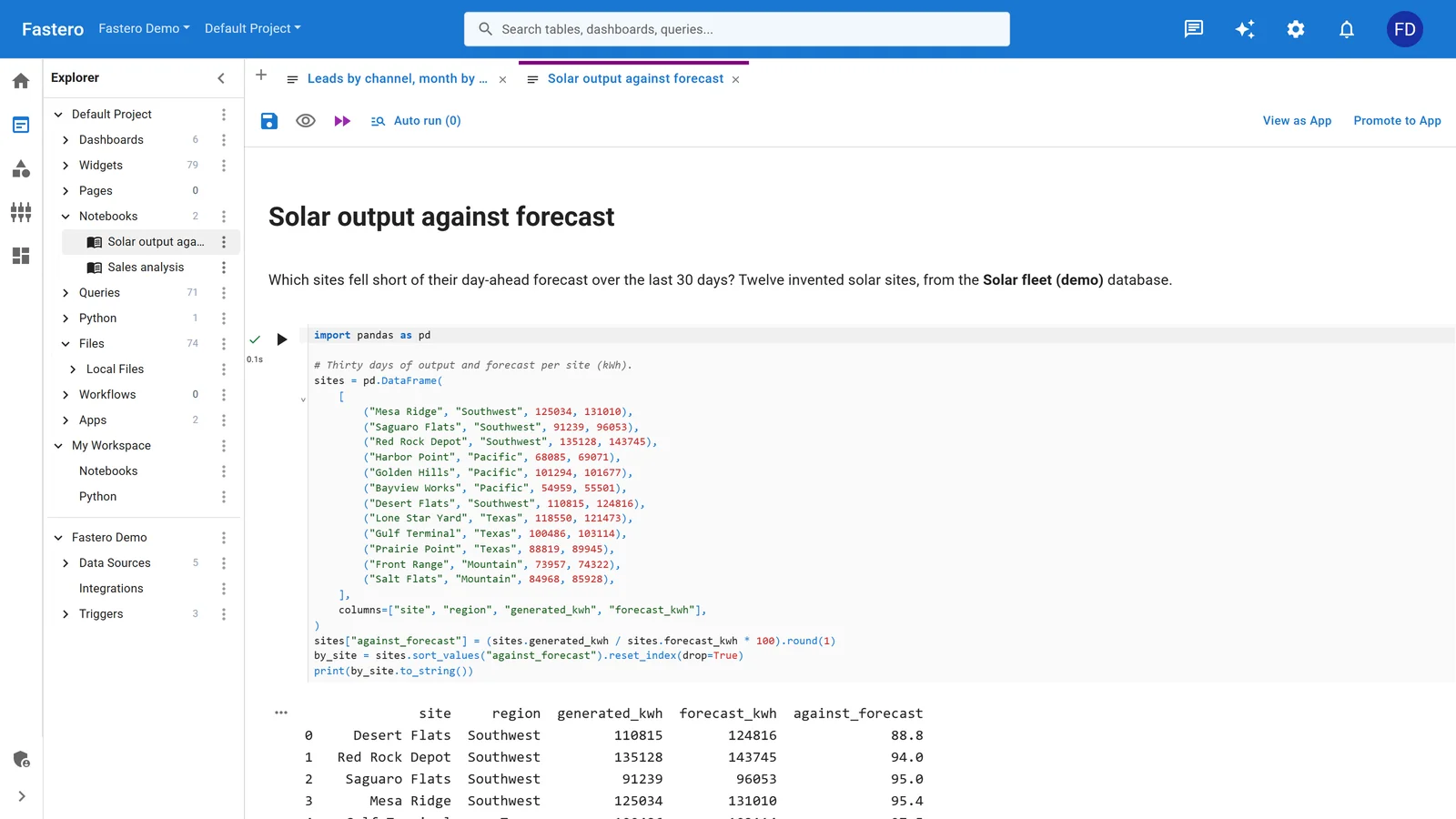
A notebook in Fastero. Promote to App turns it into an app colleagues open with their login. Sample data.
FAQ
How do I share a Jupyter notebook with someone who doesn't have Jupyter?
Export it to HTML with jupyter nbconvert --to html notebook.ipynb and send the file, which opens in any browser. For a notebook on GitHub, send an nbviewer link, or an "Open in Colab" link if they need to run it.
How do I share a Jupyter notebook as a link?
Push it to GitHub and send the file's address, or paste that address into nbviewer.org for a cleaner page. For a link that runs, share it from Google Colab or build a Binder link. In a workspace such as Fastero, Deepnote or Hex, invite the person and send the notebook's address.
How do I share a notebook without the code?
Export it with jupyter nbconvert --to html --no-input notebook.ipynb, turn it into an app with Voilà, or promote it to an app in a workspace such as Fastero, where you choose which cells to hide.
Can two people edit a Jupyter notebook at the same time?
Yes, on a shared JupyterLab server with the jupyter-collaboration extension, and in CoCalc, Deepnote and Databricks. Editing your own copy and sending it back is the fallback.
Is it safe to share a Jupyter notebook?
Only after checking the outputs: they are saved in the file, and they can include data, tracebacks and printed keys. Clear outputs you don't want to send, keep passwords in environment variables or a secret store rather than in cells, and use nbstripout so outputs never reach Git.
Related reading:
- How to schedule a Jupyter notebook
- SQL in Jupyter notebooks
- JupyterHub for a team
- Jupyter notebook online: 12 ways to run Jupyter in your browser
- How to turn a Jupyter notebook into a live dashboard
Sources: nbformat, nbconvert usage, nbconvert options, nbconvert installation, nbconvert releases, CVE-2026-39378, JupyterLab export, GitHub non-code files, Creating gists, nbviewer FAQ, Colab FAQ, Colab and GitHub, Kaggle Notebooks, Binder user guidelines, Binder federation, JupyterLite deployment, Pyodide packages, Voilà, Voilà deployment, Quarto and Jupyter, Quarto Pub, Posit on Connect Cloud, Posit Connect Cloud plans, JupyterLab real-time collaboration, jupyter-collaboration, JupyterHub sharing, CoCalc notebooks, Live Share and notebooks, Deepnote pricing, Deepnote sharing, Hex pricing, Hex roles, Databricks access control, Wiz on leaked secrets, nbstripout. Checked 22 October 2026.
Try Fastero free — share Jupyter notebooks with your team behind a real login, with your data and passwords kept in the workspace. No credit card required.