
Three questions decide how to run SQL from a Jupyter notebook: where the data lives — a database server, a warehouse, or files and DataFrames — whether you want the result back as a DataFrame, and where the password goes. And 2026 changed some of the answers. pandas 3, SQLAlchemy 2.1 and DuckDB 2.0 all shipped breaking changes, Snowflake is ending password-only sign-in, and the best-known %sql extension has gone a year and a half without a release.
The short answer: for a database server, use pandas with SQLAlchemy — pd.read_sql(text(query), engine, params=...) — with the driver named in the URL. For SQL over DataFrames, Parquet or CSV files, use DuckDB. For BigQuery, load bigquery_magics and write %%bigquery cells. For Snowflake, use the connector's fetch_pandas_all() with key-pair sign-in, in an environment of its own. If you'd rather write SQL cells than Python, use a notebook that has them: marimo, Deepnote, Hex, Databricks, Colab Enterprise or Fastero. JupySQL's %%sql still works for many cases, but treat it as unmaintained.
7 ways to run SQL in a Jupyter notebook
| Way | Works with | You get | Best for |
|---|---|---|---|
| pandas + SQLAlchemy | Postgres, MySQL, SQLite and most databases | A pandas DataFrame | Everyday queries from Python |
| Polars | Postgres, MySQL, SQL Server, BigQuery and more | A Polars DataFrame | Large results, read fast |
| DuckDB | DataFrames, Parquet, CSV, S3; Postgres and MySQL by attaching | pandas or Polars | Files and local analysis |
JupySQL (%sql) |
Anything SQLAlchemy connects to | A result set, then a DataFrame | SQL cells in plain Jupyter |
| BigQuery magics | BigQuery | A pandas or BigQuery DataFrame | BigQuery users |
| Snowflake and Databricks connectors | Their warehouses | pandas or Arrow | Teams on those warehouses |
| A notebook with SQL cells | The tool's own connections | A DataFrame for the next cell | Teams who write more SQL than Python |
What changed in 2026
If code from a 2025 tutorial fails, one of these is probably why:
- pandas 3.0 (January 2026) reads text columns as the new
strdtype rather thanobject, parses dates at microsecond resolution (datetime64[us]), removedpd.read_gbq, and needs Python 3.11. - SQLAlchemy 2.1 (September 2026) uses psycopg 3, not psycopg2, for a plain
postgresql://URL, and needs Python 3.11. - DuckDB 2.0 (21 October 2026) removed
fetchone()from the results ofduckdb.sql(...)and.pl()fromexecute()results, writes files that DuckDB 1.5 can't open, and needs Python 3.11. - Polars 2.0 (October 2026) left its database readers alone, but no longer casts strings straight to dates.
- JupySQL hasn't released since March 2025, and its maker's websites no longer resolve.
- Snowflake's connector 5.0 (October 2026) renamed its key-pair passphrase setting and doesn't support pandas 3 yet — and the last phase of Snowflake's password phase-out, rolling out from August to October 2026, blocks password-only sign-in for all users.
- Azure Data Studio, with its SQL notebooks, was retired on 28 February 2026, and Polyglot Notebooks followed in March.
Fastero
Connect your database. Ask questions. Get dashboards.
Postgres, BigQuery, Snowflake, and 10+ sources — live-connected, AI-powered, no dashboard builder learning curve.
Try free →1. pandas and SQLAlchemy
For a database server, this is the default: SQLAlchemy makes the connection, and pd.read_sql returns a DataFrame.
import os
import pandas as pd
from sqlalchemy import URL, create_engine, text

# pip install "psycopg[binary]" sqlalchemy    (or pymysql for MySQL)
url = URL.create(
    "postgresql+psycopg",
    username="analyst",
    password=os.environ["PGPASSWORD"],
    host="db.example.com",
    port=5432,
    database="analytics",
)
engine = create_engine(url)
# MySQL: create_engine("mysql+pymysql://analyst@db.example.com:3306/analytics")
# SQLite: create_engine("sqlite:///shop.db")

sql = text("""
    SELECT id, customer, amount, created_at
    FROM orders
    WHERE amount > :min_amount AND created_at >= :since
""")
with engine.connect() as conn:
    df = pd.read_sql(sql, conn, params={"min_amount": 50, "since": "2026-10-01"},
parse_dates=["created_at"])- Name the driver in the URL. Since SQLAlchemy 2.1, a plain
postgresql://means psycopg 3; writepostgresql+psycopg2://if you still use psycopg2. For MySQL,mysql://means mysqlclient, so writemysql+pymysql://for PyMySQL. - Use
text()with:nameparameters. They work with every driver, unlike each driver's own placeholder style, and they keep values out of the SQL string. URL.createhandles passwords with special characters, and SQLAlchemy masks the password when you print the engine or its URL.- On pandas 3, text columns arrive as
strand parsed dates asdatetime64[us], so code that checks forobjectdtype breaks. Addchunksize=50_000to read a large result in pieces. - pandas wants a SQLAlchemy engine or connection, a sqlite3 connection, or an ADBC connection; hand it a raw psycopg connection and you get a warning.
2. Polars
Polars reads straight from a connection URI, using ConnectorX by default, and can split a large query into parallel reads:
import os
from urllib.parse import quote_plus
import polars as pl     # pip install "polars[database]"

uri = f"postgresql://analyst:{quote_plus(os.environ['PGPASSWORD'])}@db.example.com:5432/analytics"
df = pl.read_database_uri("SELECT * FROM orders", uri)
df = pl.read_database_uri("SELECT * FROM orders", uri, partition_on="id", partition_num=8)
With a SQLAlchemy connection instead, pl.read_database(query, connection=conn, execute_options={"parameters": {...}}) takes bound parameters. ADBC drivers, which hand over Arrow data that both Polars and pandas accept, are the other engine: the Postgres and SQLite drivers are on PyPI, while the Snowflake and BigQuery drivers left the Apache project in July 2026 and now install with Columnar's dbc tool.
3. DuckDB
DuckDB runs SQL inside the notebook's own process — over DataFrames already in memory, over files, and over remote databases you attach:
import duckdb
import pandas as pd     # DuckDB 2.0

sales = pd.DataFrame({"region": ["EU", "US", "EU"], "revenue": [100.0, 250.0, 75.5]})
by_region = duckdb.sql("SELECT region, SUM(revenue) AS revenue FROM sales GROUP BY region").df()

duckdb.sql("SELECT * FROM 'data/*.parquet'").df()
duckdb.sql("SELECT * FROM read_csv('sales.csv')").df()

con = duckdb.connect()
con.execute("INSTALL postgres; LOAD postgres;")
con.execute("ATTACH '' AS pg (TYPE postgres, READ_ONLY)")   # reads PGHOST, PGUSER, PGPASSWORD...
recent = con.sql("SELECT * FROM pg.public.orders WHERE amount > 50").df()
DataFrames are found by their variable names, .df() and .pl() return pandas or Polars, and S3 files work once you create a secret (CREATE SECRET (TYPE s3, PROVIDER credential_chain)). Leave the password out of an ATTACH string: DuckDB warns that a failed connection can print the whole string, credentials included.
DuckDB 2.0 breaks some 2025 code. duckdb.sql(...).fetchone() now raises — use .fetchall(), .df() or .pl() — and con.execute(...).pl() is gone, replaced by con.sql(...).pl(). A half-read execute() result also blocks the connection until you read it to the end. And a database file written by 2.0 can't be opened by 1.5 unless you set storage_compatibility_version.
4. JupySQL: the %sql magics
JupySQL turns a cell into SQL in plain Jupyter, with any SQLAlchemy URL:
%pip install jupysql "psycopg[binary]"
%load_ext sql
%sql postgresql+psycopg://analyst@db.example.com:5432/analytics%%sql big_orders <<
SELECT customer, amount FROM orders WHERE amount > 50big_orders.DataFrame() turns the result into pandas, and %config SqlMagic.autopandas = True does that for every query. JupySQL reads a DATABASE_URL environment variable on its own, so the password needn't appear in the notebook. Its {{var}} placeholders paste text into the SQL, quotes and all, so never use them with untrusted input; for real bound parameters, turn on %config SqlMagic.named_parameters = "enabled" and write :var. %sqlplot draws histograms, box plots, bars and pies with the aggregation done in the database.
The catch is maintenance. JupySQL's last release, 0.11.1, came out in March 2025; its documentation moved after the ploomber.io domain stopped resolving, and an outside fix submitted in September 2026 went unreviewed until its author withdrew it. In our test on 22 October 2026, querying a pandas DataFrame by name over a native DuckDB 2.0 connection failed, while the same test passed on DuckDB 1.5.6; through %sql duckdb:// it still worked. Use that, or pin duckdb<2, if you rely on it. The original ipython-sql calls itself a "Legacy project" and last released in February 2023.
5. BigQuery: bigquery-magics
The %%bigquery magic now lives in its own package:
%pip install bigquery-magics
%load_ext bigquery_magics%%bigquery top_names --project my-gcp-project --params {"min_year": 2000}
SELECT name, SUM(number) AS total
FROM `bigquery-public-data.usa_names.usa_1910_current`
WHERE year >= @min_year
GROUP BY name ORDER BY total DESC LIMIT 10The result lands in top_names as a pandas DataFrame. On your own machine, sign in once with gcloud auth application-default login. The old %load_ext google.cloud.bigquery still works, but warns. Google's newer %%bqsql magic, from %load_ext bigframes, runs the SQL in BigQuery and can join local DataFrames, which it uploads as temporary tables. And on pandas 3, replace pd.read_gbq with pandas_gbq.read_gbq.
6. Snowflake and Databricks
Snowflake is ending password-only sign-in. In the final phase, rolling out account by account from August to October 2026, every human user needs a second factor to sign in with a password, and service accounts can't use passwords at all. For a notebook, use key-pair sign-in, or a programmatic access token passed as the password:
import os
import snowflake.connector     # pip install "snowflake-connector-python[pandas]"

conn = snowflake.connector.connect(
    account=os.environ["SNOWFLAKE_ACCOUNT"],
    user=os.environ["SNOWFLAKE_USER"],
    authenticator="SNOWFLAKE_JWT",
    private_key_file=os.environ["SNOWFLAKE_PRIVATE_KEY_FILE"],
    private_key_password=os.environ.get("SNOWFLAKE_PRIVATE_KEY_PASSPHRASE"),
    warehouse="ANALYTICS_WH", database="ANALYTICS", schema="PUBLIC",
)
with conn.cursor() as cur:
    cur.execute("SELECT * FROM orders WHERE order_date >= %(since)s", {"since": "2026-01-01"})
    df = cur.fetch_pandas_all()
Connector 5.0, from October 2026, renamed the passphrase setting from private_key_file_pwd to private_key_password. Its pandas support still requires pandas below 3, Snowpark still needs connector 4, and snowflake-sqlalchemy needs SQLAlchemy 2.0 — so keep Snowflake work in its own environment, on pandas 2.3. connect(connection_name="...") reads everything from a connections.toml file instead of the notebook.
Databricks has its own SQL connector, with :name parameters and Arrow results:
import os
from databricks import sql     # pip install "databricks-sql-connector[pyarrow]"

with sql.connect(server_hostname=os.environ["DATABRICKS_SERVER_HOSTNAME"],
                 http_path=os.environ["DATABRICKS_HTTP_PATH"],
                 access_token=os.environ["DATABRICKS_TOKEN"]) as conn:
    with conn.cursor() as cur:
        cur.execute("SELECT * FROM samples.nyctaxi.trips WHERE trip_distance > :min_dist LIMIT 1000",
                    {"min_dist": 5})
        df = cur.fetchall_arrow().to_pandas()
7. Notebooks with SQL cells
Some notebooks treat SQL as a cell type of its own, with the connection set up once and the result handed to the next Python cell:
- marimo: a SQL cell is
df = mo.sql(f"..."), running on DuckDB by default over the DataFrames in scope, or on any SQLAlchemy or DB-API connection, and returning Polars or pandas. - Deepnote: SQL blocks run against connected databases, or against DataFrames and CSV files with DuckDB, and save the full result as a pandas DataFrame.
- Hex: warehouse SQL cells in the connection's own dialect, plus DataFrame SQL in DuckDB's; Jinja parameters are sent as prepared statements.
- Databricks:
%sqlcells, with the last result available to Python as_sqldfand, on recent runtimes, a name of your choice with%sql --name. - Colab Enterprise: SQL cells became generally available in April 2026, each saving its result as a BigQuery DataFrame named after the cell.
- PyCharm Professional: SQL cells in Jupyter notebooks, saving results as pandas DataFrames. JetBrains folded DataSpell into PyCharm in September 2026.
In Fastero, a notebook mixes Python cells with SQL cells. A SQL cell picks one of the workspace's connected databases and runs on Fastero's side with the connection's stored credentials, so there's no password in the notebook, and the rows arrive in Python as a pandas DataFrame under the name you give the cell. For Python code that connects on its own, database passwords and keys live in the workspace's Secrets and reach the notebook as environment variables — read them with os.environ. Notebooks run Python 3.11 with pandas, SQLAlchemy and the Postgres and BigQuery drivers installed. A SQL cell's result can become a widget on a dashboard, the workspace has a SQL editor for queries on their own, and Claude can run SQL against the same connections through Fastero's connector.
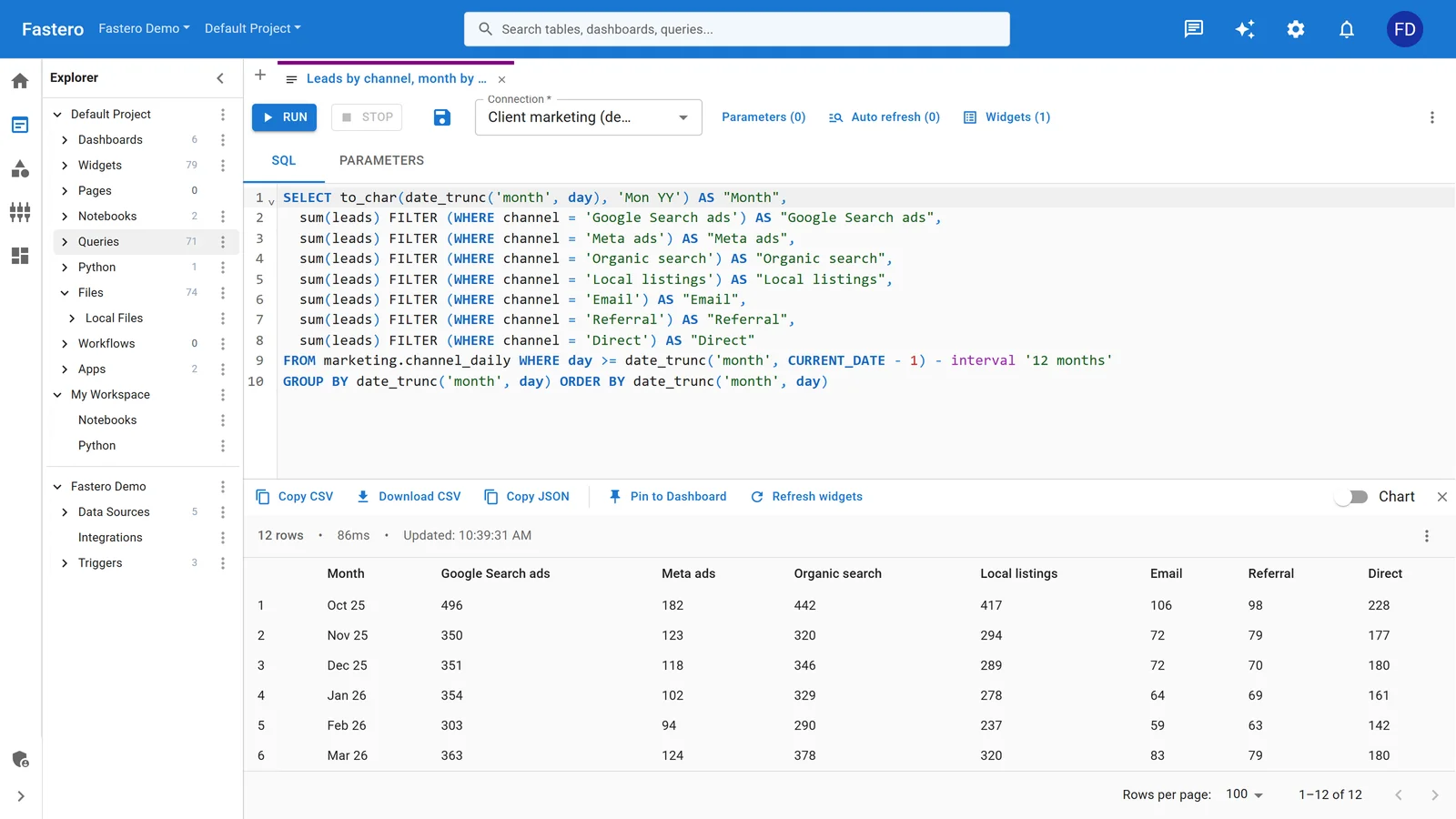
The SQL editor in Fastero. Sample data.
Keep the password out of the notebook
Notebooks leak secrets more than other files do, because typing a variable's name prints it and the output is saved with the file; Wiz found .ipynb to be "by far the most leak-prone file type" in public code. Ways to keep credentials out:
- Environment variables, set outside the notebook and read with
os.environ, as in the examples above. Postgres tools also readPGHOST,PGUSERandPGPASSWORDthemselves, and a.pgpassfile. - python-dotenv: keep a
.envfile beside the notebook, add it to.gitignore, and load it withload_dotenv()or the%dotenvmagic. - keyring stores the password in the operating system's own credential store:
keyring.get_password("analytics-db", "analyst"). - getpass asks for it when the cell runs, so nothing is saved.
- A secret manager: AWS Secrets Manager, Google Secret Manager, Azure Key Vault, Databricks secrets or Colab's Secrets.
- Strip outputs before committing with nbstripout (
nbstripout --install), so nothing printed reaches Git.
FAQ
Can you run SQL in a Jupyter notebook?
Yes. Run it from Python with pandas and SQLAlchemy, Polars or DuckDB; use the %sql and %%sql magics from JupySQL; or use a notebook with SQL cells, such as marimo, Deepnote, Hex, Databricks, Colab Enterprise or Fastero.
How do I connect a Jupyter notebook to PostgreSQL?
Install psycopg[binary] and sqlalchemy, then build the engine with create_engine(url), where the URL starts with postgresql+psycopg:// and the password comes from an environment variable. Read queries with pd.read_sql(text(query), engine).
How do I put SQL query results into a pandas DataFrame?
pd.read_sql(text("SELECT ..."), engine, params={...}) returns a DataFrame. DuckDB's .df(), JupySQL's .DataFrame(), Snowflake's fetch_pandas_all() and BigQuery's %%bigquery df_name all return one too.
What is the %%sql magic, and is it still maintained?
%%sql comes from JupySQL, a fork of the original ipython-sql: it turns a cell into SQL against any SQLAlchemy connection. It still works, but its last release was in March 2025 and outside fixes go unreviewed, so pin your versions — DuckDB 2.0 already broke one of its paths.
How do I query a pandas DataFrame with SQL?
Use DuckDB: duckdb.sql("SELECT ... FROM df").df() finds the DataFrame by its variable name. marimo, Deepnote and Hex offer the same in SQL cells.
How do I connect a notebook to Snowflake now that password-only sign-in is ending?
Use key-pair sign-in — authenticator="SNOWFLAKE_JWT" with private_key_file and private_key_password — or a programmatic access token passed as the password, and keep both out of the notebook in environment variables or a connections.toml file.
Related reading:
- How to schedule a Jupyter notebook
- How to share a Jupyter notebook
- JupyterHub for a team
- DuckDB vs Postgres for analytics
- Postgres MCP server
Sources: pandas 3.0 release notes, pandas.read_sql, SQLAlchemy 2.1 migration, SQLAlchemy engines, Polars read_database_uri, Polars read_database, Polars 2 upgrade guide, ADBC drivers, ADBC 24 release, DuckDB 2.0 announcement, DuckDB Python migration, DuckDB SQL on pandas, DuckDB Postgres extension, DuckDB S3 import, JupySQL, JupySQL docs, JupySQL parameters, ipython-sql, bigquery-magics, BigQuery and Python with %%bqsql, Snowflake Python connector 2026 release notes, Snowflake connector and pandas, Snowflake MFA rollout, Snowflake key-pair authentication, Snowflake programmatic access tokens, Databricks SQL connector, marimo SQL, Deepnote SQL cells, Hex SQL cells, Databricks notebook code, Colab Enterprise SQL cells, PyCharm SQL cells, DataSpell sunset, Azure Data Studio retirement, Wiz on leaked secrets, python-dotenv, keyring, nbstripout. Checked 22 October 2026.
Try Fastero free — SQL cells and Python in one notebook, on your team's databases, with no password in the code. No credit card required.