
A notebook that builds a weekly report shouldn't need someone to open it and click Run All. Scheduling one takes two pieces: a command that runs the notebook from top to bottom without a browser, and something that starts that command on a timetable, on a machine that is switched on at the time.
The short answer: to run a notebook from the command line, use jupyter nbconvert --to notebook --execute --inplace report.ipynb, or papermill if each run needs parameters such as a date. To schedule it on a server you already have, put that command in cron or a systemd timer, or in Task Scheduler on Windows. With no machine of your own, GitHub Actions runs it free in a public repository, and Kaggle reruns notebooks daily, weekly or monthly for free. For notebooks a team shares, on the company's data, use a workspace that schedules them: Fastero does it on its Free plan, Deepnote and Hex on their paid Team plans.
9 ways to run a Jupyter notebook on a schedule
| Way | A machine of yours stays on? | Cost | Best for |
|---|---|---|---|
| cron or a systemd timer | Yes | Free | A Linux or Mac server you already run |
| Windows Task Scheduler | Yes | Free | A Windows machine that stays on |
| Jupyter Scheduler | Yes, with JupyterLab running | Free | Scheduling from inside JupyterLab |
| GitHub Actions | No | Free for public repositories; 2,000 minutes a month for private ones | Notebooks kept in a GitHub repository |
| Airflow or Dagster | Yes, their scheduler | Free software | Teams already running an orchestrator |
| Kaggle | No | Free | Notebooks on public data |
| Databricks Jobs | No | By usage; Free Edition for non-commercial use | Notebooks already in Databricks |
| Colab Enterprise, Workbench, SageMaker | No | You pay for each run's machine | Teams on Google Cloud or AWS |
| A notebook workspace | No | Fastero's Free plan; Deepnote $39 and Hex $75 per editor a month | Team notebooks on company data |
Step 1: run the notebook without a browser
Three commands run a notebook headlessly, and all three are maintained.
nbconvert runs every cell and saves the result:
jupyter nbconvert --to notebook --execute --inplace --ExecutePreprocessor.timeout=1800 report.ipynb--inplace writes the new outputs into the notebook itself; without it you get report.nbconvert.ipynb beside the original, or a name of your choice with --output. A failing cell stops the run unless you add --allow-errors. For a report without the code, jupyter nbconvert --to html --no-input --execute report.ipynb writes an HTML page.
Set the timeout yourself. nbconvert's docs still say a cell times out after 30 seconds, but the current code has no limit, so a stuck database query hangs the job forever. Use version 7.17.1 or later, which fixed two security issues; 7.17.2 came out on 12 October 2026.
jupyter execute, from nbclient, does the same job with a shorter command, but it throws the results away unless you add --inplace or --output:
jupyter execute --inplace --timeout=1800 report.ipynbpapermill is the one to use when each run needs different inputs. Tag a cell parameters (in JupyterLab, through the property inspector), and papermill inserts your values after it and writes a separate copy of the notebook for each run:
mkdir -p out
papermill report.ipynb out/report-2026-10-22.ipynb -p run_date 2026-10-22 --execution-timeout 1800
If a cell fails, papermill still writes the output notebook, with an error banner at the top, and exits with an error, so whatever scheduled it sees the failure. Three things to know: it runs in the folder you start it from, not the notebook's folder, unless you pass --cwd; it refuses to write to an output folder that doesn't exist yet; and cells have no time limit unless you set one. Version 2.7.0, released in February 2026 after almost two years without a release, supports Python 3.10 to 3.13.
Fastero
Connect your database. Ask questions. Get dashboards.
Postgres, BigQuery, Snowflake, and 10+ sources — live-connected, AI-powered, no dashboard builder learning curve.
Try free →On a machine you run: cron, systemd and Task Scheduler
A scheduler on your own machine is free and simple, and it only works while that machine is on. The classic failure is the environment. cron doesn't log in as you: it sets only SHELL, LOGNAME and HOME, so your shell profile and your activated virtual environment aren't there, and it starts the job in your home folder. The fix is to call the environment's own papermill or jupyter by its full path, which works without activating anything, and to cd into the project first.
cron, on Linux or macOS, every day at 06:30:
30 6 * * * cd /home/me/report && mkdir -p out && /home/me/report/.venv/bin/papermill report.ipynb out/report-$(date +\%F).ipynb --execution-timeout 1800 >> /home/me/report/cron.log 2>&1The backslash before % matters: in a crontab line, an unescaped % becomes a newline. cron mails a job's output only if the machine can send mail, so write it to a log file. And plain cron doesn't run jobs it missed while the machine was off.
A systemd timer catches up after downtime with Persistent=true:
# /etc/systemd/system/nb-report.service
[Service]
Type=oneshot
User=me
WorkingDirectory=/home/me/report
ExecStart=/home/me/report/.venv/bin/papermill report.ipynb report-out.ipynb --execution-timeout 1800
TimeoutStartSec=1h

# /etc/systemd/system/nb-report.timer
[Timer]
OnCalendar=*-*-* 06:30:00
Persistent=true

[Install]
WantedBy=timers.target
Turn it on with sudo systemctl enable --now nb-report.timer, and read the runs with journalctl -u nb-report.service. Keep TimeoutStartSec: a one-shot service has no time limit by default.
Windows Task Scheduler, from PowerShell:
$a = New-ScheduledTaskAction -Execute "C:\report\.venv\Scripts\jupyter.exe" -Argument "nbconvert --to notebook --execute --inplace report.ipynb" -WorkingDirectory "C:\report"
$t = New-ScheduledTaskTrigger -Daily -At 6:30am
$s = New-ScheduledTaskSettingsSet -StartWhenAvailable
Register-ScheduledTask -TaskName "Notebook report" -Action $a -Trigger $t -Settings $s
Use PowerShell rather than schtasks, whose documented options have no way to set the folder the task starts in. -StartWhenAvailable runs a missed task as soon as the computer is back on, and Windows stops any task after 72 hours unless you change it.
Inside JupyterLab: Jupyter Scheduler
Jupyter Scheduler is the official JupyterLab extension for running notebooks as jobs. Install it with pip install jupyter_scheduler, then pick a notebook, choose "Run now" or a schedule — hourly, daily or a cron expression — set parameters, and choose Notebook or HTML output. Version 2.12.1, from August 2026, works with JupyterLab 4, though this year's releases only update its dependencies.
The catch is in its design: jobs run inside the Jupyter server, so nothing runs while JupyterLab is closed — or, on a JupyterHub, once the server has been stopped for being idle. The default setup has no failure email, time limit or retries, and jobs run in a staging folder, so files next to the notebook are missing unless you tick "Run job with input folder".
With no machine of your own: GitHub Actions
If the notebook lives in a GitHub repository, GitHub's own runners can run it on a timetable:
name: daily-notebook
on:
  schedule:
    - cron: "17 6 * * *"          # 06:17 every day
      timezone: "Europe/Berlin"   # optional; without it, the time is UTC
  workflow_dispatch:              # adds a "Run workflow" button for testing
jobs:
  run:
    runs-on: ubuntu-latest
    timeout-minutes: 30
    steps:
      - uses: actions/checkout@v7
      - uses: actions/setup-python@v7
        with:
          python-version: "3.13"
      - run: pip install -r requirements.txt   # papermill, ipykernel and your libraries
      - run: mkdir -p out && papermill report.ipynb out/report.ipynb -p run_date "$(date +%F)" --execution-timeout 1200
        env:
          DB_URL: ${{ secrets.DB_URL }}
      - uses: actions/upload-artifact@v7
        with:
          name: report
          path: out/
The rules to know:
- Schedules run in UTC unless you add
timezone:, which became possible in March 2026; older tutorials say UTC only. - The shortest interval is five minutes, and runs at the top of the hour can start late or be dropped when GitHub is busy — hence the odd minute.
- In a public repository, schedules switch themselves off after 60 days without repository activity, and failure notices go only to the person who last edited the schedule.
- Public repositories run free. Private ones get 2,000 minutes a month on the Free plan, and a job can run for at most six hours.
- Secrets reach the notebook only through
env:, as above. Since 1 October 2026, run history is kept for 90 days by default.
If you already run an orchestrator: Airflow and Dagster
Airflow still has a Papermill provider: PapermillOperator runs a notebook as a task, with parameters, and version 3.13.3 (October 2026) has been moved to Airflow 3's task SDK. Don't copy the provider's own example as it is: it names the output with {{ execution_date }}, which Airflow 3 removed — use {{ logical_date }} or {{ ds }}. Dagster's dagstermill runs notebooks as assets or ops, with its APIs still labelled beta. Prefect archived its Jupyter integration in March 2026; inside a Prefect flow, call papermill directly. All three need their own scheduler running somewhere.
Hosted platforms that schedule notebooks
Kaggle reruns a notebook for free — daily, weekly or monthly, or whenever a dataset it uses changes, at most once a day — with 12-hour sessions. Kaggle limits how many notebooks you can schedule without publishing the number, and your work lives on Kaggle.
Databricks runs a notebook as a task in Lakeflow Jobs, on a simple schedule or with Quartz cron syntax, and sends failure alerts by email, Slack or webhook. Databricks Free Edition allows jobs too, for non-commercial use, with at most five tasks running at once and a daily quota that shuts compute off for the rest of the day if you go over it.
On Google Cloud, Colab Enterprise schedules a notebook once or on a recurring cron schedule and stores each run's result as an .ipynb file in Cloud Storage; an edit takes effect only after you deploy the notebook. The Workbench executor — Workbench was renamed Agent Platform Workbench in April 2026 — runs a notebook even while your instance is shut down. Both bill for the machine each run uses. Consumer Colab added scheduling for Pro+ in 2022, but Google's current Colab pages list only background execution.
Amazon SageMaker Notebook Jobs run a notebook as a training job, on demand or on a schedule, from JupyterLab or the SageMaker Python SDK, and you pay for the instance — an ml.m5.large by default. SageMaker uses papermill underneath, so a cell that runs pip install and then needs a kernel restart will fail; put packages in a startup script instead.
For a team: Deepnote, Hex and Fastero
Deepnote schedules notebooks on its Team plan ($39 per editor a month, billed yearly) — daily, weekly or monthly, with hourly and custom cron schedules on Enterprise — and sends notices of successful and failed runs by email or Slack. A project can have one scheduled notebook, and schedules run with the OAuth tokens of whoever set them up, which can expire.
Hex includes scheduled runs and alerts on its Team plan ($75 per editor a month); the $36 Professional plan gets one scheduled run per project. Runs are at most hourly, may start up to ten minutes late, and always run the published version of the app, so republish after editing. Files written during a scheduled run aren't kept.
In Fastero, a scheduled notebook runs on Fastero's servers, so nothing of yours has to stay on, and scheduling is part of the Free plan. Notebooks are .ipynb files — upload them, or bring them in from your Git repository — and a schedule is a cron expression attached to the notebook. Every run gets the same environment: Python 3.11 with pandas, SQLAlchemy, seaborn and the Postgres and BigQuery drivers; database passwords from the workspace's Secrets, as environment variables; and SQL cells that query the workspace's databases directly. Each run saves its outputs into the notebook, so colleagues who sign in see the latest results — viewers are free — and a SQL cell's result can feed a dashboard. Claude can read the notebook and run it too, through Fastero's connector.
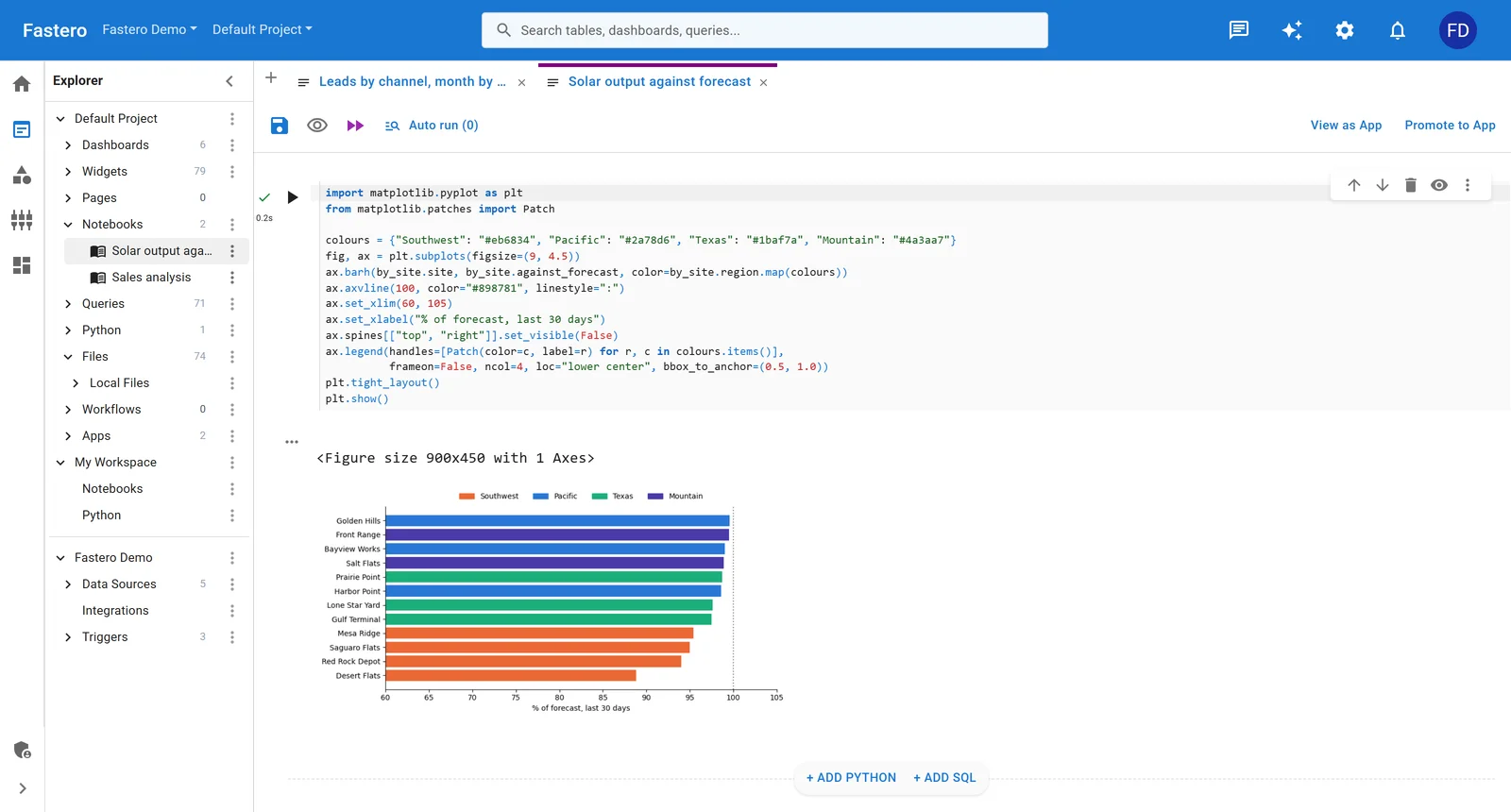
A notebook in Fastero: a Python cell and the chart it drew. Sample data.
What goes wrong when a notebook runs unattended
- The wrong environment or kernel. The notebook's metadata names a kernel, which may not exist where the job runs, or may point at a different Python. Install
ipykernelin the environment, register it withpython -m ipykernel install --user --name myenv, check withjupyter kernelspec list, and pin it: papermill-k myenv,jupyter execute --kernel_name=myenv, or nbconvert's--ExecutePreprocessor.kernel_name=myenv. - Relative paths. The folder a run starts in depends on the tool: the notebook's own folder for nbconvert and
jupyter execute, the launch folder for papermill, your home folder under cron, and a staging folder in Jupyter Scheduler. Build paths from a project folder, or pass--cwd. - Missing credentials. Keys that live in your interactive shell don't exist under cron, and GitHub secrets arrive only through
env:. Keep them out of the notebook and pass them in explicitly. - No time limit. nbconvert,
jupyter executeand papermill all let a cell run forever by default. Set a per-cell timeout and a cap for the whole job. - Failures nobody hears about.
--allow-errorslets a broken run finish and look like a success, and cron's mail only arrives if the machine can send it. Let errors exit with a failure code, and add a check that alerts you when a run doesn't happen at all: Healthchecks.io stays silent while your job's pings arrive on time, and raises an alert when one doesn't.
Names you'll see in older tutorials
- Noteable, a hosted notebook service with scheduling, shut down in December 2023.
- Vertex AI Workbench managed notebooks, and the executor that came with them, are gone: Google deleted the remaining instances on 30 March 2026.
- prefect-jupyter was archived in March 2026.
- Databricks Community Edition was retired in 2025 for the Free Edition, and SageMaker Studio Lab no longer accepts new customers.
FAQ
How do I run a Jupyter notebook automatically every day?
Run it with a command — jupyter nbconvert --to notebook --execute --inplace report.ipynb, or papermill for parameters — and schedule that command: cron or a systemd timer on Linux and macOS, Task Scheduler on Windows, or GitHub Actions if no machine of yours stays on. A workspace such as Fastero, Deepnote or Hex can schedule the notebook for you.
How do I run a Jupyter notebook from the command line?
jupyter nbconvert --to notebook --execute --inplace notebook.ipynb runs every cell and saves the outputs into the notebook. jupyter execute --inplace notebook.ipynb does the same, and papermill in.ipynb out.ipynb -p name value runs it with parameters and writes a separate copy.
Can JupyterLab schedule notebooks?
Yes, with the Jupyter Scheduler extension, which adds cron schedules, parameters, and Notebook or HTML output. Its jobs run only while the Jupyter server is running.
Can Google Colab run a notebook on a schedule?
Colab Enterprise, on Google Cloud, can run one once or on a recurring schedule. Consumer Colab added scheduling for Pro+ in 2022, but Google's current plan pages list background execution, not scheduling.
Does my computer need to stay on?
For cron, Task Scheduler, systemd timers and Jupyter Scheduler, yes: they run on your machine. GitHub Actions, Kaggle, the cloud services and notebook workspaces run the notebook on their own machines.
How do I pass parameters to a scheduled notebook?
Use papermill: tag a cell parameters, then pass values with -p name value, or a YAML file with -f. papermill writes them into a new cell after the tagged one. Jupyter Scheduler, SageMaker Notebook Jobs and the Workbench executor accept parameters too.
Related reading:
- How to share a Jupyter notebook
- SQL in Jupyter notebooks
- JupyterHub for a team
- Python cron job: how to schedule a Python script
- How to turn a Jupyter notebook into a live dashboard
Sources: nbconvert, nbconvert execute API, nbconvert changelog, nbclient, nbclient CLI, papermill, papermill parameters, papermill execution, papermill troubleshooting, crontab(5), cron(8), Python venv, systemd.timer, systemd.service, New-ScheduledTaskAction, schtasks create, Task Scheduler StartWhenAvailable, Task Scheduler time limit, Jupyter Scheduler, Jupyter Scheduler user guide, GitHub Actions schedule event, GitHub Actions time zones, GitHub Actions billing, GitHub Actions limits, GitHub Actions retention, Airflow Papermill provider, Upgrading to Airflow 3, dagstermill, prefect-jupyter, Kaggle Notebooks, Databricks scheduled jobs, Databricks Free Edition limitations, Colab Enterprise schedules, Workbench executor, Workbench managed notebooks, Colab release notes, SageMaker Notebook Jobs, Deepnote scheduling, Deepnote pricing, Hex scheduled runs, Hex pricing, Healthchecks.io. Checked 22 October 2026.
Try Fastero free — put a Jupyter notebook on a schedule, next to your team's data, with nothing of yours to keep running. No credit card required.