 Fastero Dev Team
A Claude connector lets Claude reach another app: read your documents, query a database, file a ticket, post in Slack. Anthropic's directory lists thousands of them, and a service that isn't listed can still be added by its address.
The short answer: in claude.ai, open Customize → Connectors, choose Discover, search for the service, click Connect to Claude and sign in to it. If it isn't in the directory, choose Add custom connector and paste its address; a Free account can add one, paid plans more. On Team and Enterprise plans an Owner adds a connector for the organization first, and each person then connects their own account. Check the label before you connect: Verified connectors had Anthropic's closer review, Community connectors were screened, and Custom ones weren't reviewed at all.
Fastero
Point Claude at your database.
Add Fastero to claude.ai or Claude Code. Claude builds the dashboard, deploys the app or publishes a live page, and your team opens it in Fastero.
Try free →What a Claude connector is
A connector is a connection to an MCP server, a service a company runs so that AI assistants can use its product. In Anthropic's words, "An MCP server gives Claude access to your product or data, and people who use Claude see it as a connector." Claude works with your permissions in the connected service, so it can't see a file, channel or record the service wouldn't show you.
Connectors are one of four ways to extend Claude, all found under Customize in claude.ai and the desktop app:
| What it is | Where it works | |
|---|---|---|
| Connector | A link to a remote MCP server that you sign in to | claude.ai, the desktop and mobile apps, Cowork and Claude Code |
| Desktop extension | A local MCP server, packaged as a .mcpb file, that runs on your computer |
The Claude desktop app |
| Skill | Written instructions, with optional scripts, that Claude loads when a task calls for them | Every plan, including Free |
| Plugin | A package of skills, connectors, commands and agents | Pro and above; adding one doesn't sign you in to its connectors |
Anthropic's shorthand: "MCP connectors give Claude access to a tool or data source, and skills teach it how to do a task the way you or your team does it."
How to add a connector from the directory
- In claude.ai, open Customize → Connectors. In the desktop app, Customize is in the sidebar.
- Choose Discover. Type the service into Search connectors, or browse by category, and open its listing. Every listing carries a Verified or Community label.
- Click Connect to Claude. A few connectors first ask for a server address or the region your account is in.
- Sign in to the service and approve what Claude may do there. On the web this happens in the same tab; the desktop app opens your browser.
- Back in Claude, the connector appears under Your connectors as Connected.
You need an account with the service itself, and some services need a paid plan of their own. Connecting doesn't switch the connector on in every chat; that's a separate step, below.
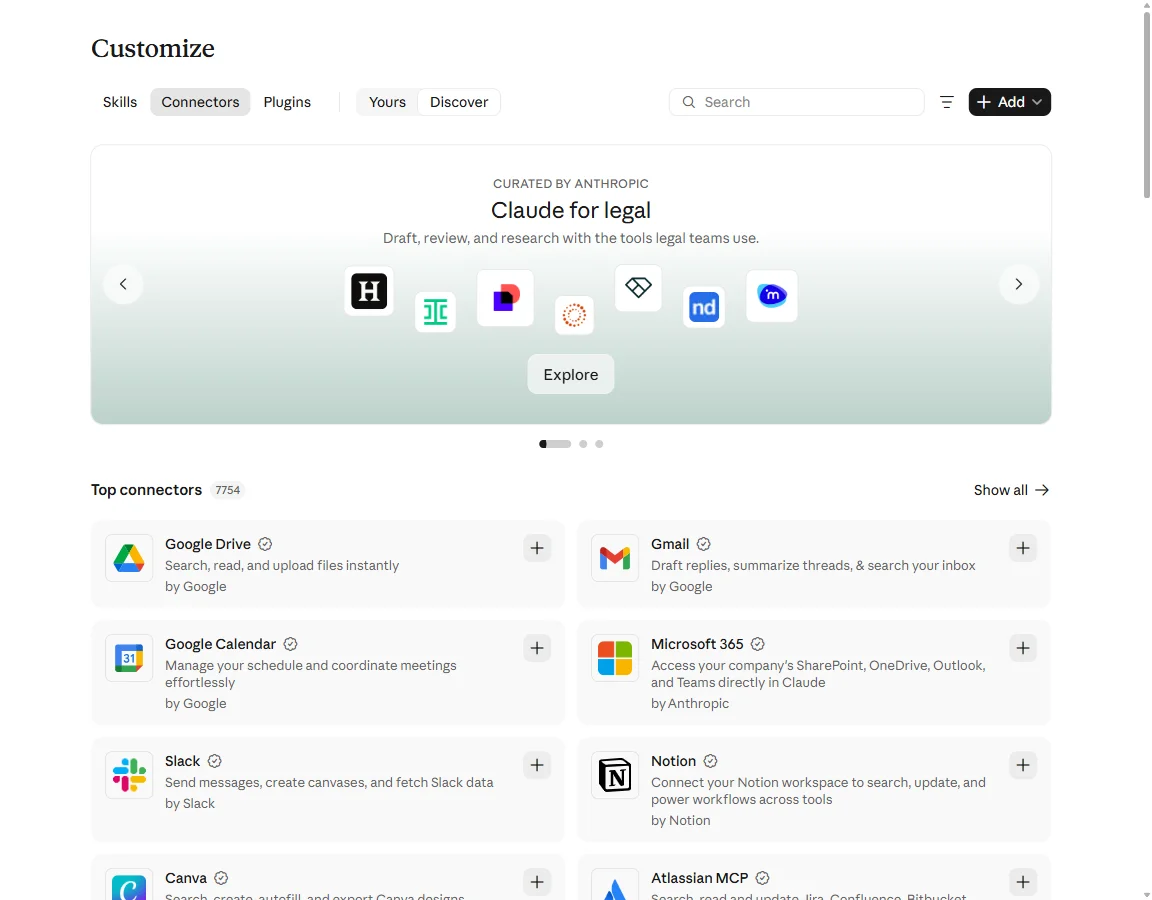
Customize → Connectors → Discover in claude.ai. The checkmarks mark Verified connectors.
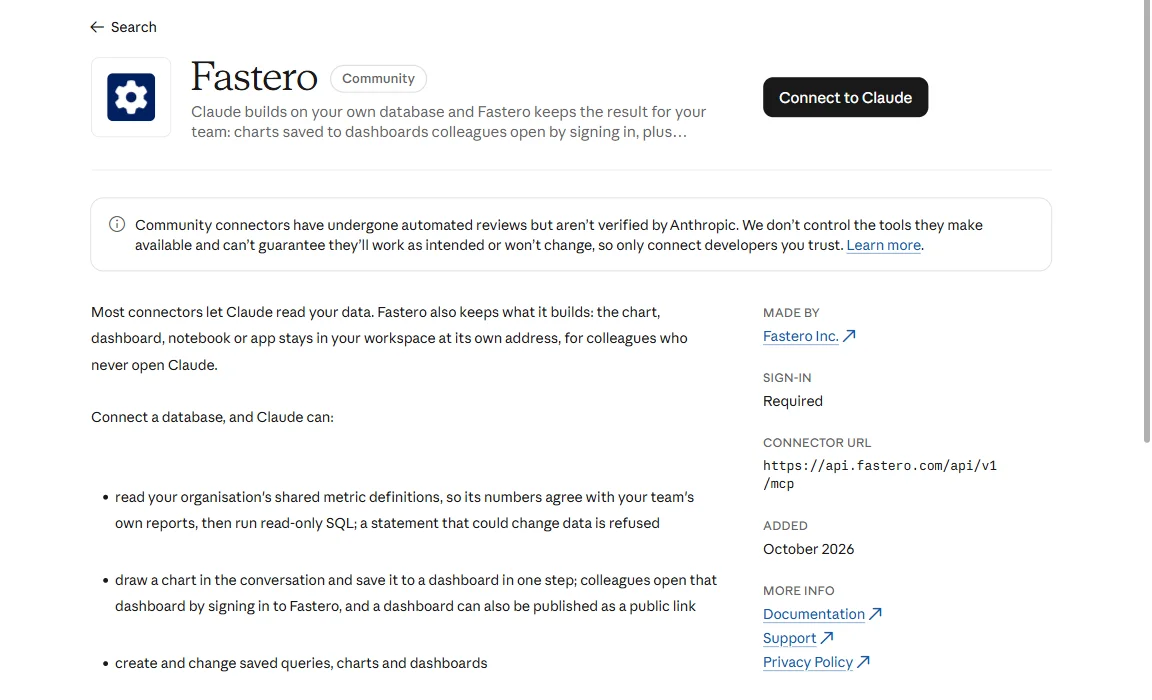
A listing opened from the directory: its label, Anthropic's note on Community connectors, and Connect to Claude.
How to add a custom connector
When a service gives you a connector address but isn't in the directory, or you run your own MCP server:
- Open Customize → Connectors, click Add and choose Add custom connector.
- Give it a name and paste its address, an HTTPS URL such as
https://mcp.example.com/mcp, then click Continue. - Choose how it signs in, Sign in now, Sign in when needed or No sign-in, and how Claude registers with it. Claude marks the settings it detects from the server; Advanced holds the rest, such as request headers for an API key.
- Click Add, then Connect, and sign in.
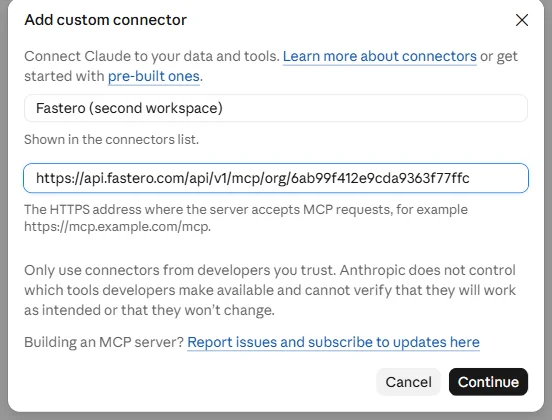
Step 1 of Add custom connector: a name and the server's address.
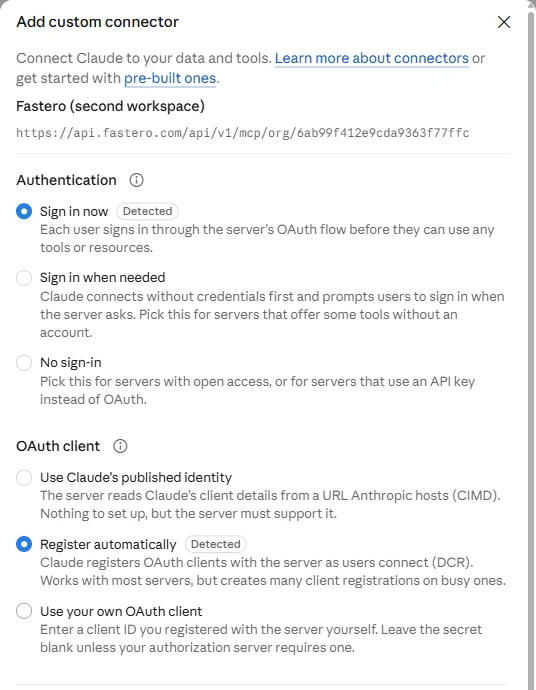
Step 2: how the connector signs in. Claude detected both settings from the server.
Three things trip people up:
- Claude connects from Anthropic's cloud, not from your computer. A server on your laptop, behind a VPN or inside a private network can't be reached unless it lets in Anthropic's published IP addresses. A server that only runs on your own machine belongs in the desktop app instead.
- Sign-in settings can't be changed later. You can rename a custom connector or change its address, but to change how it signs in you remove it and add it again.
- One connector per address. claude.ai won't add a second connector with an address it already has.
A service can also send you a link that opens the dialog already filled in, in the form https://claude.ai/customize/connectors?modal=add-custom-connector&connectorName=…&connectorUrl=…. You check the name and address and confirm; nothing is added before you do.
Which plans get connectors
| Plan | Directory connectors | Custom connectors |
|---|---|---|
| Free | Yes | One |
| Pro, Max and Ultra | Yes | Yes; Anthropic publishes no cap |
| Team | Yes, once an Owner adds them | Added by an Owner |
| Enterprise | Yes, once an Owner adds them | Added by an Owner, or a role allowed to |
Connectors work on the web, in the desktop app and in Cowork, and the ones you've added work in the iOS and Android apps. Adding a connector from a phone is in beta, so add custom connectors on the web or the desktop app.
Team and Enterprise: an Owner adds it first
- An Owner opens Organization settings → Connectors, chooses Browse connectors, picks the connector and adds it for the team. From Customize → Connectors the same button reads Connect for your team, and its arrow offers Connect just for me. A custom connector is added with Add → Custom → Web.
- Each member finds it under Customize → Connectors, clicks Connect and signs in with their own account. Adding a connector for the team doesn't give anyone access by itself.
- A member who can't add connectors sees Request instead of Connect. The request reaches the Owner under Organization settings → Notifications → Requests. Requests are on by default on Team, and off on Enterprise until an Owner turns on Let members request connectors.
Owners can also set each tool to Always allow, Needs approval or Blocked for the whole organization. Members can't loosen those settings, and the connected service's own permissions still apply on top. On these plans, connectors are only available in private projects. More on seats and sharing in the Claude Team plan.
Turn a connector on in a chat, and decide what it may do
Connected isn't the same as switched on. In the message box, click +, then Connectors, and flip the switch for each connector you want in this conversation. Switching one off keeps you signed in.
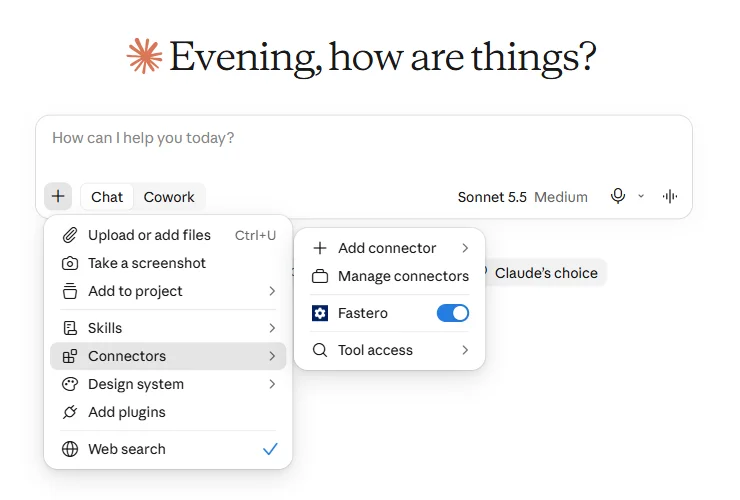
+ → Connectors in a chat: a switch per connector, and Tool access below.
The first time Claude calls a tool, it asks you: Allow once or Always allow. To decide ahead of time, open the connector under Customize → Connectors and set each tool, or each group of tools, to Always allow, Needs approval or Blocked. Anthropic's advice is to keep Always allow for servers you trust and to block the write tools you don't need. Once a data connector is on, here's what to ask first.
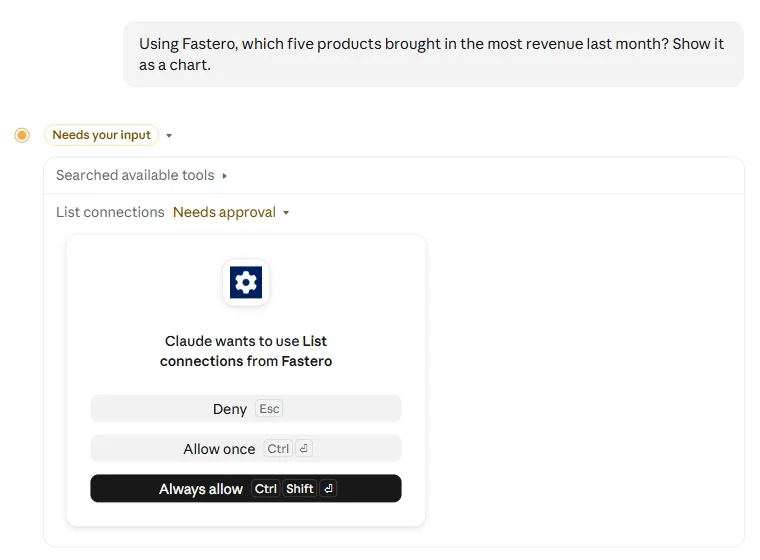
The approval prompt, the first time Claude calls one of a connector's tools.
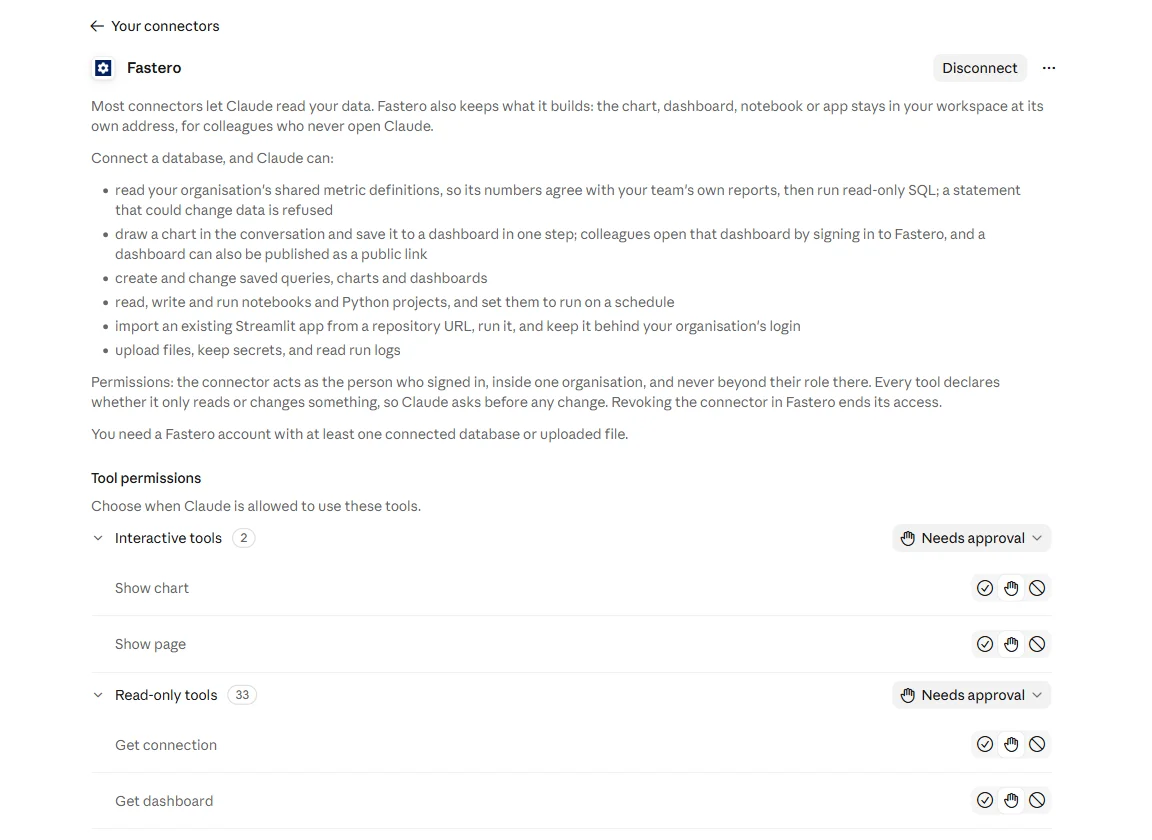
Tool permissions for a connected connector: per group and per tool.
With many connectors, + → Connectors → Tool access decides how Claude loads their tools: Auto (the default), Always available, or On demand. Anthropic suggests On demand once you have ten or more connectors; it adds a search step but leaves more room in long chats.
To disconnect, open the connector under Customize → Connectors and choose Disconnect, or remove it from the three-dot menu.
Verified, Community and Custom: what the labels mean
Every directory listing carries a label. Anthropic says the label reflects how much review the connector received, not what it can do: once connected, a Community connector has the same access as any other.
- Verified. "Anthropic has tested a Verified connector's tools for quality and compatibility." These show a checkmark. Anthropic adds that verification "isn't a security audit or a guarantee of how the connector will perform."
- Community. Built by a third-party developer: "Anthropic screens Community connectors before listing them but hasn't reviewed them in depth." Claude shows a reminder before you connect one.
- Custom. You added it yourself, and Anthropic hasn't reviewed it.
Anthropic scans every submission automatically and lists it as Community by default. It may then move the listings it judges most useful to Claude users into a Verified review, in which reviewers test each tool. There is no application for the Verified label.
Point Claude at your database.
Connect Claude →Are Claude connectors safe?
A connector can read data and, if its tools allow, create, change or delete it, acting as you. Anthropic's guidance comes down to five habits:
- Connect only to servers from organizations you trust, and read the permissions the sign-in screen asks for.
- Expect prompt injection: text inside a document, an email or a web page can try to steer Claude. Claude has protections, but watch what a tool sends and receives.
- Use Always allow only for servers you trust, set tools you don't need to Blocked, and switch off connectors you aren't using in a chat.
- Remember that the developer runs the server: "A connector's developer controls which tools it exposes and can change them at any time."
- On Team and Enterprise plans, a connector that uses a shared API key gives everyone that key's access, so use a key that can do little.
Data you reach through a connector is handled by that service, under its own terms. Our MCP security guide covers what to check in a server before you give it real data.
Connectors in Claude Code
Sign in to Claude Code with your claude.ai account and the connectors you added in claude.ai are there automatically, in the terminal and in cloud sessions; /mcp lists them. Three conditions apply:
- It works only with a claude.ai subscription login. With an API key, Amazon Bedrock or a
claude setup-tokencredential, connectors aren't loaded;/statusshows which one you're using. - Connectors load when a session starts, so restart Claude Code after adding one.
- Microsoft 365, Gmail and Google Calendar have to be connected in claude.ai, not with
claude mcp add.
A server you add with claude mcp add stays on that computer and isn't added to your claude.ai account. Our guide to the MCP servers worth adding to Claude Code has the commands.
Interactive connectors
Some connectors draw a small app inside the conversation instead of returning only text: a chart you can hover over, a board you can drag cards on, a design you can edit. The directory marks them Interactive, and Claude asks before it displays one. Anthropic's current list is Amplitude, Asana, Box, Canva, Clay, Figma, Hex and Slack, and others have interactive tools too: Fastero's charts draw inside the chat, as below. How interactive connectors work.
The most popular connectors
Ranked by use in Anthropic's catalog on 27 October 2026, the top twelve were Google Drive, Gmail, Google Calendar, Canva, Microsoft 365, Notion, Figma, Slack, Atlassian, HubSpot, Asana and Linear.
For data work, Snowflake, BigQuery, Databricks, ClickHouse, Metabase, Hex, Tableau, Amplitude, Stripe, Supabase and PostHog all have connectors; our guide to the best Claude connectors for data analysis says what each can do. GitHub isn't in the directory: it is a built-in integration that adds repositories to a chat or project.
When a connector doesn't show up or won't connect
| What you see | What to do |
|---|---|
| Connected, but Claude doesn't use it | Switch it on for this chat under + → Connectors. With many connectors, set Tool access to Always available. |
| Request instead of Connect | Your organization's Owner has to add it; the request goes to them. |
| Sign-in fails | Disconnect and connect again under Customize → Connectors, and check you have an account, and the right plan, with the service. |
| Reconnect next to a connector | The sign-in expired or was revoked. Click it and sign in again. |
| A custom connector times out | The server isn't reachable from the internet, or a firewall blocks Anthropic. It needs a public HTTPS address. |
| Missing in Claude Code | Check /status for a claude.ai login, then restart Claude Code. |
| A tool fails on a big request | claude.ai takes about 150,000 characters per tool result and 240 seconds per call. Ask for less at a time. |
Example: connecting Fastero
Fastero is an AI and data platform where people and AI agents work together on a team's data, and it is in Claude's connector directory as a Community connector. Connected, Claude can query your team's databases, build dashboards your colleagues open with their own login, deploy Streamlit apps, and email a dashboard to people every Monday: work that is still there after the chat ends.
- Open Customize → Connectors → Discover, search for Fastero and click Connect to Claude.
- Sign in to Fastero, or create a free account, and choose the workspace Claude should work in.
- Approve the permissions. Claude acts as you, in that one workspace, and never beyond what your own account may do there.
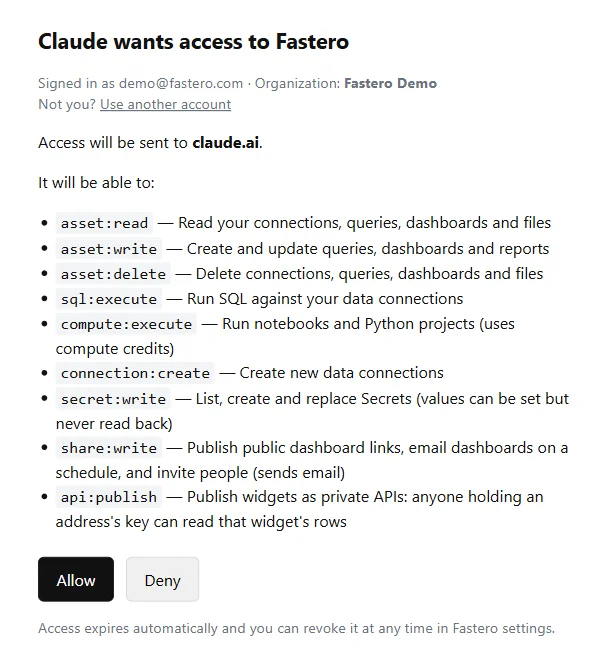
Fastero's approval page, after Connect to Claude and signing in.
Then ask in plain words. Here, a question about the demo workspace's sales database; Claude ran the SQL through Fastero and drew the chart in the chat, with a button that saves it to a dashboard colleagues can open:
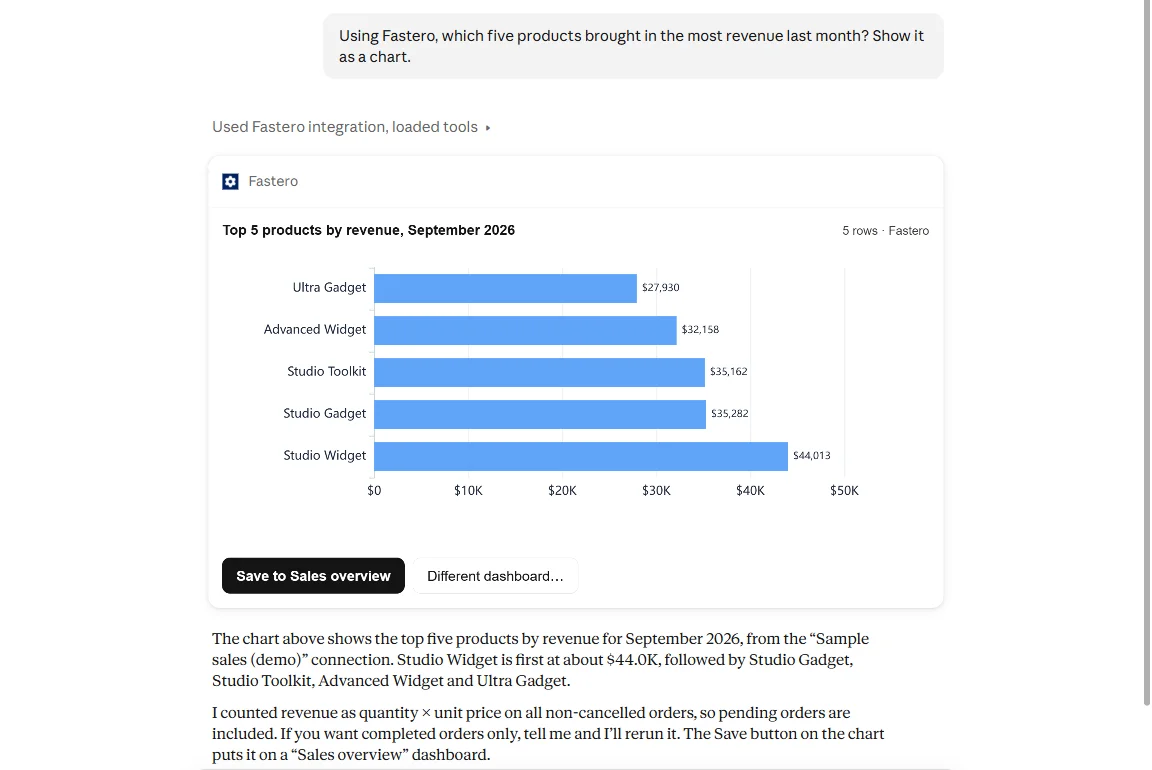
Fastero's chart inside Claude. Sample data.
To use a second Fastero workspace at the same time, add it as a custom connector with that workspace's own address, which Fastero shows under Settings → AI Agent Access.
FAQ
What are Claude connectors?
Connections from Claude to other apps and services, such as Google Drive, Slack, Notion or a database. Each one links Claude to an MCP server the service runs, so Claude can find information there and take actions for you, with your permissions.
Are Claude connectors free?
Directory connectors are available on every Claude plan, including Free, and a Free account can add one custom connector. The service you connect may need its own account or paid plan.
How many connectors does Claude have?
Thousands. On 27 October 2026 the directory inside claude.ai counted 7,754 connectors, while Anthropic's public catalog at claude.com showed 1,023 connectors and 530 plugins.
What's the difference between a connector and an MCP server?
The MCP server is what a company runs; the connector is what you see and connect to in Claude. Every connector is a connection to a remote MCP server, while a desktop extension runs an MCP server on your own computer.
How do I remove a connector?
Open it under Customize → Connectors and choose Disconnect to sign Claude out, or Remove from the three-dot menu to take it off your list. Owners remove a connector for the whole organization under Organization settings → Connectors.
Why doesn't my connector show up in a chat?
Connected connectors still have to be switched on for each conversation, under + → Connectors. If you have many, set Tool access to Always available so Claude loads its tools up front.
Do connectors work in the Claude mobile app?
Yes. Connectors you've added work in the iOS and Android apps, interactive ones included. Adding a connector from a phone is in beta, so add custom connectors on the web or the desktop app.
Sources
- Anthropic — Getting started with connectors, Connector verification, Add an unlisted connector, Directory and custom connectors
- Anthropic support — Use connectors to extend Claude's capabilities, Get started with custom connectors using remote MCP, Use interactive connectors in Claude, Manage Claude's tool access
- Claude Code — Use MCP servers from claude.ai
- The catalog — Connectors and plugins, Claude Marketplace
Try Fastero free — connect Fastero from Claude's connector directory and turn its answers into dashboards, apps and weekly reports your team opens with their own login. No credit card required.