
Claude Code is very good at SQL. Point it at a Postgres database and it will find the right tables, write the joins and tell you last month's revenue in seconds. Then the answer sits in your terminal, where nobody else on your team will ever see it.
This tutorial closes that gap. In about fifteen minutes you will connect Claude Code to your database through Fastero, ask for a dashboard in one sentence, and send a teammate a link they open with their own login, with numbers that refresh from the database. No Docker, no BI tool to learn, and no credentials pasted into a chat.
What you'll build
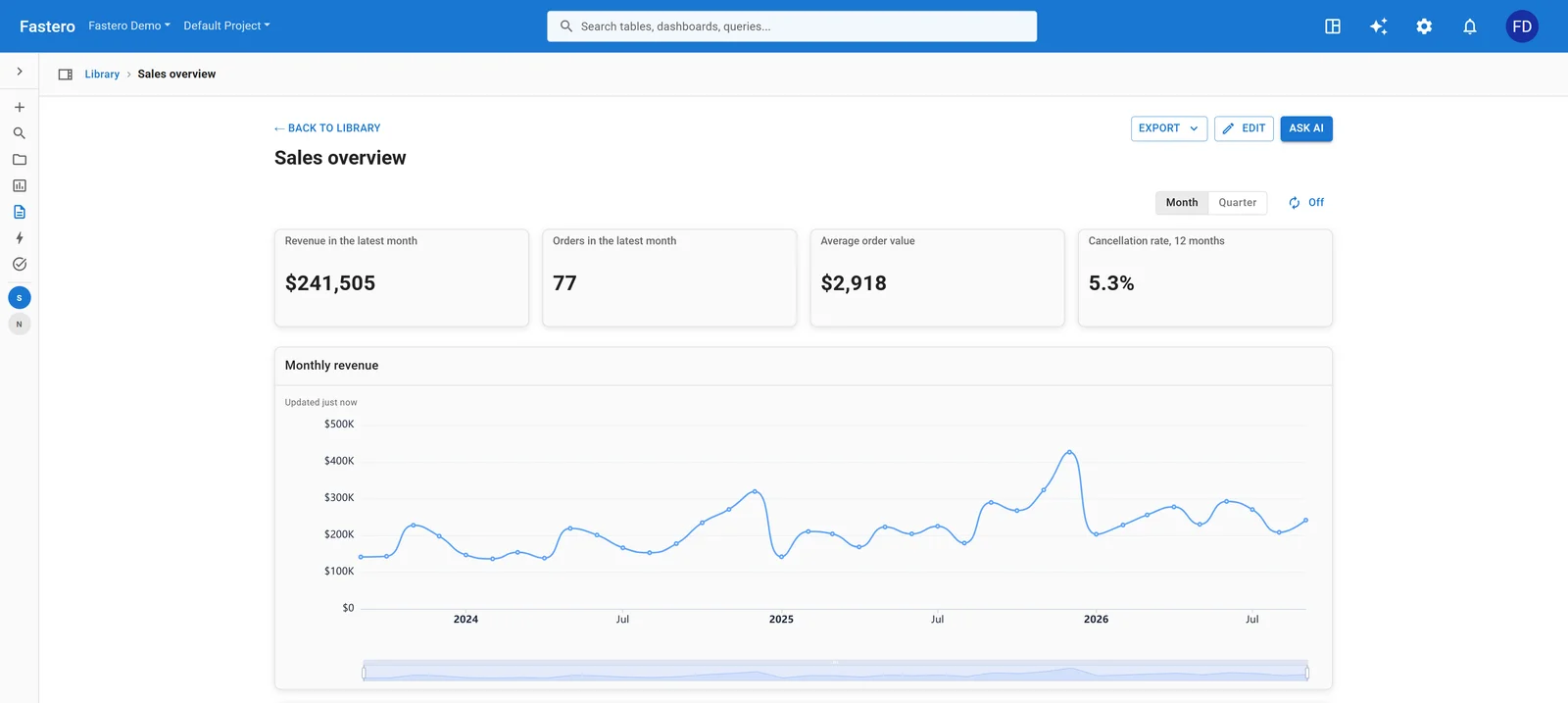
A "Sales overview" dashboard, like the one pictured above: revenue, orders, average order value and cancellation rate for the latest month, a monthly revenue trend, revenue by channel and the top products. It lives in your Fastero workspace, its numbers come straight from Postgres, and your team opens it in the browser.
What you need
- Claude Code, or claude.ai if you prefer to work in the browser. Both work the same way.
- A Fastero account. Free to start, no card needed.
- A Postgres database. Your own, or the sample below.
No database handy? Use the sample
Download fastero-sample-sales.sql — three years of orders for 60 invented companies across four tables (customers, products, orders, order_items) in a schema called demo. Load it into any empty Postgres, such as a free Neon or Supabase project:
psql "postgresql://USER:PASSWORD@HOST/DATABASE?sslmode=require" -f fastero-sample-sales.sqlIt also creates a read-only role, demo_reader, that can only SELECT in the demo schema and stops any query after 30 seconds. Give it a password, and use that login for everything below:
ALTER ROLE demo_reader PASSWORD 'pick-something-long';Every order date is relative to the day you load it, so "last month" always has data.
Fastero
Connect your database. Ask questions. Get dashboards.
Postgres, BigQuery, Snowflake, and 10+ sources — live-connected, AI-powered, no dashboard builder learning curve.
Try free →Step 1: Connect Claude to Fastero
Pick one of two ways. Both give Claude the same tools.
Sign in through claude.ai (easiest). In claude.ai, add https://api.fastero.com/api/v1/mcp as a custom connector, sign in to Fastero, choose your workspace and approve the permissions. Claude Code signed in with the same claude.ai account picks the connector up automatically; it appears in /mcp.
Or use a key. In Fastero, open Settings → Developers → AI Agent Access → Create key, and click Build dashboards so the key may connect a database and create dashboards. The key is shown once, with a command ready to paste:
claude mcp add --scope user --transport http fastero https://api.fastero.com/api/v1/mcp --header "Authorization: Bearer fst_pat_..."Run /mcp in Claude Code. You should see fastero · connected.
Either way, Claude acts as you, in one workspace, and never beyond what your own account may do there. Revoking the key or the connector ends it immediately.
Step 2: Connect your database
You have two options here too.
In Fastero (recommended). Open Connections → New connection → PostgreSQL, enter the host, database, the read-only user and its password, and save. Fastero tests the connection before saving it. Claude then uses the connection by name, and the password never appears in your conversation.
Or ask Claude. If you'd rather stay in the terminal:
Connect to my Postgres at
HOST, databaseDATABASE, userdemo_reader, and tell me what tables are there. Use sslMode require.
Claude creates the connection in Fastero, tests it and lists the tables. Give it the password from an environment variable rather than typing it into the chat, so it doesn't sit in your history.
Use a read-only user. Whatever database you connect, give Fastero a role that can only read. The sample's demo_reader is one; for your own database:
CREATE ROLE fastero_reader LOGIN PASSWORD 'pick-something-long';
GRANT USAGE ON SCHEMA public TO fastero_reader;
GRANT SELECT ON ALL TABLES IN SCHEMA public TO fastero_reader;
If the connection is refused, your database probably accepts only known addresses. The connection screen in Fastero lists the addresses to allow.
Step 3: Ask for the dashboard
Now the one-sentence part:
Build me a dashboard called "Sales overview" on that connection: revenue, orders, average order value and cancellation rate for the latest month, revenue by month over the last two years, revenue by channel, and the ten products with the most revenue. Use completed orders only.
Claude reads the tables, writes a query for each piece, saves the queries in Fastero, turns each one into a number card, chart or table, and lays them out on a dashboard. When it finishes, it replies with the dashboard's link.
If Claude asks which project to use, name one; the default project is fine.
Step 4: Check the numbers
Open the link. Every widget keeps the SQL it was built from: open a widget's menu to see its query, and check it the way you'd check a colleague's. Did "revenue" use the right columns? Did "completed orders only" make it into every query?
When something is off, say so in plain words:
The cancellation rate should count cancelled orders over all orders in the last 12 months, not just last month. Fix that card.
Claude edits the query behind that card and the dashboard updates. You can also change any widget yourself in Fastero's chart editor.
Step 5: Share it with your team
This is the step a chat answer can't do.
- Invite a teammate. Click the share icon next to the dashboard in Fastero's Explorer and choose Invite. They sign in with their own login and land on the dashboard. Or ask Claude: "Invite alex@example.com to this project as a viewer."
- Send it every Monday. Ask Claude: "Email this dashboard to sam@example.com and alex@example.com every Monday at 8am." Each recipient gets a PDF of the whole dashboard, run fresh that morning, and colleagues in your workspace get a button into the live version. Anyone can stop a report from its own email.
- A link for people without an account. The same share menu's Share link tab publishes a read-only copy anyone with the link can open, and you can revoke it at any time.
Your teammates don't need Claude or a database login of their own. The numbers come from your saved queries, refreshed from Postgres.
Step 6: Keep it current
A dashboard you open in Fastero runs its queries against your database. To keep open screens and shared links current without anyone clicking refresh, use the dashboard's refresh control: refresh on a timer, or whenever the data changes.
From here, the same conversation can go further:
- "Add a filter for channel at the top."
- "Add a tab for customers by country and segment."
- "Turn this into a Streamlit app the sales team can filter by customer." Claude writes the app, deploys it behind your Fastero login and hands back its link.
In claude.ai, Claude can also draw a chart right in the conversation from the same connection, and one click saves it to the dashboard.
Troubleshooting
/mcp doesn't show Fastero. Re-run the claude mcp add command exactly as Fastero printed it, on one line. If you used the claude.ai connector, make sure Claude Code is signed in with the same claude.ai account.
"Connection refused" or a timeout. Allow Fastero's addresses in your database's network settings; they're listed on the connection screen. For a managed database, also check SSL is required.
Claude can query but not build. The key needs the Build dashboards permissions. Create a new key with that option.
A chart looks wrong. Open the widget's query first: most surprises are a filter the prompt didn't mention, like cancelled orders or test accounts. Tell Claude the rule once, and ask it to apply it everywhere.
FAQ
Does Claude see my database password?
Not if you create the connection in Fastero. Claude then refers to the connection by name, asks Fastero to run SQL, and gets rows back; stored credentials are never returned to it.
Can I do this in claude.ai instead of Claude Code?
Yes. Add the Fastero connector in claude.ai and use the same prompts. In claude.ai you also get charts drawn in the conversation, and live pages that appear right in the chat.
Which databases work besides Postgres?
The same steps work for MySQL and Snowflake, which connect with a username and password. BigQuery and Google Sheets connect with a Google sign-in in Fastero first; after that, Claude uses them the same way.
Will the dashboard update when my data changes?
Yes. Each widget runs its saved query against your database, and the dashboard's refresh control can update open screens on a timer or whenever the data changes.
What's the difference between this and a Postgres MCP server?
A database MCP server lets Claude run queries. Fastero runs the queries too, then keeps what Claude built — the dashboard, the schedule, the sharing — somewhere your team opens next week. See the best MCP servers for data analysis for the database-only options, and how to share a Claude artifact with your team for how this compares with sharing from Claude itself.
Try Fastero free — connect Claude Code to your Postgres and get a dashboard your team opens with their own login. No credit card required.