 Fastero Dev Team
An .ipynb file is a Jupyter notebook: code, its results and notes in one document. Windows and Mac don't open one by themselves, but you don't need to install anything to read or even run it.
The short answer: to run it now with nothing installed, go to jupyter.org/try, open JupyterLab and click Upload, or use File → Upload notebook in Google Colab. To only read it, put it on GitHub or open it in a text editor. On a computer with Python, run pip install notebook and then jupyter notebook yourfile.ipynb. In VS Code, install the Jupyter extension and open the file.
Fastero
Jupyter notebooks for your team, with nothing to install.
Start a notebook or bring your .ipynb files. SQL cells query your databases with no password in the code, and a notebook runs now or on a schedule. Colleagues open it with their own login; viewers are free.
Try free →Which way to open it
| You want to | Use | Needs | Runs code? |
|---|---|---|---|
| Run it now, nothing installed | JupyterLite | A browser | Yes, in your browser |
| Run it with a free GPU | Google Colab | A Google account | Yes, on Google's machines |
| See it, with results | GitHub | A GitHub account and upload | No |
| See a public one | nbviewer | A public address for the file | No |
| Peek inside | Any text editor, or the script below | Nothing | No |
| Run it properly on your computer | Jupyter Notebook | Python | Yes |
| Work on it beside other code | VS Code | Python and the Jupyter extension | Yes |
| Double-click it on Windows | JupyterLab Desktop | The app | Yes |
| Share it with colleagues | A team workspace such as Fastero | An account | Yes |
A word of caution: running a notebook runs its code on whichever machine hosts it. Reading is safe, but run a notebook from someone you don't know only in a browser sandbox such as JupyterLite or Colab, and not on your own laptop.
What is an ipynb file?
The name comes from "IPython notebook". Under the hood, it's a text file in JSON format. Here's the start of one:
{
 "cells": [
  {
   "cell_type": "markdown",
   "id": "1dc50fd7",
   "metadata": {},
   "source": [
    "# Monthly sales sample\n",
Each cell holds its source, and code cells also keep their last outputs, including charts as embedded images. So a notebook can show results without anything running. It can also carry whatever data those outputs contain, which is worth remembering when you pass one along.
Open an ipynb file online
JupyterLite runs Jupyter entirely in your browser, with no account. Open jupyter.org/try, choose JupyterLab, click the Upload button in the file browser, and double-click your file. Saved outputs appear at once. When asked, choose the Python (Pyodide) kernel. In our test, pandas and matplotlib both ran. Files stay in your browser's storage, so download anything you want to keep.
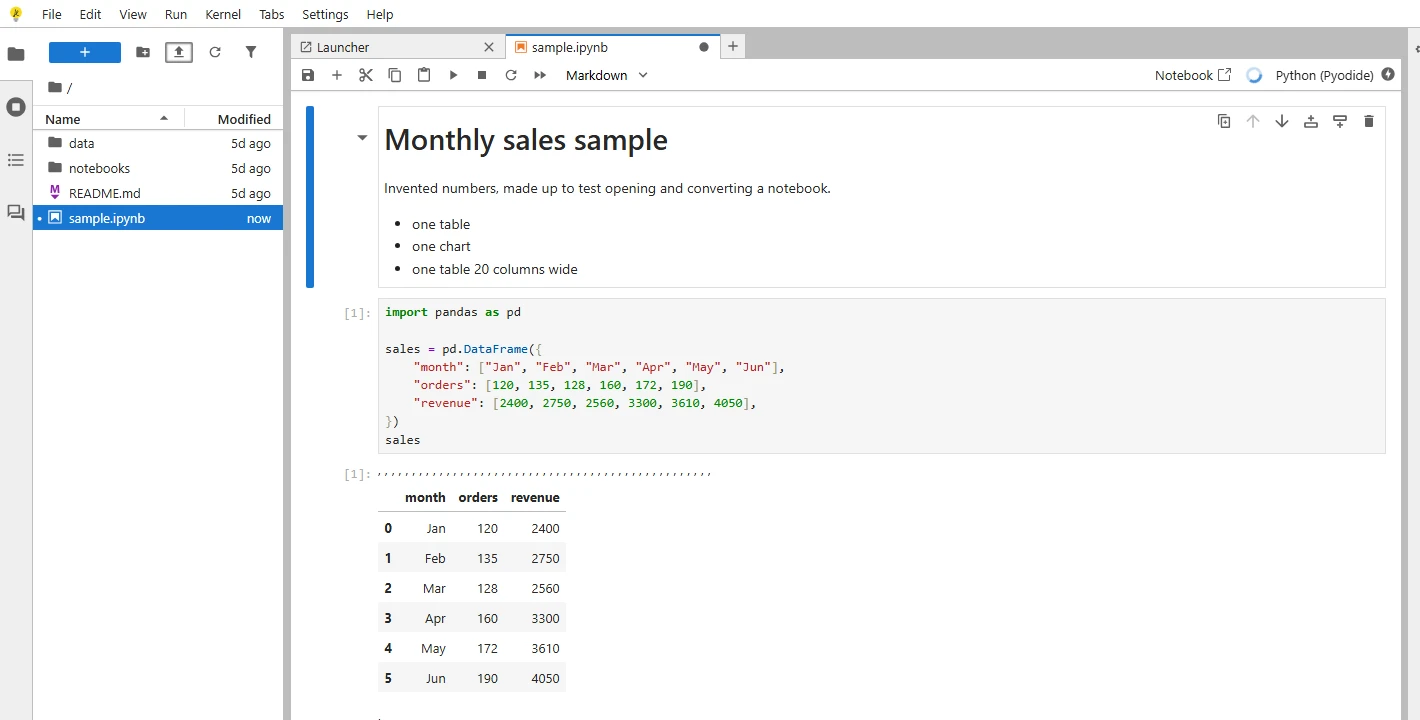
Our sample notebook in JupyterLite, with nothing installed. Invented numbers.
Google Colab gives you more power and needs a Google account:
-
From your computer: File → Upload notebook.
-
From Google Drive: double-click the file, then Open with → Colaboratory.
-
From a public GitHub repository: put the file's path after
colab.research.google.com/github/:https://colab.research.google.com/github/<org>/<repo>/blob/<branch>/<file>.ipynb
More options, with their limits, are in 12 ways to run Jupyter online.
Read an ipynb file without running it
GitHub shows .ipynb files with their saved outputs: "they will render as static HTML files in your repository". Interactive plots don't work there.
nbviewer does the same for any notebook at a public address, and it keeps Plotly, Bokeh and Altair charts interactive. "nbviewer does not execute notebooks", and your file must already be public, so it isn't for private work.
A short Python script prints every cell with no Jupyter installed, using only the standard library:
import json
import sys

with open(sys.argv[1], encoding="utf-8") as f:
    nb = json.load(f)

print("nbformat", nb["nbformat"], "cells", len(nb["cells"]))
for n, cell in enumerate(nb["cells"], 1):
    print(f"\n--- cell {n}: {cell['cell_type']}")
    print("".join(cell["source"]))
    for out in cell.get("outputs", []):
        data = out.get("data", {})
        if "text/plain" in data:
            print("[output]", "".join(data["text/plain"]))
        if "image/png" in data:
            print("[output] PNG image,", len(data["image/png"]), "base64 characters")
python read_ipynb.py sample.ipynbTurn it into a web page. If you have Jupyter, this makes one file that opens in any browser with no server, charts included, and you can send it to anyone:
jupyter nbconvert --to html sample.ipynbFor a document instead, see how to convert ipynb to PDF.
Jupyter notebooks for your team.
Start free →Open an ipynb file on Windows
Double-clicking does nothing useful until an app claims the file type. You have three good options:
-
Jupyter Notebook. Install it, then open a terminal in the file's folder:
python -m venv jupyter-env
jupyter-env\Scripts\activate
pip install notebook
jupyter notebook sample.ipynb
The notebook opens in your browser, and the folder it's in becomes the file list.
-
VS Code. Install the Jupyter extension, then right-click the file and open it with VS Code.
-
JupyterLab Desktop. Install it with
winget install jupyterlab. It's the option that supports double-clicking.ipynbfiles.
Open an ipynb file on a Mac or Linux
The same, with python3:
python3 -m venv jupyter-env
source jupyter-env/bin/activate
pip install notebook
jupyter notebook sample.ipynb
JupyterLab Desktop and VS Code work on Mac and Linux too.
Open an ipynb file in VS Code
- Install the Python and Jupyter extensions (
ms-python.pythonandms-toolsai.jupyter). - Open the file through the Explorer, or right-click it and open it with VS Code.
- Click Select Kernel and choose a Python environment.
- Run a cell. If the environment lacks
ipykernel, VS Code offers to install it.
The extension "is NOT a Jupyter kernel", so running code still needs Python on your machine. Which is better for daily work? See Jupyter vs VS Code.
If it opens but won't run
ModuleNotFoundError. The notebook needs packages you don't have. Add a cell with%pip install pandas, naming what's missing.- It can't find a data file. Notebooks often read a file from the author's machine. Ask for that file, and put it beside the notebook.
- "Not Trusted" at the top. Jupyter won't show some of the file's rich outputs until you trust it. This is normal for a notebook from someone else. Run the cells yourself, or click Not Trusted to trust it if you know where it came from.
- A password or connection error. It was written for someone else's database. See SQL in Jupyter notebooks to point it at your own.
- A kernel that no longer exists. The notebook remembers the kernel it last used. Choose another under Kernel → Change Kernel.
Open and share it with your team
When a notebook needs to run on company data and be read by colleagues, a file on someone's laptop stops working well. Everyone needs Python and the same packages, and the database password travels with the file.
In Fastero, open a project, click the ⋮ beside Notebooks and choose Upload .ipynb. The notebook stays a real .ipynb file and runs on Python 3.11, with pandas, SQLAlchemy and the Postgres and BigQuery drivers already installed.
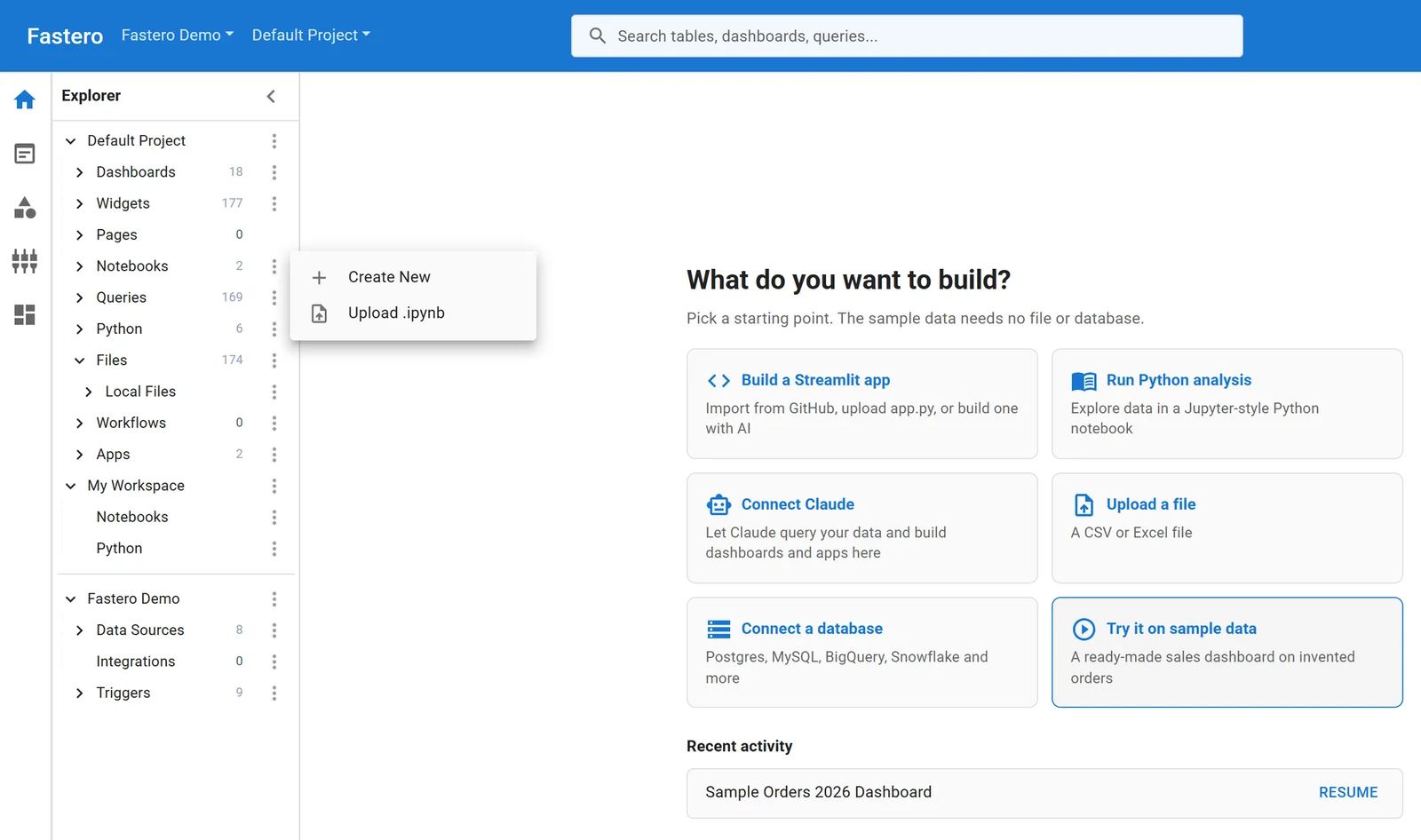
Uploading a notebook to a Fastero project.
From there, colleagues open it with their own login, and viewers are free. Move passwords out of the code into the workspace's Secrets, run it on a schedule, and turn a result into a dashboard. See how to share a Jupyter notebook for the other routes, too.
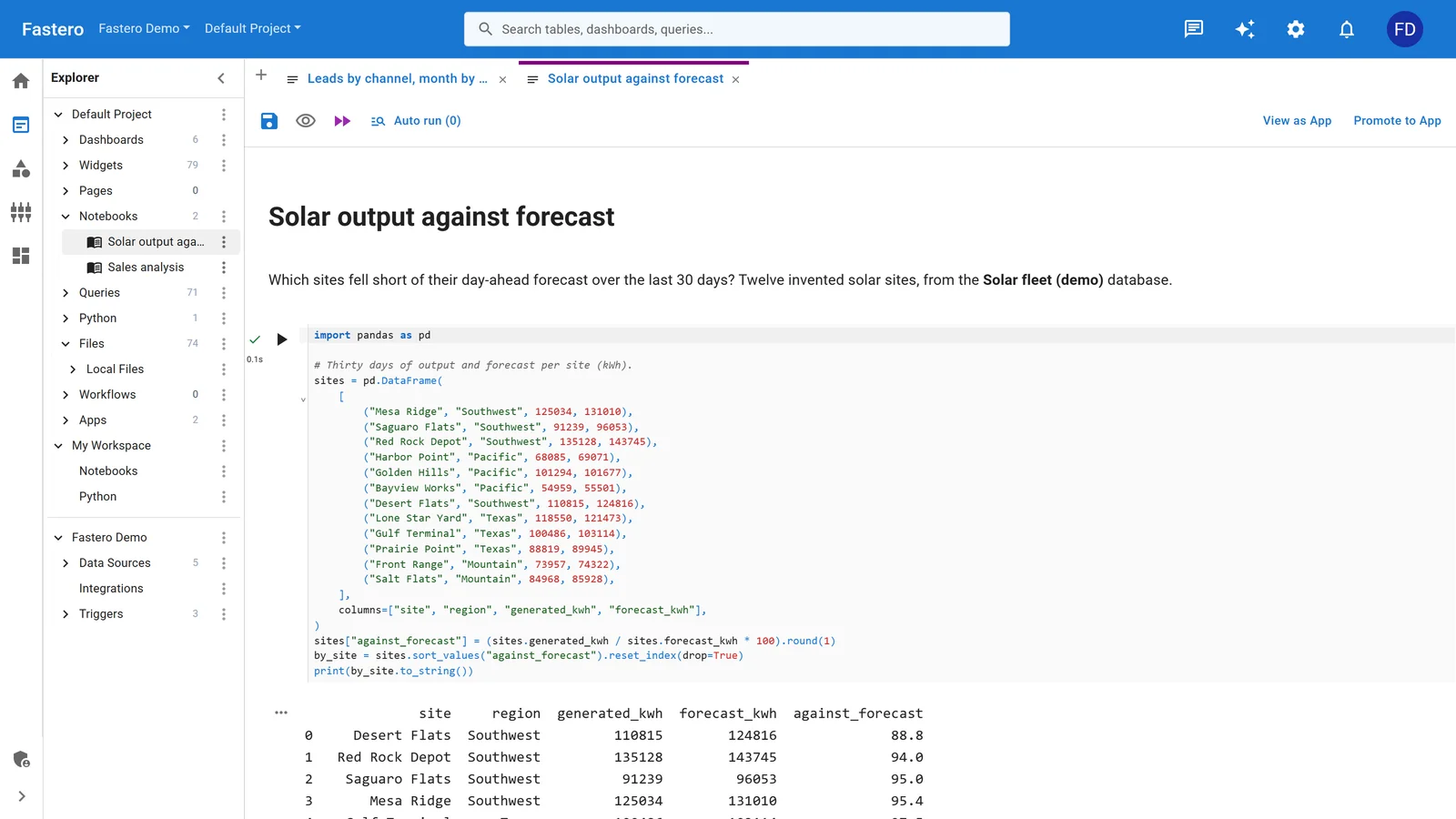
The notebook running in Fastero. Sample data.
FAQ
What program opens an ipynb file?
Jupyter Notebook, JupyterLab, VS Code and Google Colab all open and run them. Any text editor opens one too, as raw JSON.
Can I open an ipynb file without Jupyter?
Yes. GitHub and nbviewer display it, a text editor shows the raw contents, and a few lines of Python can print the cells. To run one with nothing installed, use JupyterLite at jupyter.org/try, or Google Colab.
How do I open an ipynb file online for free?
Go to jupyter.org/try, open JupyterLab and upload it, or use File → Upload notebook in Google Colab. Both are free, and JupyterLite needs no account.
How do I open an ipynb file in Google Colab?
Choose File → Upload notebook. For a file in Google Drive, double-click it and pick Open with → Colaboratory.
Can I open an ipynb file on my phone?
To read it, yes: GitHub and nbviewer display notebooks in a mobile browser. We didn't test running one on a phone, and a computer is more practical for that.
How do I convert an ipynb file to a Python script?
Run jupyter nbconvert --to script sample.ipynb. It keeps the code cells, turns markdown into comments and adds # In[1]: markers. A bare variable on the last line, which displays in a notebook, prints nothing in a script.
Sources
Read 2 to 3 November 2026. We ran the local commands and the script on Windows and uploaded to JupyterLite. VS Code steps, signed-in Colab, Mac and phones come from documentation.
- Try Jupyter, JupyterLite, Running the Notebook, JupyterLab Desktop, nbconvert usage
- Colab FAQ, Colab and GitHub, Opening notebooks from Drive
- GitHub: non-code files, nbviewer FAQ
- Jupyter Notebooks in VS Code, Jupyter extension
Try Fastero free — upload your notebook, run it next to your team's data, and share it with a login. No credit card required.