 Fastero Dev Team
Most guides give you one command for converting a notebook to PDF. We ran them all, and that command fails on a default install. On Windows, the usual no-LaTeX alternative currently crashes too. Here's what does work, and a problem none of the routes warn you about: wide tables quietly lose columns.
The short answer: the route that works everywhere is two steps. Run jupyter nbconvert --to html notebook.ipynb, open the HTML file in your browser, press Ctrl+P (Cmd+P on a Mac), and choose Save as PDF. In Colab, use File → Print. jupyter nbconvert --to pdf needs Pandoc and LaTeX installed. --to webpdf works on Linux, but crashes on Windows with current nbconvert. Before you send the PDF, check that wide tables still have all their columns.
Fastero
Jupyter notebooks for your team, with nothing to install.
Start a notebook or bring your .ipynb files. SQL cells query your databases with no password in the code, and a notebook runs now or on a schedule. Colleagues open it with their own login; viewers are free.
Try free →| Route | Works on | Needs | Result |
|---|---|---|---|
| HTML, then browser print | Everything | Jupyter and a browser | Looks like the notebook; you control the page layout |
| Colab's File → Print | Colab | A Google account | The same idea, with no export step |
--to webpdf |
Linux; crashes on Windows | A browser download of 126 to 333 MB | Looks like the notebook |
| A short Python script | Windows | The same browser download | Looks like the notebook |
--to pdf (LaTeX) |
Anywhere with LaTeX | Pandoc and LaTeX, up to 1.8 GB | A typeset paper; keeps every column |
| VS Code's Export | VS Code | TeX for PDF | LaTeX, as above |
The route that always works: HTML, then print
This takes seconds and downloads nothing.
jupyter nbconvert --to html notebook.ipynbThat writes notebook.html, a single file with your charts embedded. Open it in Chrome or Edge, press Ctrl+P and save as PDF. In our test, the text, code, table and chart all survived. A chart moves whole to the next page rather than splitting, sometimes leaving white space above it.
To hide the code and keep only results, for a report:
jupyter nbconvert --to html --no-input notebook.ipynbPaper size follows your print dialog, and direct exports below default to US Letter, so set A4 if that's what you print on.
--to webpdf: fine on Linux, a crash on Windows
nbconvert's alternative to LaTeX renders the notebook in a headless browser.
pip install "nbconvert[webpdf]"
jupyter nbconvert --to webpdf --allow-chromium-download notebook.ipynb
On Linux, it wrote the PDF in about four seconds. A minimal container also needed playwright install-deps chromium, for system libraries.
On Windows, with nbconvert 7.17, it downloaded 333 MB of browser and then failed, with nothing to explain why:
File "...\asyncio\base_events.py", line 533, in _make_subprocess_transport
    raise NotImplementedError
NotImplementedError
The menu in JupyterLab and Notebook fails in the same way, with a tab reading 500 : Internal Server Error | nbconvert failed: and no message. It isn't your Python version: it failed on 3.12 and 3.14. The cause is a change in how nbconvert starts its event loop on Windows, reported as issue #2287, with a proposed fix still open at the time of writing.
The workaround on Windows is a short script, which calls the same exporter without going through the jupyter nbconvert command. We ran this:
import sys

from nbconvert import WebPDFExporter

pdf, _ = WebPDFExporter(exclude_input="--no-input" in sys.argv).from_filename(sys.argv[1])
with open(sys.argv[2], "wb") as f:
    f.write(pdf)
print(sys.argv[2], len(pdf), "bytes")
pip install "nbconvert[webpdf]"
python -m playwright install chromium --only-shell
python notebook_to_pdf.py notebook.ipynb notebook.pdf
python notebook_to_pdf.py notebook.ipynb report.pdf --no-input--only-shell keeps the browser download to 126 MB. Downgrading to nbconvert 7.16.6 also works, but it predates a security fix for a flaw in exporting malicious notebooks, so we don't recommend it.
--to pdf: the LaTeX route
jupyter nbconvert --to pdf notebook.ipynbOn a default install it fails twice, one tool at a time:
nbconvert.utils.pandoc.PandocMissing: Pandoc wasn't found.OSError: xelatex not found on PATH, if you have not installed xelatex you may need to do so.Install Pandoc, then a TeX distribution: MacTeX on a Mac, and on Debian or Ubuntu:
sudo apt-get install pandoc texlive-xetex texlive-fonts-recommended texlive-plain-genericOn Debian that came to 1.8 GB. After that, a PDF took five seconds. It looks like a typeset paper, with numbered headings and page numbers, and tables print as plain text. It's the right choice for a thesis or an assignment that has to look like one, and overkill otherwise.
Jupyter notebooks for your team.
Start free →From the menus: JupyterLab, Colab and VS Code
JupyterLab and Notebook 7: File → Save and Export Notebook As lists both PDF and Webpdf. On a default Windows install, both open a tab with a 500 error, because of the problems above. HTML in the same list works, and JupyterLab also has File → Print.
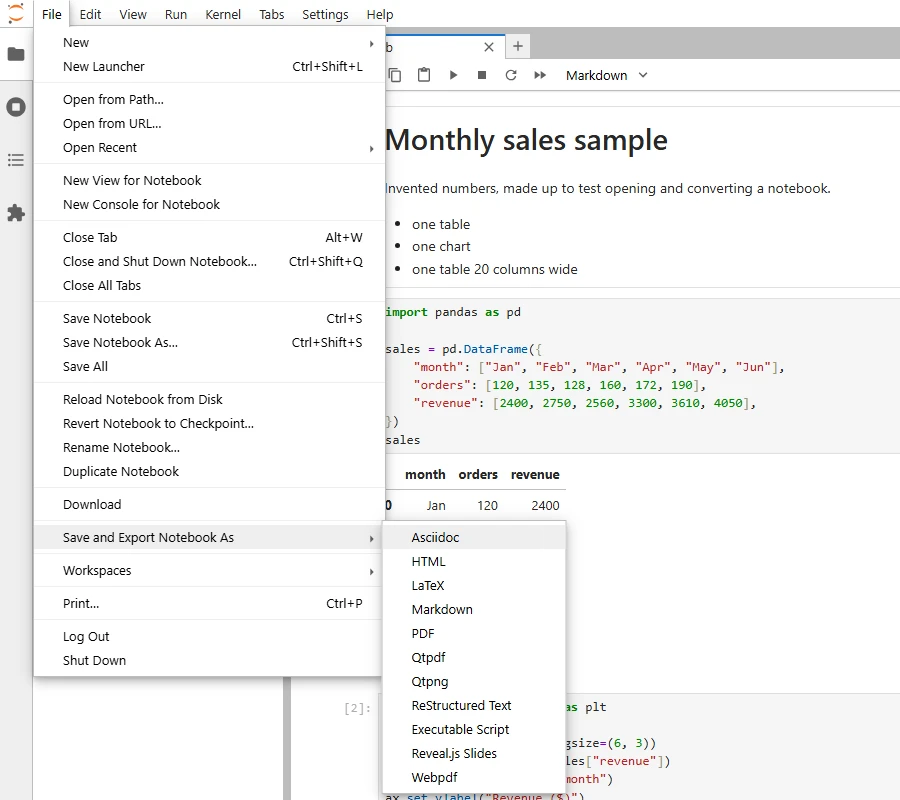
JupyterLab 4.6's export menu. HTML is the entry that works everywhere.
Google Colab: File → Print (Ctrl+P). The Download menu offers only .ipynb and .py, so there's no direct PDF option.
VS Code: click ... on the notebook's toolbar, then Export, then PDF. "For PDF export, you must have TeX installed." The extension itself suggests the other way out: "To avoid installing xelatex (TeX), you might want to try exporting to HTML and using your browser's 'Print to PDF' feature."
Wide tables quietly lose columns
This one is easy to miss, and it's why you should read a PDF before sending it. We exported a table with 20 columns through the browser routes, and got 8.
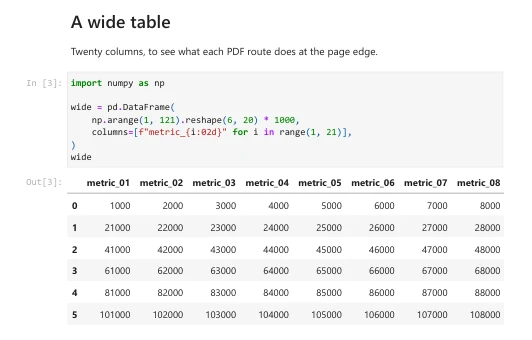
The code asks for 20 columns, and the PDF shows 8, with no scrollbar and no warning.
There's no scrollbar or continuation page, and the table ends with a neat right edge. The other columns aren't in the PDF at all, not even in its text. Here's what we measured:
| Setting | Columns kept, of 20 |
|---|---|
| Browser print, portrait, 100% | 8 |
| Landscape, 100% | 11 |
| Landscape, 70% | 17 |
| Portrait, 50% | 18 |
| Landscape, 50% | 20 |
LaTeX (--to pdf) |
20, as plain text |
The exact count depends on your fonts and column widths. There are three ways to keep everything:
Print it smaller. In the print dialog, choose Landscape and set Scale to 50.
Flip the table, so that columns become rows, before you export:
wide.TShow it in pieces:
from IPython.display import display

display(wide.iloc[:, :8])
display(wide.iloc[:, 8:16])
display(wide.iloc[:, 16:])
Online converters
Search results offer plenty of free ipynb-to-PDF sites. We didn't test them. A notebook stores its outputs, so uploading one sends any table or customer data it displays to a stranger's server. Unless the notebook is harmless, use one of the routes above, or clear its outputs first.
If you make this PDF every week
Converting a notebook by hand is fine once. When the same report goes out every Monday, the PDF is the wrong thing to automate: someone has to rerun, export, check the columns and attach it.
In Fastero, a notebook runs on a schedule, and a result becomes a widget on a dashboard: a SQL cell's rows, or the table a Python cell shows. The dashboard refreshes when the notebook runs, and emails itself with a PDF of the whole dashboard attached. Recipients don't need an account, though anyone outside your workspace confirms once first. People in your workspace also get a button that opens it live.
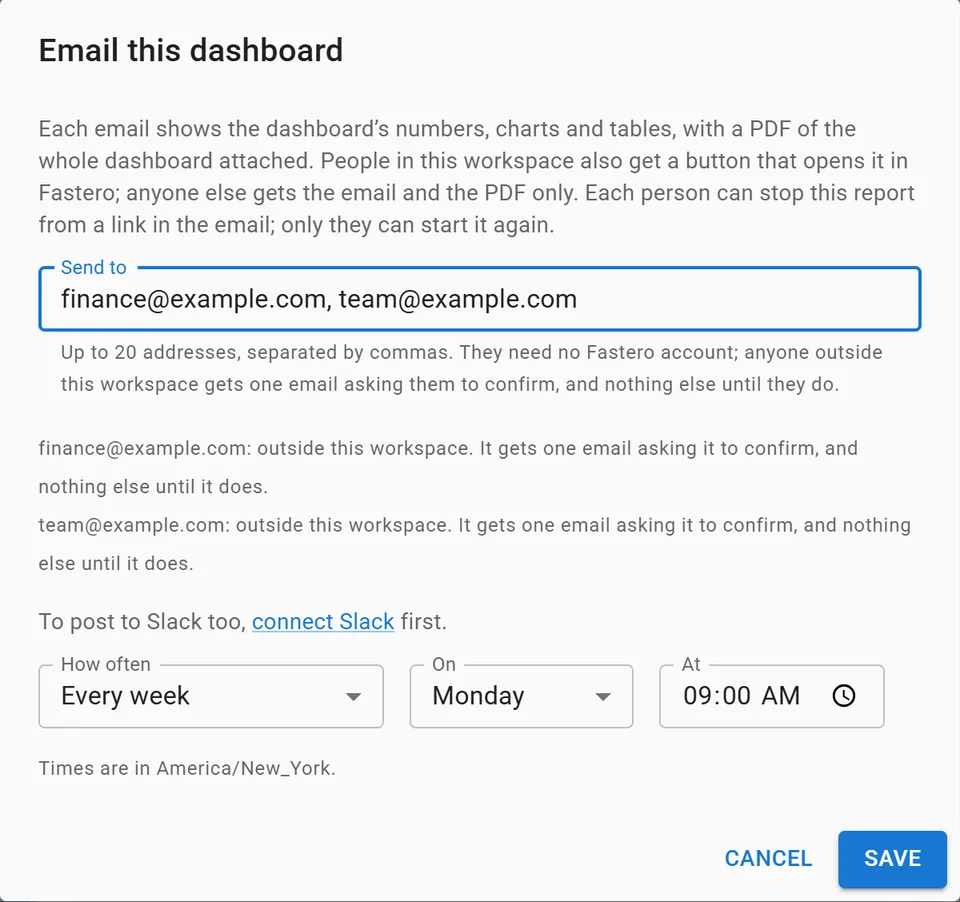
Setting up a weekly email, with invented addresses.
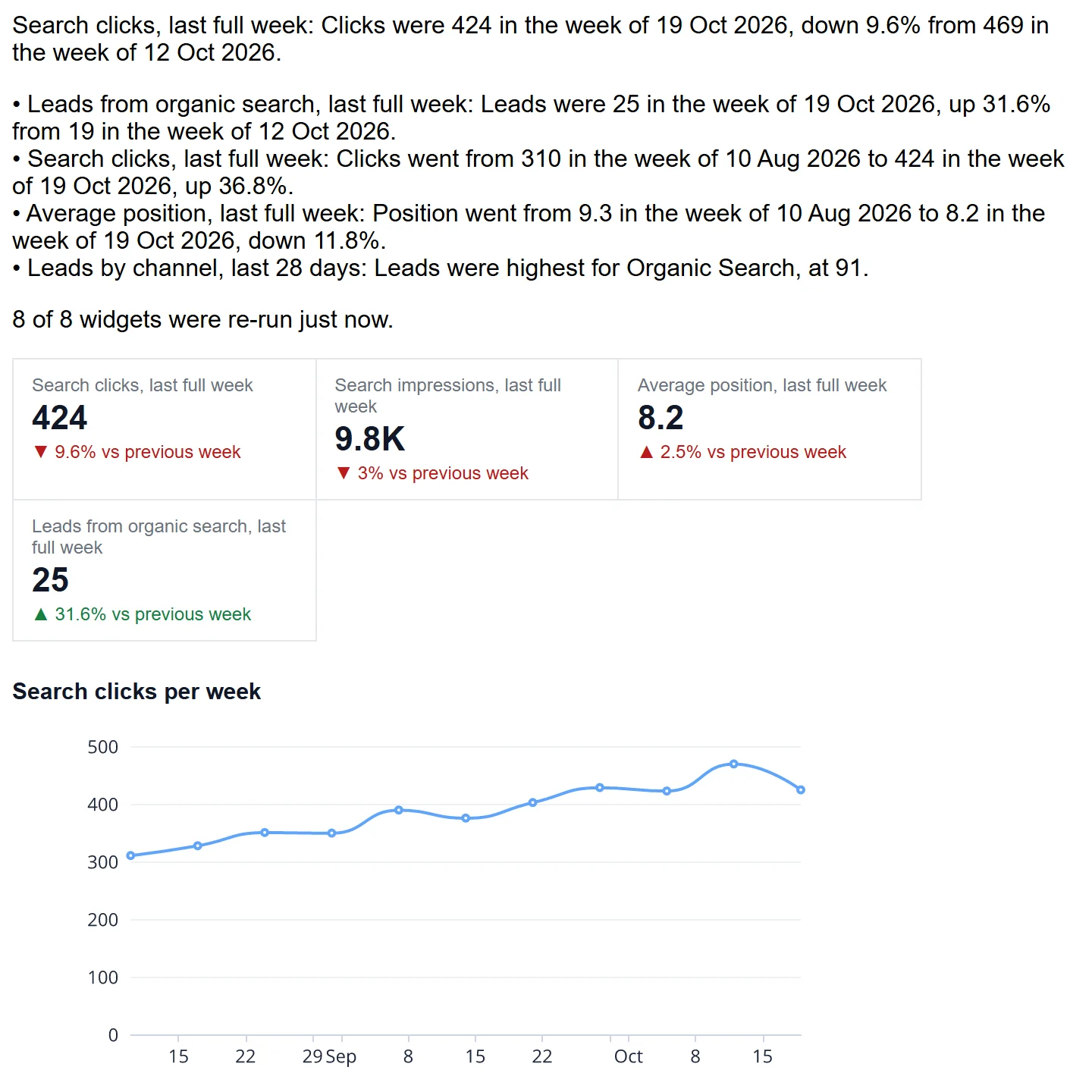
What arrives. Sample data.
To build one, see how to turn a Jupyter notebook into a live dashboard and how to automate reports with Claude.
FAQ
How do I convert ipynb to PDF without LaTeX?
Run jupyter nbconvert --to html notebook.ipynb, open the HTML file in a browser and print to PDF. --to webpdf also avoids LaTeX, but it crashes on Windows with nbconvert 7.17.
Why does nbconvert say Pandoc wasn't found?
--to pdf goes through LaTeX, which needs Pandoc and then XeLaTeX, and neither comes with pip install notebook. Install both, or use the HTML route.
How do I fix NotImplementedError in nbconvert webpdf on Windows?
It's a bug in nbconvert 7.17 on Windows, not your setup. Use the Python script above, which calls the exporter directly, or export to HTML and print from your browser.
How do I convert ipynb to PDF in VS Code?
Click ... on the notebook's toolbar, then Export, then PDF, with TeX installed. Without TeX, export to HTML and print that from your browser.
How do I convert ipynb to PDF in Google Colab?
Use File → Print and save as PDF. Colab's Download menu offers only .ipynb and .py.
How do I export a notebook to PDF without the code?
Add --no-input: jupyter nbconvert --to html --no-input notebook.ipynb, then print. The script above takes --no-input too. Browser-made PDFs may still show an Out[1]: label beside results.
Why is my table cut off in the PDF?
The browser's page is narrower than the table, and what doesn't fit is simply left out. Print in landscape at 50% scale, use wide.T, or display the table in sections.
Sources
Read 2 to 3 November 2026. We ran nbconvert 7.17.2 on Windows 11 and Debian, and read the menus in JupyterLab 4.6.5, Notebook 7.6.4 and Colab. We set print layouts through Chromium's print engine. The LaTeX route ran on Debian only, and VS Code's export and macOS weren't run.
- nbconvert: Installation, Usage, Configuration options, Issue #2287, Pull request #2304
- JupyterLab export, Jupyter Notebooks in VS Code, Colab FAQ
Try Fastero free — run your notebook on a schedule, and email the results as a PDF every week. No credit card required.