
VS Code with the Jupyter extension handles notebooks, scripts, debugging, and version control in one window. Jupyter (classic or JupyterLab) is still faster for pure exploration — fire up a kernel, poke at a DataFrame, plot something, iterate. If you mostly explore data and share notebooks, Jupyter. If you write production code alongside notebooks or want a real debugger, VS Code. Most data scientists I know have both open.
Quick comparison
| Jupyter (Classic / JupyterLab) | VS Code (Python + Jupyter ext.) | |
|---|---|---|
| Best for | Exploration, narrative analysis, teaching | Production code, mixed workflows, debugging |
| Notebook support | Native .ipynb, the original |
Runs .ipynb via extension, full support |
| Code intelligence | Basic autocomplete (Jedi in JupyterLab) | IntelliSense, type checking, linting, refactoring |
| Debugging | %debug magic, limited breakpoints |
Full debugger — breakpoints, call stack, watch |
| Version control | .ipynb JSON diffs (painful) |
Same .ipynb problem, but scripts have clean diffs |
| Extensions | JupyterLab extensions (smaller ecosystem) | Massive marketplace — Git, Docker, databases, AI |
| Remote work | Remote kernels, JupyterHub | SSH remoting, Dev Containers, Codespaces |
| Collaboration | JupyterHub, Google Colab | Live Share, GitHub Codespaces |
| Startup time | Seconds (browser tab + kernel) | Seconds (open folder, select kernel) |
| Price | Free, open source | Free (VS Code + extensions are open source) |
What does the typical workflow look like?
The day-to-day experience is different enough that switching tools changes how you think about code. Here's what each flow actually looks like from loading data to sharing results.
JUPYTER                              VS CODE
======                               =======

Browser --> Notebook (.ipynb)        Editor window
              |                        |
              v                        +------+--------+-------+
         Cell-by-cell execution        |      |        |       |
         Kernel holds state            v      v        v       v
              |                      .ipynb  .py    terminal  git
              v                      notebook script  debug   panel
         Inline output                 |      |        |       |
         (plots, tables, md)           v      v        v       v
              |                      Same   Linting  Break-  Clean
              v                      kernel +types   points  diffs
         Share as:                     |      |        |
         - .ipynb / HTML / PDF         +------+--------+
         - JupyterHub link                    |
         - Google Colab                       v
                                         Deploy as .py, package, or API
The Jupyter path is optimized for thinking. You start in the browser, write a cell, see the output, write another cell. The notebook is both your scratchpad and your deliverable. VS Code's path is optimized for building. You might start in a notebook, but you're one keystroke away from a terminal, a debugger, or a .py file you can deploy without conversion.
Fastero
Connect your database. Ask questions. Get dashboards.
Postgres, BigQuery, Snowflake, and 10+ sources — live-connected, AI-powered, no dashboard builder learning curve.
Try free →How does code quality compare?
This is where VS Code pulls ahead by a wide margin.
In JupyterLab, you get basic autocomplete powered by Jedi and some limited tooltip documentation. That's about it. No linting, no type checking, no "rename symbol across the project." Extensions like nb_mypy exist but feel bolted on.
VS Code gives you Pylance out of the box — inferred types, docstrings, parameter hints, "go to definition" across your project. Add Ruff for sub-second linting and import sorting. Mypy catches type errors before you run anything. Refactoring tools (rename, extract function, extract variable) work inside notebook cells, not just .py files.
For throwaway exploration, this gap doesn't matter. For analysis that other people will maintain, or that you'll revisit in six months, it's enormous. The notebook with undefined variables in unreachable cells, shadowed imports, and function signatures that changed three iterations ago — VS Code catches all of that. Jupyter lets it slide.
What about version control?
The .ipynb format is the elephant in the room for both tools, and neither fully solves it.
A Jupyter notebook is a JSON file. It contains your code, your markdown, your cell outputs (including Base64-encoded images), and metadata about the kernel. Commit one to git and try to review the diff — you'll see thousands of lines of JSON noise from changed output cells, execution counts, and embedded PNG data. Two people editing the same notebook on different branches? The merge conflict will make you question your career choices.
VS Code has the same problem when you're working with .ipynb files. The format is the format. But VS Code makes it easier to work with .py files alongside notebooks, and .py files diff cleanly. The practical workflow many teams adopt: do your exploration in a notebook, extract the stable logic into .py modules, and only commit the notebook when the narrative matters.
Jupytext is the bridge tool worth knowing about. It keeps a .py (or .md) mirror of your notebook in sync, so you commit the text version and get clean diffs. It works in both Jupyter and VS Code. If your team does serious notebook version control, Jupytext is non-negotiable regardless of which editor you use.
For a deeper look at how notebook platforms handle collaboration and versioning differently, Deepnote, Hex, and Jupyter each take a distinct approach.
How does debugging differ?
In Jupyter, debugging means print() statements and the %debug magic for post-mortem inspection after an exception. JupyterLab added a visual debugger (xeus-python kernel), but it's limited — no conditional breakpoints, no watch expressions.
VS Code's debugger is a proper debugger. Breakpoints by clicking the gutter. Step into, step over, step out. Conditional breakpoints ("only stop when i > 1000"). Watch expressions. Full call stack. This works inside notebook cells too — set a breakpoint in cell 3 and step through line by line.
The difference matters most for data transformations. "Why does this merge produce 47,000 rows when both inputs have 10,000?" In Jupyter you add cells to inspect intermediate DataFrames. In VS Code you set a breakpoint after the merge and inspect the DataFrame in the variable explorer — sort, filter, see the shape — without throwaway cells.
How do extensions and ecosystem compare?
Jupyter has extensions — jupyterlab-git, jupyterlab-lsp, nbdime for notebook diffing. The ecosystem exists but it's small, quality varies, and some extensions haven't been updated for JupyterLab 4.
VS Code's marketplace is enormous and well-maintained. Python, Pylance, and Jupyter from Microsoft. GitLens, Docker, database clients, REST clients, AI assistants (GitHub Copilot, Codeium, Continue), remote development. The extension API is stable and the audience is huge, so extensions tend to stay current.
Practically: in Jupyter you build your workflow out of notebooks. In VS Code you build it out of notebooks, scripts, terminals, databases, git, Docker — all in one window. The "everything in one place" argument is overblown for pure exploration, but for data engineers and ML engineers who touch infrastructure, it's a real productivity gain.
Which is better for remote and GPU work?
Both tools handle remote compute, but the mechanisms differ.
Jupyter's approach: connect the notebook frontend (your browser) to a remote kernel. JupyterHub spawns kernel sessions for multiple users. Google Colab gives you free GPU-backed notebooks with zero setup. For teams, JupyterHub on Kubernetes (Zero to JupyterHub) is the production deployment, but it's a serious infrastructure project.
VS Code's approach: Remote Development extensions (SSH, WSL, Dev Containers) open a folder on a remote machine and edit as if it's local. File explorer, terminal, debugger, notebook cells — all run against the remote filesystem and compute. GitHub Codespaces takes this further with cloud-hosted VS Code and configurable compute.
The practical difference: Jupyter's remote story is about connecting to kernels. VS Code's is about connecting to entire development environments. If you just need a remote Python kernel, both work. If you need to SSH in, edit configs, check logs, run training scripts, and debug a notebook in one session — VS Code is significantly better.
Which handles the "notebook to production" transition better?
This is VS Code's strongest argument and Jupyter's most persistent weakness.
A Jupyter notebook that works during exploration doesn't automatically work in production. The cell execution order matters. Hidden state accumulates. Dependencies are implicit. Converting a notebook to a production script means running jupyter nbconvert --to script, cleaning up the output, adding error handling, removing the interactive bits, and restructuring the flow. Tools like Papermill let you parameterize and execute notebooks programmatically, but you're still deploying a notebook — with all its quirks — as a production artifact.
In VS Code, production code is just code. You write a .py file with functions, type hints Pylance validates, and a main() block. Test with pytest, debug with the debugger, commit with clean diffs. No "conversion" step because you never left the script format.
The pattern most teams settle into: explore in a notebook, extract working logic into .py modules, write tests, deploy the modules. The notebook stays as documentation. This is easier in VS Code because the notebook and .py files live side-by-side with the same language server, debugger, and git integration.
Your visualization library choice matters more for production outputs than your editor choice — Plotly charts survive the notebook-to-app transition better than Matplotlib's stateful API.
When should you pick Jupyter?
Despite everything above, Jupyter is still the right choice in specific scenarios.
Quick exploration. You got a CSV. You want to look at it. jupyter notebook, pd.read_csv(), done. No project setup, no folder structure. Jupyter's zero-friction startup for throwaway exploration is unmatched.
Teaching and learning. Every ML course and data science bootcamp uses Jupyter. Code, explanation, output, interleaved — purpose-built for education.
Narrative computing. Analysis where the story matters as much as the code. Academic papers, research reports, data journalism. The notebook IS the document.
Google Colab users. Free GPUs, shareable links, zero local setup — you're already in the Jupyter ecosystem. VS Code can connect to Colab runtimes, but it's not the native experience.
JupyterHub-based teams. If your org already runs JupyterHub with managed environments and auth, switching means rebuilding infrastructure. You don't abandon that because another editor has better autocomplete.
When should you pick VS Code?
You write code beyond notebooks. If your day involves .py scripts, FastAPI endpoints, dbt models, Dockerfiles, YAML configs, or anything that isn't a notebook — VS Code handles all of it. Jupyter handles one of it.
You need a real debugger. Print-statement debugging is fine until it isn't. The first time you're stepping through a 200-line data pipeline looking for where a join introduced duplicates, you'll be glad you have breakpoints.
Your notebooks go to production. If your team's workflow involves converting notebooks to scripts, running them in Airflow or Dagster, or deploying them as APIs — VS Code makes the notebook-to-production path shorter because you're already in a tool that treats .py files as first-class citizens.
You care about code quality. Type checking, linting, refactoring tools. If you want your data code to meet the same standards as your application code, VS Code's language tooling is years ahead.
You work on remote machines regularly. VS Code's Remote SSH, WSL, and Dev Container support is the best remote development experience available. Period.
For teams that work with Plotly and Matplotlib, the choice of editor also affects how you iterate on charts — VS Code's variable explorer and plot viewer let you inspect figures without re-running cells.
Can you use both?
Yes, and many data scientists do. The common pattern:
  Day-to-day exploration           Production work
  =====================           ===============

  Jupyter / JupyterLab             VS Code
        |                              |
        v                              v
  Quick notebooks              .py modules + tests
  Ad-hoc queries               Type-checked code
  Prototyping models           Git with clean diffs
  Sharing with Colab           Debugger + profiler
        |                              |
        +----------+---+---------------+
                   |   |
                   v   v
             Shared .ipynb files
             (exploration artifacts,
              documentation of analysis)
Jupyter and VS Code read the same .ipynb format. You can start a notebook in Jupyter, open it in VS Code to add debugging and refactoring, then share it via JupyterHub or Colab. The kernel is IPython either way. Your conda or venv environment works in both. There's no lock-in to either editor.
The question isn't really "which one" — it's "which one do I open first?" And that depends on whether today's task is exploration (Jupyter) or engineering (VS Code).
FAQ
Can VS Code fully replace Jupyter?
For most data science work, yes. VS Code runs .ipynb files natively, supports cell-by-cell execution, renders inline plots, and adds debugging, linting, and version control on top. The one thing you lose is Jupyter's browser-based access — there's no "send someone a link to my VS Code." For sharing, you still need JupyterHub, Colab, or a deployment platform.
Is VS Code harder to set up for data science?
Slightly. Jupyter installs with pip install jupyter and you're running. VS Code requires the editor plus the Python and Jupyter extensions. Five-minute setup, then the day-to-day experience is smoother.
Do I need both Jupyter and VS Code? Not necessarily. VS Code does everything Jupyter does plus debugging, linting, scripts, and git. But if you're purely an exploration person sharing via Colab or JupyterHub, VS Code may not add enough to justify the switch.
Which is better for machine learning projects?
VS Code, beyond initial experimentation. ML projects involve notebooks, .py pipelines, config files, Docker, and remote GPUs. VS Code handles all of these; Jupyter handles the notebook portion. For notebook platforms that add ML collaboration, see how Deepnote, Hex, and Jupyter differ.
Does GitHub Copilot work in Jupyter? Copilot works natively in VS Code, including inside notebook cells. JupyterLab has community extensions, and managed platforms have their own AI assistants. But the tightest Copilot integration is VS Code — Microsoft builds both products.
What happens after the notebook?
Regardless of whether you explore in Jupyter or VS Code, you eventually hit the same wall: someone else needs to see the results without opening a notebook.
Your VP of Marketing doesn't want to run cells. Your ops team doesn't want to install Python. The CEO wants a dashboard that updates itself, not a .html export from last Tuesday.
That's where the notebook stops and a different kind of tool takes over. You've done the analysis — the hard thinking, the data cleaning, the modeling. Now you need to connect the database your analysis pointed to, build a dashboard your team can filter and explore on their own, and keep it updated without you re-running anything. You can build a Streamlit app for that, or you can connect your warehouse directly to a tool built for ongoing analysis.
Fastero is that kind of tool: it connects to the database, keeps the dashboard current, and lets your team filter it themselves.
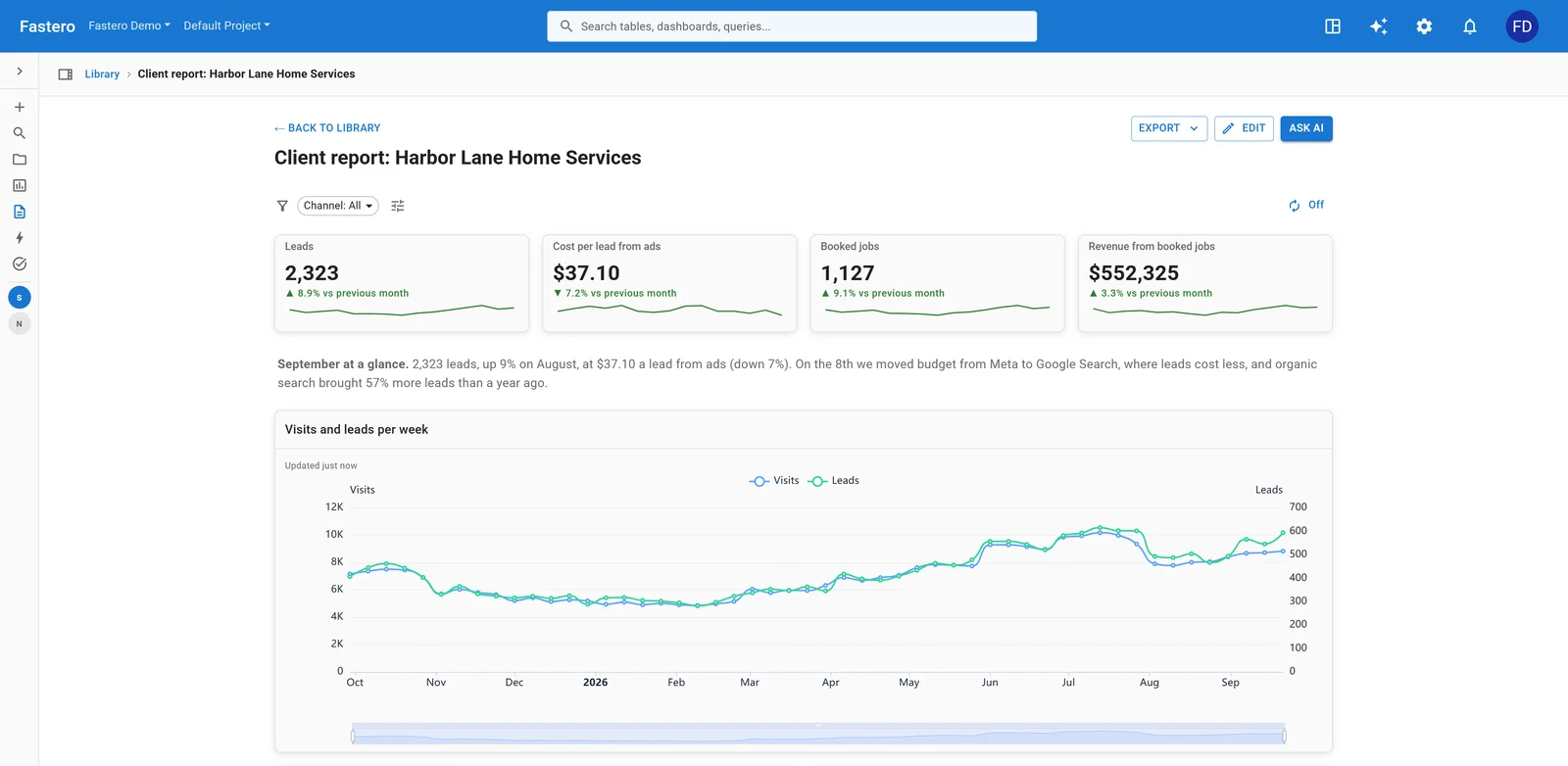
A dashboard in Fastero. Sample data.
Try Fastero free — turn your analysis into dashboards your team can access without opening a notebook. Connect any database, ask questions in SQL or English. No credit card required.