 Fastero Dev Team
Kaggle's free GPU changed this autumn: the P100 is gone, and two NVIDIA T4s are now the only free GPU. We went through Kaggle's own command-line tool and announcements to see what a free account gets today, then planned a week of GPU work against the quota in a small Python script.
The short answer: Kaggle gives every phone-verified account a free GPU: GPU T4 x2, two NVIDIA T4 cards with 16 GB of memory each. Kaggle retired the P100 on 15 September 2026, and a notebook that asks for one now runs on the T4s. The free TPU is a TPU v5e-8, which also needs identity verification. GPU time comes from a weekly quota of about 30 hours ("30 hours or sometimes higher depending on demand and resources", as guides quote Kaggle's GPU tips page), plus about 20 TPU hours, resetting on Saturday at 00:00 UTC. One run lasts at most 12 hours. Turn the GPU on under Settings › Accelerator, check what you got with nvidia-smi, and see your hours with kaggle quota. Checked 20 November 2026.
Fastero
Jupyter notebooks for your team, with nothing to install.
Start a notebook or bring your .ipynb files. SQL cells query your databases with no password in the code, and a notebook runs now or on a schedule. Colleagues open it with their own login; viewers are free.
Try free →What GPU does Kaggle give you?
Kaggle's command-line docs list the accelerators "available as of Sep 2026", with GPU T4 x2 as the default GPU and TPU v5e-8 as the default TPU:
| Accelerator | Kaggle's ID | What it is | Who gets it |
|---|---|---|---|
| GPU T4 x2 | NvidiaTeslaT4 |
Two NVIDIA T4s, 16 GB GDDR6 each | Any phone-verified account |
| TPU v5e-8 | TpuV5E8 |
Google TPU v5e; Google Cloud lists 16 GiB of memory per chip | Accounts with identity verification |
| L4, A100, H100, RTX Pro 6000, TPU v6e-8 | NvidiaL4, NvidiaTeslaA100, NvidiaH100, NvidiaRtxPro6000, TpuV6E8 |
Faster hardware | Kaggle doesn't say; some are competition-only or admin-only |
| P100 | NvidiaTeslaP100 |
Retired 15 September 2026 | Runs on GPU T4 x2 instead |
| TPU v3-8 | TpuV38, Tpu1VmV38 |
Retired | Runs on TPU v5e-8 instead |
On the faster cards, Kaggle's docs say only: "Some of these are only available to participants of specific competitions, and some are only available to Kaggle admins." They don't say which, so don't plan on them.
Kaggle's announcement of the change says: "We're writing to let you know that the NVIDIA Tesla P100 GPU will be retired from Kaggle on September 15, 2026." The Kaggle CLI added a warning for it in September, because "the server silently runs the session on a replacement instead." Older guides and NVIDIA's own Kaggle page still offer "GPU T4 x2 or GPU P100"; that's out of date. The TPU moved earlier, in an announcement titled "New TPU v5e-8s! Phasing out v3-8s".
Two T4s are two separate 16 GB cards, not one 32 GB card. A model that doesn't fit on one card needs code that spreads it across both, and a script written for one GPU uses one card and leaves the other idle.
One date worth knowing: Kaggle retired the P100 on the day Google Cloud's own P100 support ended, and Google Cloud's T4s reach end of support on 1 August 2027. Kaggle hasn't said anything about its T4s.
Kaggle GPU limits: the weekly quota and session length
As of 20 November 2026:
| Limit | GPU T4 x2 | TPU v5e-8 | Source |
|---|---|---|---|
| Weekly quota | About 30 hours, sometimes more | About 20 hours | Guides quoting Kaggle's docs, November 2026 |
| Longest run | 12 hours | 9 hours | Kaggle CLI docs (GPU); guides (TPU) |
| Quota reset | Saturday, 00:00 UTC | Same | Guides; an example in Kaggle's CLI repository |
| Quota cost of an hour | 1 hour, though you get two cards | 1 hour | A guide citing Kaggle staff |
| Verification | Phone number | Identity | Course guides; Kaggle's TPU announcement |
| Machine | 4 CPU cores, 29 GB RAM | Guides |
Kaggle's own limit pages load only with JavaScript, so the figures above come from Kaggle's CLI docs and announcements and from two guides published this month, one by a developer who checked his own account on 5 November ("1.5 of 30 GPU hours used, with a separate 20 hour TPU pool"). Your real numbers are in your Kaggle settings, or from the command line:
$ kaggle --version
Kaggle CLI 2.2.5
$ kaggle quota
Authentication required to call the Kaggle API.

First, you will need a Kaggle account. You can sign up at
  https://www.kaggle.com/account/login
[sign-in instructions trimmed]
exit code: 1
We ran these on Windows on 20 November, in a fresh virtual environment with kaggle 2.2.5 from pip, signed out (the exit code line is ours). Signed in, kaggle quota prints used, remaining, total and refreshAt for the GPU and TPU pools, and --format json or -v (CSV) suit scripts. A real catch from that install: every kaggle command first failed with ModuleNotFoundError: No module named 'six', because pip brought in python-dateutil 4.0.0, which dropped six. pip install six fixed it, and Kaggle's changelog lists a fix for the next release.
The quota runs while a GPU session is open, not only while a cell is running. NVIDIA's Kaggle guide puts it plainly: "Starting a GPU session uses your Kaggle GPU quota, so stop the session when you are done."
How to turn on the GPU in a Kaggle notebook
- Verify your phone number in your Kaggle account settings. A course guide for new users says you need to "Verify your phone number to get Internet and GPU access"; until you do, the notebook options show a message like "Want more power? Get phone verified".
- In the notebook editor, open Settings › Accelerator and choose GPU T4 x2 (or the TPU, after identity verification).
- The session restarts on the new machine, so run your cells again.
- Switch the accelerator off while you write or debug code that doesn't need it.
From the command line, set enable_gpu to true and machine_shape to NvidiaTeslaT4 in kernel-metadata.json, or pass --accelerator NvidiaTeslaT4 to kaggle kernels push. Internet is off by default for runs pushed that way (enable_internet defaults to false).
Check which GPU you got
This cell works on Kaggle or anywhere with NVIDIA's driver. We can't run Kaggle from here, so we ran it on a laptop with an NVIDIA GPU, then again with the driver's tool hidden, to show both answers:
import shutil, subprocess

if shutil.which("nvidia-smi") is None:
    print("No NVIDIA GPU in this session: set the accelerator in the notebook's settings")
else:
    out = subprocess.run(
        ["nvidia-smi", "--query-gpu=index,name,memory.total", "--format=csv,noheader"],
        capture_output=True, text=True, check=True,
    ).stdout.strip().splitlines()
    print(f"{len(out)} GPU(s)")
    for line in out:
        print(line)
1 GPU(s)
0, NVIDIA GeForce RTX 3050 Laptop GPU, 4096 MiB
No NVIDIA GPU in this session: set the accelerator in the notebook's settingsOn GPU T4 x2 it should report two GPUs: the developer's guide above saw nvidia-smi show "two Tesla T4s with 15,360 MiB each" on 5 November. NVIDIA's guide to its data science libraries on Kaggle checks the GPU end to end with this cell, copied from its page:
import cudf

gdf = cudf.DataFrame({"a": [1, 2, 3], "b": [4, 5, 6]})
gdf.sum()
NVIDIA's page says "The cell should produce the following output":
a     6
b    15
dtype: int64
Jupyter notebooks for your team.
Start free →Plan a week of Kaggle GPU hours
Thirty hours goes quickly once a long run and an open session are counted. We wrote a short planner for three example jobs (they're examples, not measurements) and ran it with Python 3.14 on 20 November. It splits any run longer than the 12-hour limit, leaving half an hour to save a checkpoint, and adds the hours against each pool:
JOBS = [
    ("LoRA fine-tune, one long run", "GPU T4 x2", 1, 15.0),   # name, accelerator, runs, hours per run
    ("Image classifier, tuning runs", "GPU T4 x2", 6, 1.5),
    ("JAX experiment", "TPU v5e-8", 3, 4.0),
]
INTERACTIVE = ("GPU left on while writing code", "GPU T4 x2", 5, 1.0)
Planned on Friday 20 November 2026 18:00 UTC; next quota reset Saturday 21 November 2026 00:00 UTC
Plan A: GPU on while writing code, 1 hour a day for 5 days
Job Accelerator Runs h/run Sessions Week h
LoRA fine-tune, one long run GPU T4 x2 1 15.0 2 15.0 <- over the session cap: split with checkpoints
Image classifier, tuning runs GPU T4 x2 6 1.5 6 9.0
JAX experiment TPU v5e-8 3 4.0 3 12.0
GPU left on while writing code GPU T4 x2 5 1.0 5 5.0
GPU pool: 29.0 of 30 h used, 1.0 h left
TPU pool: 12.0 of 20 h used, 8.0 h left
Plan B: write code with the accelerator off, switch on to train
[job rows trimmed: plan A's first three]
GPU pool: 24.0 of 30 h used, 6.0 h left
TPU pool: 12.0 of 20 h used, 8.0 h left
Plan B leaves 6.0 GPU hours: 4 more 1.5-hour tuning runs.
Linking Colab Pro (+15 h) or Pro+ (+30 h) would raise the GPU pool to 45 or 60 h.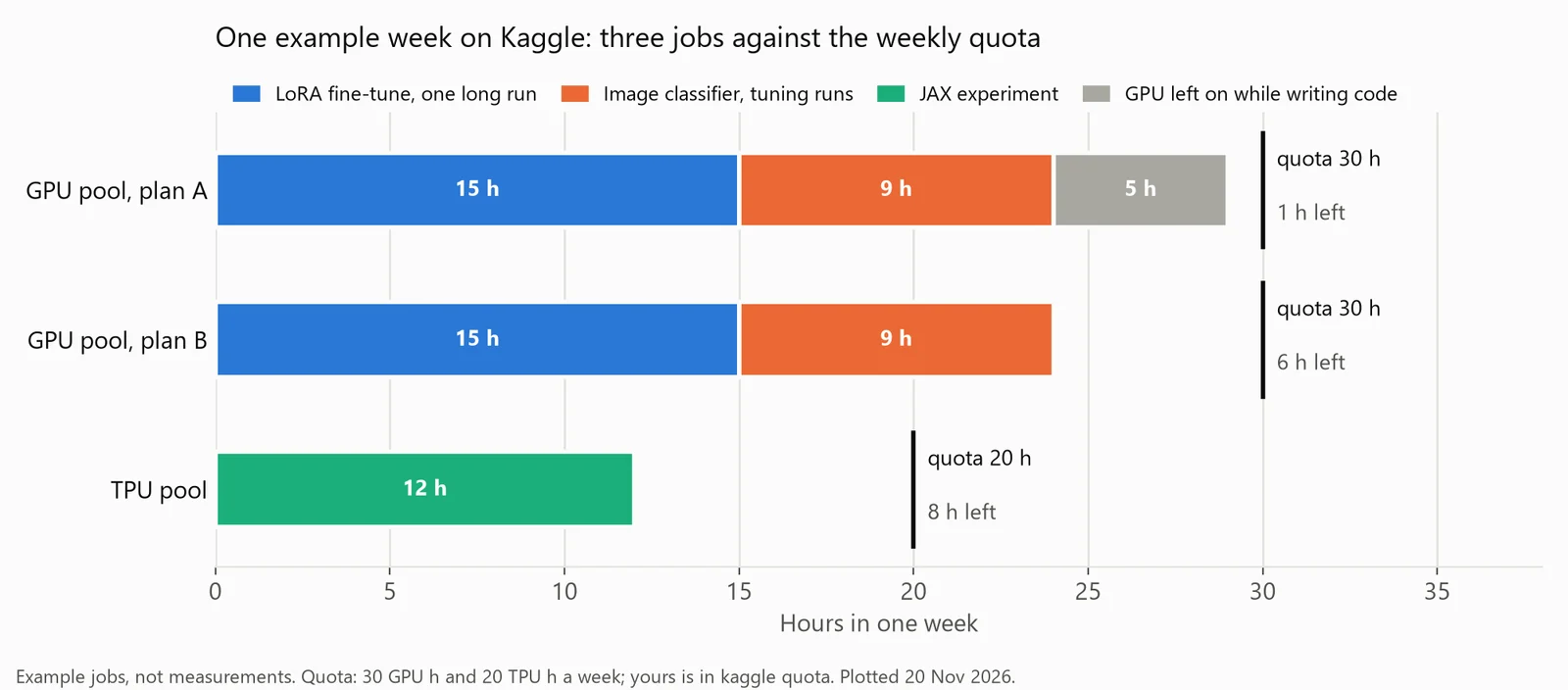
One example week from our planner: five idle GPU hours are the difference between a full quota and four more training runs. Example jobs, not measurements.
Two things the plan shows. The 15-hour fine-tune can't run in one go: it needs a checkpoint and two sessions. And five hours of GPU left on while writing code cost more than three of the tuning runs.
What happens when your Kaggle GPU quota runs out
The remaining figure in kaggle quota falls to 0.00h (the CLI's docs note used time can even exceed the total), and GPU and TPU hours come back at the weekly reset. Until then:
- Keep working on CPU. Kaggle's weekly quota counts GPU and TPU time only.
- Link Colab Pro. Kaggle's "experimental launch for Kaggle users to access more GPU hours" gives Colab Pro subscribers 15 extra Kaggle GPU hours a week and Pro+ subscribers 30, guides report.
- Use Colab's free GPU. It's a single T4, and Google doesn't say how long you get: "Colab does not publish these limits". Our Colab GPU guide covers turning it on and the paid GPUs.
- Rent a GPU by the hour when the work outgrows free tiers: see Kaggle alternatives.
Long runs: Save & Run All, the CLI and schedules
An interactive session stops when it sits idle; one guide notes Kaggle's pages give both 20 and 60 minutes. For a long training run, don't keep the tab open. Kaggle's own Learn notebooks have you click Save Version and choose "Save & Run All (Commit)": Kaggle runs the whole notebook and saves its output with the new version. From the command line, kaggle kernels push uploads the notebook and runs it on Kaggle with no browser open at all, and -t sets a time limit in seconds ("The global maximum time will not be exceeded"). A November guide also reports that notebooks can be scheduled to rerun daily, weekly or monthly. More on schedules in scheduling a Jupyter notebook.
Kaggle GPU vs Colab's free GPU
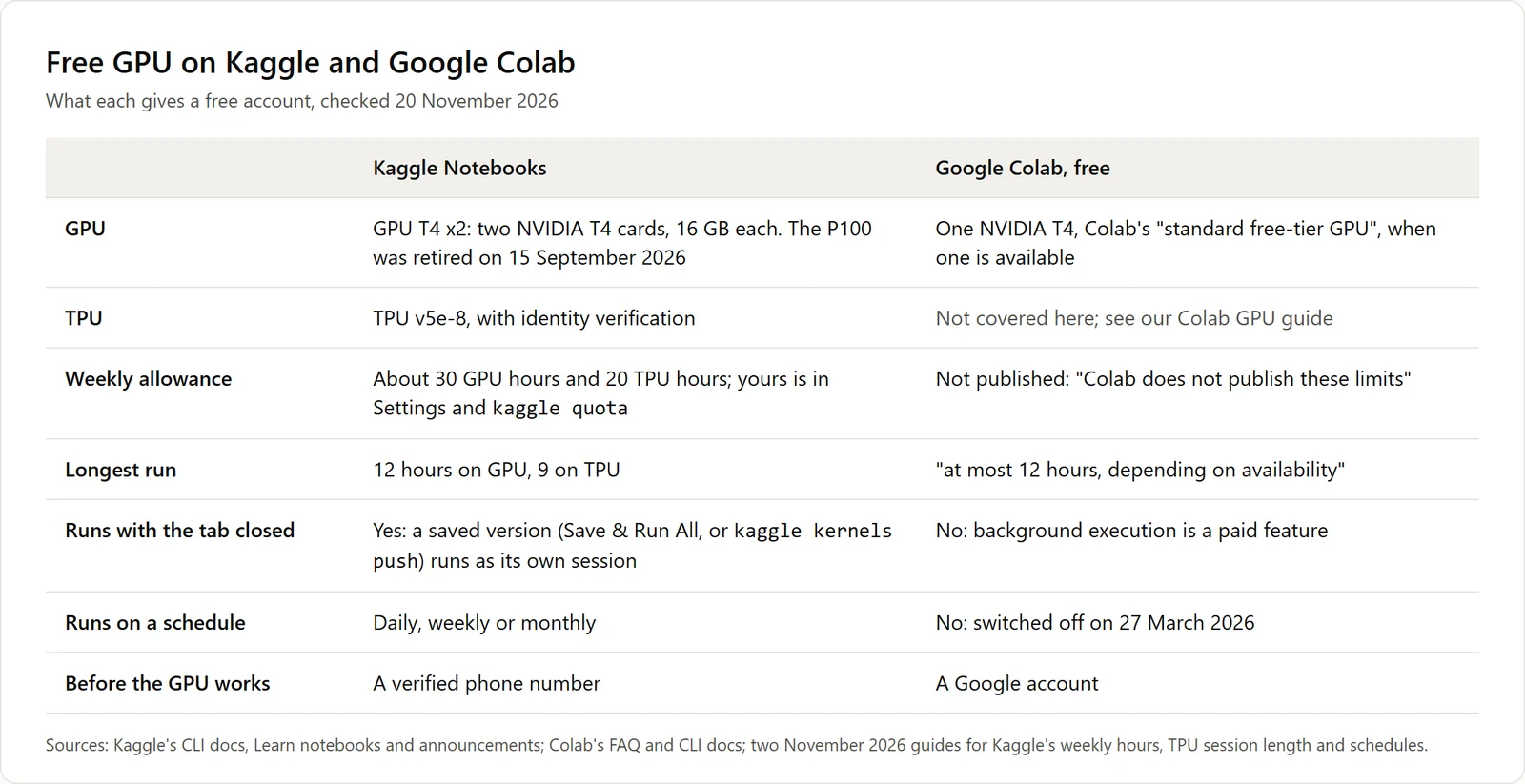
Free GPU on Kaggle and Colab, checked 20 November 2026.
Kaggle wins on hours you can plan around, runs that continue with the tab closed, and schedules: Colab switched off scheduled notebooks on 27 March 2026. Colab wins when your files live in Google Drive, when you'd rather pay for an L4 or A100, or when Kaggle's quota is spent. Using both is common. The full comparison is in Kaggle vs Colab, and the rest of Kaggle's notebook limits are in our Kaggle Notebooks guide.
When the notebook needs your company's data, not a GPU
Train on Kaggle: Fastero has no GPUs. The notebook that comes after training is a different job: the one that reads company data every Monday, needs a database password kept out of the code, and has to be readable by colleagues who will never open Kaggle. Fastero is an AI and data platform where people and AI agents work together on a team's data, and here is what a new account gets for that notebook:
- Your own
.ipynb: upload it, or import it from the project's Git repository, and run it in Fastero's editor on Python 3.11 with pandas. - SQL cells query a saved connection (Postgres, MySQL, SQL Server, Redshift, Oracle or BigQuery) with its stored credentials, and the rows land in Python as a pandas DataFrame named after the cell.
- Secrets reach cells as environment variables, in scheduled runs as well as interactive ones.
- Run it now or on any cron schedule, on the Free plan, which includes 6 hours a day of notebook and Python run time.
- Colleagues sign in to read it, and viewers are free. The machine is 1 CPU and 2 GB per workspace server, with no GPU.
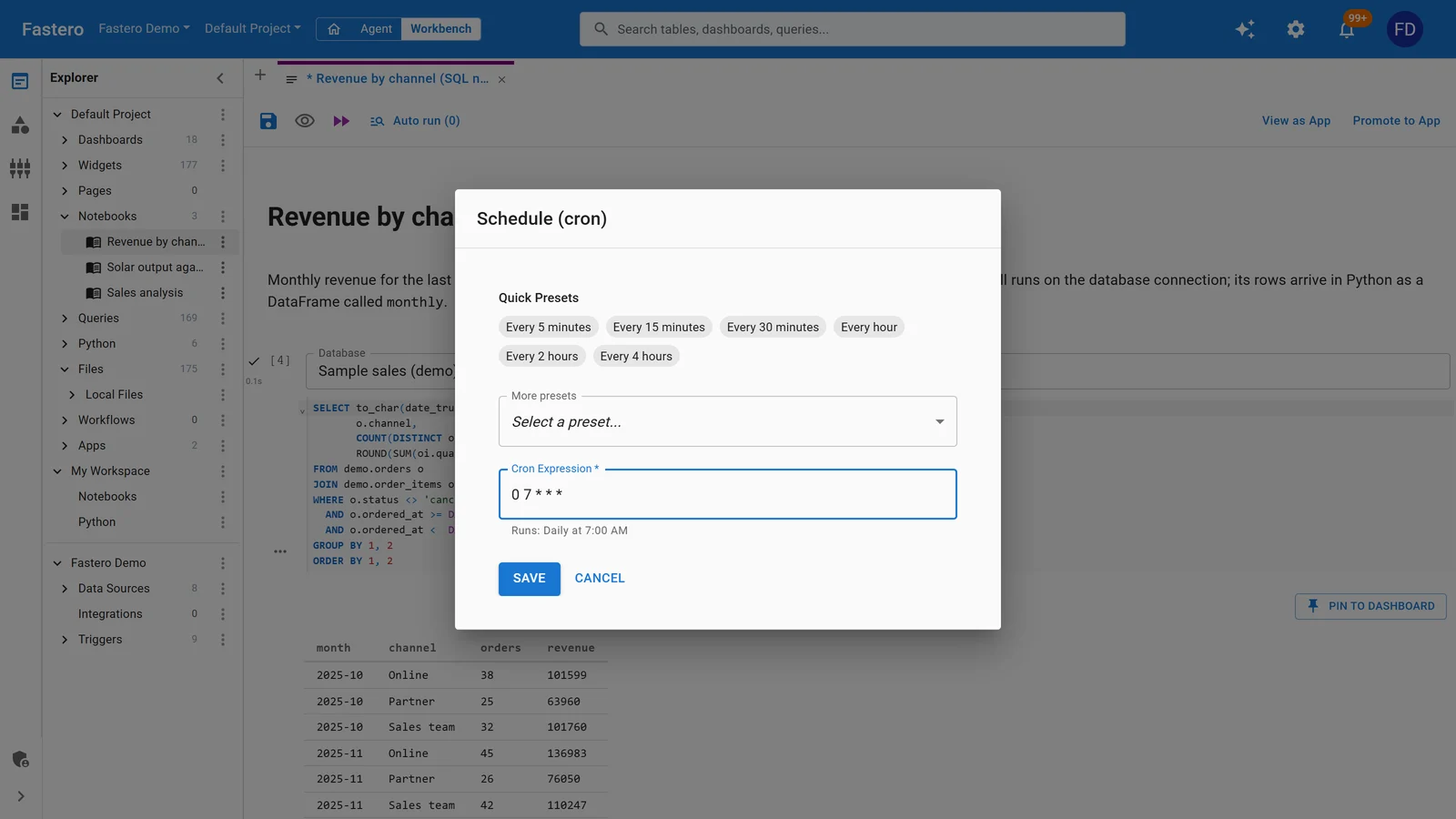
Scheduling a notebook in Fastero: presets or any cron expression. Sample data.
FAQ
Is Kaggle's GPU free?
Yes. Every account with a verified phone number gets free GPU time within a weekly quota of about 30 hours. Linking a paid Colab Pro or Pro+ plan adds 15 or 30 hours a week.
How many GPU hours does Kaggle give per week?
About 30, quoted from Kaggle's docs as "30 hours or sometimes higher depending on demand and resources", plus about 20 TPU hours. The quota resets on Saturday at 00:00 UTC, and kaggle quota or your account settings show your own.
What GPU does Kaggle use?
GPU T4 x2: two NVIDIA T4 cards with 16 GB each. The P100 was retired on 15 September 2026. Kaggle also lists faster cards such as the L4, A100 and H100, but says some are only for specific competitions and some only for Kaggle admins.
Does Kaggle still have the P100?
No. Kaggle retired it on 15 September 2026. A notebook or kaggle kernels push that asks for NvidiaTeslaP100 runs on GPU T4 x2 instead, and the CLI prints a warning.
Why can't I turn on the GPU on Kaggle?
Usually because the phone number isn't verified: new accounts need it before the GPU and internet options work. TPUs also need identity verification, and once the weekly quota is used up, GPU hours return at Saturday's reset.
How long can a Kaggle GPU session run?
Up to 12 hours on GPU and 9 hours on TPU. An interactive session stops sooner when idle, so use Save & Run All or kaggle kernels push for long jobs, and save checkpoints for anything longer than 12 hours.
Is Kaggle's GPU better than Colab's?
For free use, usually: two T4s instead of one, a weekly allowance you can see, runs that continue with the tab closed, and schedules. Colab's free T4 has no published allowance, but its paid plans offer faster GPUs.
Sources
Read on 20 November 2026. Kaggle's documentation pages render only in a browser, so the quota hours and TPU session length come from the guides listed last.
- Kaggle: CLI kernels docs, kernel metadata, quota reference, competitions docs, changelog, retired-accelerator warning, quota reset time fix, Learn notebook on TPUs
- Kaggle announcements: P100 retired on 15 September 2026, TPU v5e-8s, identity verification for TPUs, extra GPU with Colab Pro
- NVIDIA: CUDA-X libraries on Kaggle, T4 specifications
- Google: Colab FAQ, Colab CLI session docs, scheduled notebooks deprecation, TPU v5e, P100 and T4 end of support on Google Cloud
- Guides: Kaggle's free GPUs for AI experiments (Hari Krishna, 5 November 2026), Kaggle in 2026 (Mini AI Tools, 8 November 2026), Calvin University course lab
Try Fastero free: train on Kaggle, then run the everyday notebook next to your team's data, on a schedule, with a sign-in for colleagues. No credit card required.