 Fastero Dev Team
A notebook that works when you click Run All still has to run by itself sometimes: from a terminal, a script or a scheduler, with nobody opening Jupyter. We built a small notebook on invented sales data and ran it every way Jupyter offers, on Windows 11, recording the real output and exit codes.
The short answer: jupyter nbconvert --to notebook --execute --inplace report.ipynb runs every cell and saves the outputs into the notebook; jupyter execute --inplace report.ipynb does the same with a shorter command. Use papermill when each run needs different values: tag a cell parameters, then run papermill report.ipynb out/report-west.ipynb -p region West. Set a time limit (--ExecutePreprocessor.timeout=600, --timeout=600 or --execution-timeout 600), because none of the three has one by default. When a cell fails, all three exit with code 1; nbconvert then saves nothing, while papermill saves the output notebook with the error in it. For a schedule, call the command from cron or Task Scheduler with the full path to your virtual environment.
Fastero
Jupyter notebooks for your team, with nothing to install.
Start a notebook or bring your .ipynb files. SQL cells query your databases with no password in the code, and a notebook runs now or on a schedule. Colleagues open it with their own login; viewers are free.
Try free →If you meant opening the Jupyter app from a terminal, that's jupyter notebook or jupyter lab: see how to install Jupyter Notebook.
The setup we tested
A fresh virtual environment on Windows 11, on 20 November 2026:
python -m venv .venv
.venv\Scripts\activate            # macOS and Linux: source .venv/bin/activate
pip install jupyter papermill pandas
That installed nbconvert 7.17.2, nbclient 0.11.0, ipykernel 7.4.0, papermill 2.7.0 and pandas 3.1.1, on Python 3.14.3. We ran the commands in Git Bash; the exit code lines below are ours, printed with echo $?. The notebook, sales_report.ipynb, reads a CSV of 4,734 invented orders:
# Cell 1, tagged "parameters". Defaults; papermill puts its own values in a new cell below this one
data_path = "sample-sales.csv"
region = "All"

# Cell 2
import pandas as pd

df = pd.read_csv(data_path, parse_dates=["order_date"])
if region != "All":
    df = df[df["region"] == region]
print(f"{len(df):,} orders, {df.order_date.min():%Y-%m-%d} to {df.order_date.max():%Y-%m-%d}, region: {region}")

# Cell 3
by_category = df.groupby("category")["revenue"].sum().sort_values(ascending=False).round(2)
by_category
Which command to use
jupyter nbconvert --execute |
jupyter execute |
papermill |
|
|---|---|---|---|
| Installed with | jupyter (nbconvert) |
jupyter (nbclient) |
pip install papermill |
| Saves outputs | To name.nbconvert.ipynb, --output or --inplace |
Only with --inplace or --output |
Always, to the path you give |
| Parameters | No | No | -p, -r, -f (YAML file), -y |
| Runs in | The notebook's folder | The notebook's folder | The folder you start it from, unless --cwd |
| A cell fails | Exit 1, nothing saved | Exit 1 | Exit 1, output saved with the error |
| Carry on after errors | --allow-errors |
--allow-errors |
No command-line option |
| Time limit per cell | None unless set | None unless set | None unless set |
| Also converts | HTML, PDF, script and more | No | No |
nbconvert: run it and keep the results
$ jupyter nbconvert --to notebook --execute sales_report.ipynb
[NbConvertApp] Converting notebook sales_report.ipynb to notebook
[NbConvertApp] Writing 2915 bytes to sales_report.nbconvert.ipynb
exit code: 0  (7.7 s)
By default you get a new file beside the original. --output report-2026-11-20.ipynb names it, and --inplace overwrites the input instead. The saved notebook holds what each cell printed and returned:
4,734 orders, 2024-11-01 to 2026-10-31, region: All
category
Hardware    704343.33
Software    374298.41
Supplies    198371.68
Services    196687.45
Name: revenue, dtype: float64
For a page to send someone, convert the executed notebook to HTML, or add --no-input to leave the code out:
$ jupyter nbconvert --to html report-2026-11-20.ipynb
[NbConvertApp] Writing 282374 bytes to report-2026-11-20.html
$ jupyter nbconvert --to html --no-input report-2026-11-20.ipynb --output report-no-code
[NbConvertApp] Writing 277902 bytes to report-no-code.html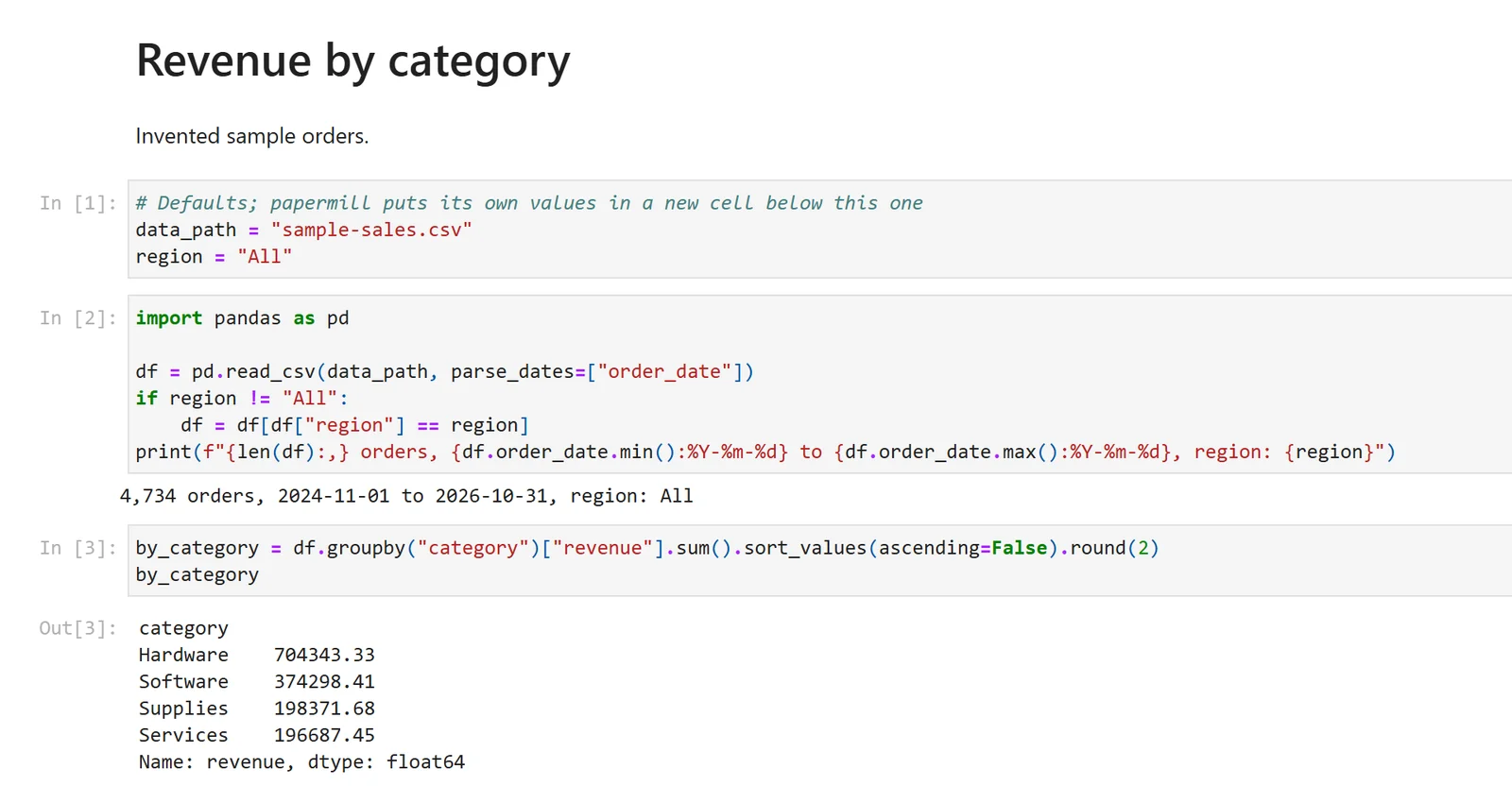
report-2026-11-20.html, written by jupyter nbconvert --to html from the executed notebook, opened in Chrome. Invented sample data.
--to html --execute does both in one step. PDF is harder; see notebook to PDF.
Two things we hit on Windows:
- Every run printed two warnings, which we've left out of the output above. One comes from the Windows event loop: "Proactor event loop does not implement add_reader family of methods required for zmq." The other is ipykernel's "Kernel is running over TCP without encryption." Neither stopped a run.
- Files are written with Windows line endings. nbconvert said it wrote 282,374 bytes; the file on disk is 290,272, because each of its 7,892 line breaks became CRLF. The
.ipynbgrew the same way, from 2,915 to 3,035 bytes. In a Git repository whose files use LF endings, that can show as every line changed: see Jupyter notebooks and Git.
And one trap with --output: it's relative to the notebook, not to where you are. Run from a subfolder, --output cwd-nbconvert.ipynb was written to ..\cwd-nbconvert.ipynb.
jupyter execute: shorter, but it keeps nothing by default
$ jupyter execute execute_copy.ipynb
[NbClientApp] Executing execute_copy.ipynb
[NbClientApp] Executing notebook with kernel: python3
exit code: 0
That run saved no outputs: the notebook on disk still had none. Add --inplace (the log then says Save executed results to execute_copy.ipynb) or --output=execute-out.ipynb. Without either, it only checks that the notebook runs.
papermill: one notebook, different inputs
Tag the defaults cell parameters. In JupyterLab, select the cell, open the property inspector and type "parameters" in the "Add Tag" box. Then pass values with -p. Our first try failed because the output folder didn't exist yet:
$ papermill sales_report.ipynb out/sales-West.ipynb -p region West
Input Notebook:  sales_report.ipynb
Output Notebook: out/sales-West.ipynb
[traceback trimmed]
FileNotFoundError: output folder out doesn't exist.
exit code: 1
After mkdir out it ran. Listing the output notebook's cells with a few lines of Python shows the cell papermill added after the tagged one:
--- cell 1 (execution_count=1) tags=['parameters']
# Defaults; papermill puts its own values in a new cell below this one
data_path = "sample-sales.csv"
region = "All"
--- cell 2 (execution_count=2) tags=['injected-parameters']
# Parameters
region = "West"
The next cells ran with the new value, and papermill recorded it in the notebook's metadata:
1,371 orders, 2024-11-01 to 2026-10-31, region: West
category
Hardware    195839.02
Software    105208.75
Services     56747.93
Supplies     55727.62
Name: revenue, dtype: float64
--- papermill metadata: {'parameters': {'region': 'West'}, 'exception': None, 'duration': 2.326752}
"Parameter values that look like booleans or numbers will be interpreted as such", so use -r to keep a value such as a ZIP code as text, or -f params.yaml for many values. Unlike nbconvert, papermill runs the notebook in the folder you start it from: started from a subfolder, our notebook failed with FileNotFoundError: [Errno 2] No such file or directory: 'sample-sales.csv', and worked with --cwd ...
Jupyter notebooks for your team.
Start free →When a cell fails
We added a notebook whose second cell reads a column that doesn't exist, df["discount"].sum():
| Command | Exit code | What was saved | Third cell ran |
|---|---|---|---|
jupyter nbconvert --execute |
1 | Nothing | No |
... --allow-errors |
0 | The notebook, with KeyError: 'discount' in cell 2's output |
Yes |
jupyter execute |
1 | Nothing | No |
papermill |
1 | The output notebook, topped with a red "An Exception was encountered at 'In [2]'" | No |
nbconvert's error names the cell (CellExecutionError: An error occurred while executing the following cell), then prints the traceback. papermill's saved notebook is the more useful record of a failed overnight run, and its metadata says 'exception': True. Be careful with --allow-errors on a schedule: the run exits 0, so the scheduler records a success.
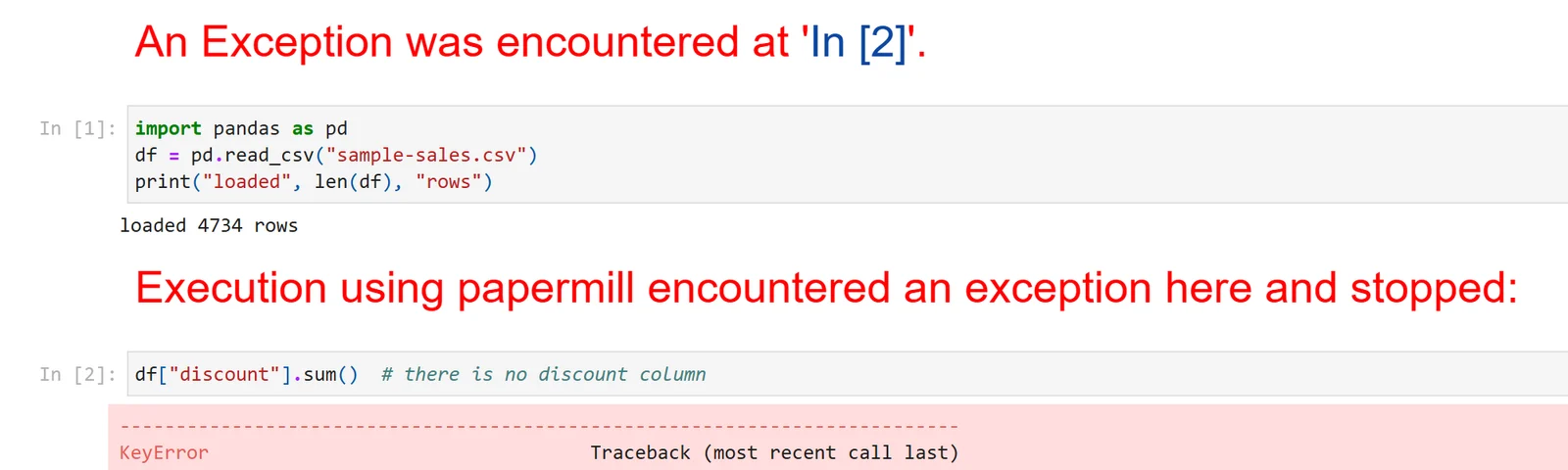
The notebook papermill saved when cell 2 failed, converted with jupyter nbconvert --to html: one red banner at the top links to the failing cell, a second sits just above it. Invented sample data.
Timeouts
nbconvert's documentation says "The default is 30 s". The installed version disagrees: jupyter nbconvert --help-all lists --ExecutePreprocessor.timeout with "Default: None", and a 45-second cell with no timeout set ran to the end (exit 0 after 51 seconds). jupyter execute --help-all and papermill's help ("default: forever") say the same. So a hung database query hangs the job.
With a 5-second limit against a cell that sleeps for 20:
| Command | Exit code | Wall time | What was saved |
|---|---|---|---|
jupyter nbconvert --execute --ExecutePreprocessor.timeout=5 |
1 | 19 s | Nothing |
jupyter execute --timeout=5 |
1 | 17 s | Nothing |
papermill --execution-timeout 5 |
1 | 22 s | The notebook, with the cell's first line of output |
All three raised CellTimeoutError: A cell timed out while it was being executed, after 5 seconds. The wall time also covers starting and stopping the kernel. One catch: papermill's saved notebook had no error banner and 'exception': None, so after a timeout only the exit code tells you the run failed.
Run it on a schedule: cron and Task Scheduler
On Linux and macOS, use cron. This line runs the report every day at 06:30. It calls the venv's papermill by its path, because cron sets up SHELL, LOGNAME and HOME for the job, not your activated environment:
30 6 * * * cd /home/me/report && .venv/bin/papermill sales_report.ipynb out/sales-$(date +\%F).ipynb -p region West --execution-timeout 600 >> run.log 2>&1The backslash matters: in a crontab, "A "%" character in the command, unless escaped with a backslash (), will be changed into newline characters". We didn't run this line: the test machine runs Windows.
On Windows, use Task Scheduler. A small .cmd file sets the folder and the date; we ran it to check it works:
@echo off
rem Runs the sales report with papermill; Task Scheduler starts this file.
cd /d "%~dp0"
for /f %%d in ('powershell -NoProfile -Command "Get-Date -Format yyyy-MM-dd"') do set TODAY=%%d
if not exist out mkdir out
".venv\Scripts\papermill.exe" sales_report.ipynb "out\sales-%TODAY%.ipynb" -p region West --execution-timeout 600 --no-progress-bar >> run_report.log 2>&1
echo exit code %ERRORLEVEL% >> run_report.log
exit /b %ERRORLEVEL%
Its log after one run: Output Notebook: out\sales-2026-11-20.ipynb, then exit code 0. To register it daily at 06:30 (we didn't create the task), with /ST in 24-hour HH:mm:
schtasks /Create /TN "Sales report" /TR "C:\reports\run_report.cmd" /SC DAILY /ST 06:30Systemd timers, GitHub Actions and the hosted options are in our guide to scheduling a Jupyter notebook.
When the notebook should run without your computer
cron and Task Scheduler only run while that machine is on. Fastero is an AI and data platform where people and AI agents work together on a team's data, and its notebooks run on its servers:
- A cron schedule on any notebook, on the Free plan, with nothing of yours left running.
- Secrets reach cells as environment variables, in scheduled runs as well as interactive ones, so the password isn't in the notebook.
- SQL cells query a saved connection (Postgres, MySQL, SQL Server, Redshift, Oracle or BigQuery) with its stored credentials and hand the result to Python as a pandas DataFrame named after the cell.
- Colleagues sign in to read it, and viewers are free. A SQL cell's rows or a DataFrame can become a dashboard widget that each scheduled run refreshes.
- The limits: standard
.ipynbfiles, Python 3.11, 1 CPU and 2 GB per workspace server, no GPUs.
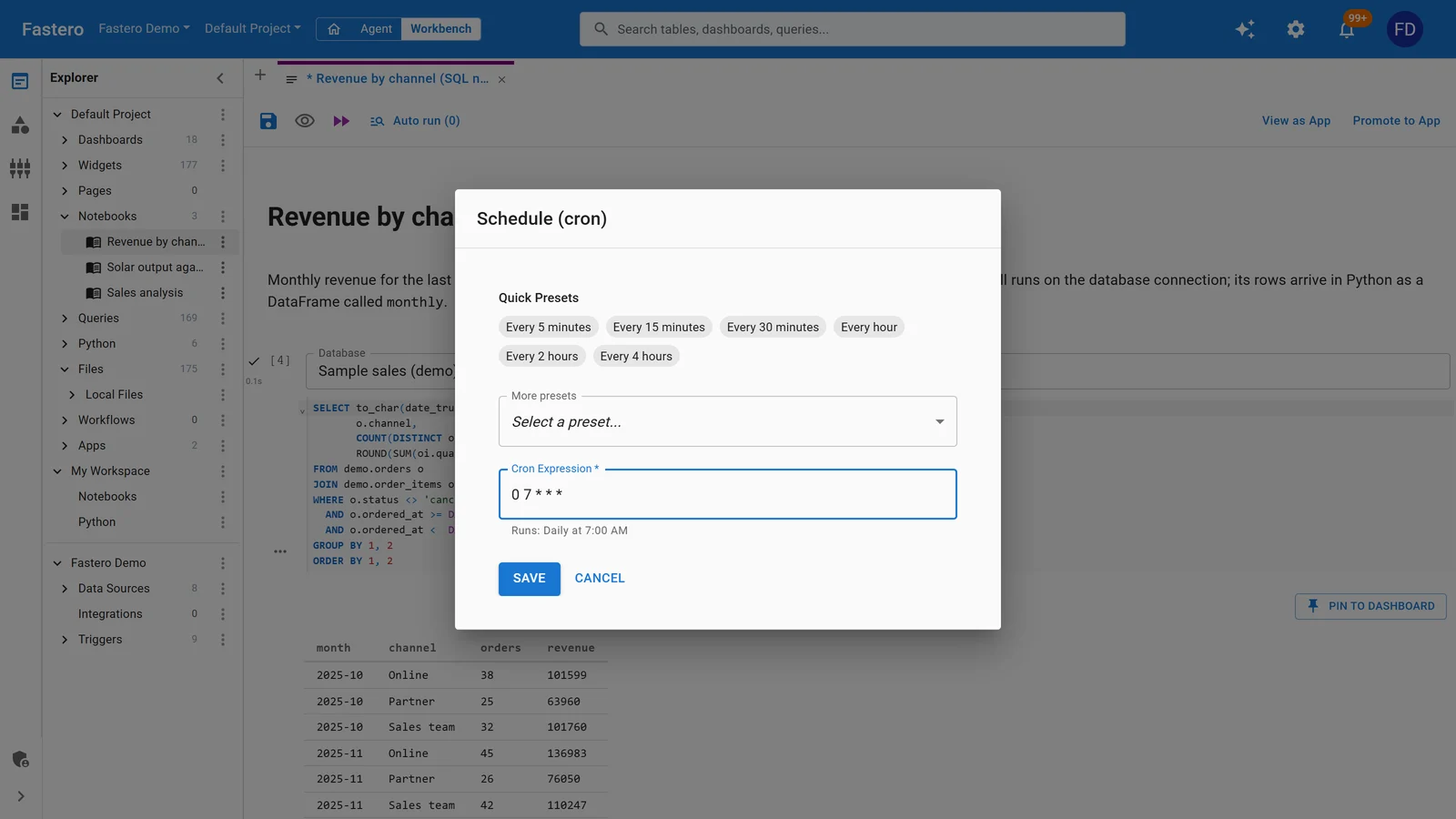
Scheduling a notebook in Fastero: presets or any cron expression. Sample data.
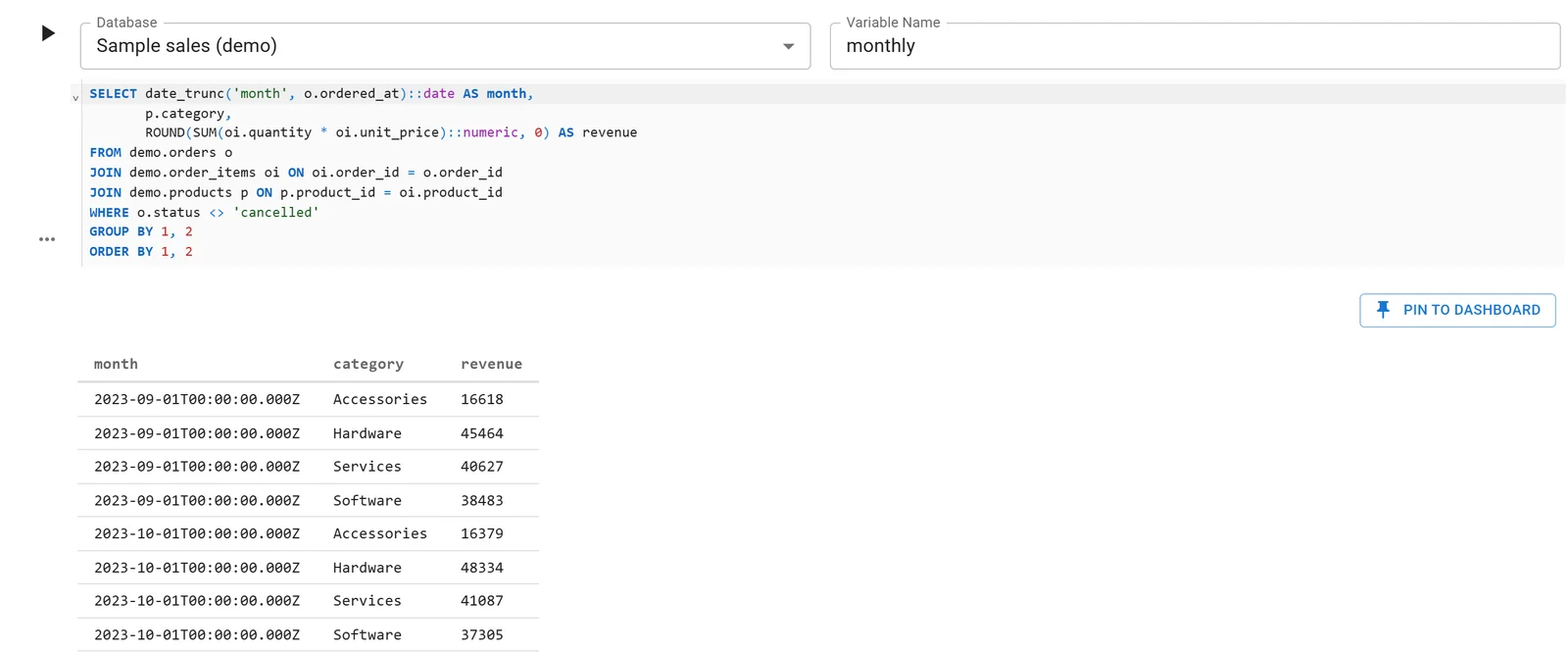
A Fastero notebook whose SQL cell reads a database connection; the rows arrive in Python as a DataFrame. Sample data.
FAQ
How do I run a Jupyter notebook from the command line?
Run jupyter nbconvert --to notebook --execute --inplace notebook.ipynb, which executes every cell and saves the outputs into the file. jupyter execute --inplace notebook.ipynb does the same, and papermill in.ipynb out.ipynb -p name value adds parameters.
Can I run an .ipynb file with python?
Not directly: a notebook is JSON, and python sales_report.ipynb failed with NameError: name 'null' is not defined. ipython sales_report.ipynb does run it, but it showed only what the code printed and saved nothing. Use one of the three commands above.
What's the difference between nbconvert and papermill?
nbconvert runs a notebook and converts it, to HTML, PDF or a script for example. papermill only runs notebooks, but takes parameters, always writes an output copy, and keeps that copy when a cell fails.
Does nbconvert have a timeout?
Not by default in nbconvert 7.17.2, although its documentation still says 30 seconds. Set one with --ExecutePreprocessor.timeout=600; with papermill it's --execution-timeout 600.
How do I convert a notebook to a Python script?
jupyter nbconvert --to script notebook.ipynb. A notebook written by a tool and never run lacks the language details nbconvert reads: ours came out as sales_report.txt, while its executed copy became sales_report_script.py.
Why does my notebook work in Jupyter but fail on a schedule?
Usually the folder or the environment. papermill runs in the folder it was started from, which under a scheduler may not be the notebook's, and cron doesn't load your activated venv. cd into the project first, call the venv's commands by path, or pass papermill --cwd.
Sources
Read on 20 November 2026; versions are the ones pip installed that day.
- nbconvert usage, nbconvert executing notebooks, nbclient, and
jupyter nbconvert --help-allandjupyter execute --help-allfrom the installed versions - papermill: parameterize, execute, CLI, PyPI, and
papermill --help - crontab(5), schtasks create