 Fastero Dev Team
Claude Desktop can use MCP servers in two ways, and most setup trouble comes from mixing them up. A server that runs on your own computer goes in a JSON file called claude_desktop_config.json. A server that lives at an https:// address is added as a connector in the app, and never in that file.
The short answer: for a local server, open claude_desktop_config.json (on macOS in ~/Library/Application Support/Claude/, on Windows in %APPDATA%\Claude\, on Linux in ~/.config/Claude/), add the server under "mcpServers" with its command, args and any env keys, save, then quit Claude Desktop completely and start it again. For a remote server, go to Customize › Connectors, pick it from the directory or choose Add › Add custom connector and paste its URL. Free plans can add one custom connector.
Fastero
Point Claude at your database.
Add Fastero to claude.ai or Claude Code. Claude builds the dashboard, deploys the app or publishes a live page, and your team opens it in Fastero.
Try free →Where the config file is
macOS:    ~/Library/Application Support/Claude/claude_desktop_config.json
Windows:  %APPDATA%\Claude\claude_desktop_config.json
Linux:    ~/.config/Claude/claude_desktop_config.json
The file doesn't exist until something creates it. The easy way is from inside the app: open Settings (on macOS from the Claude menu in the menu bar, on Windows with Ctrl+,), go to Developer and click Edit Config. That creates the file if it's missing and opens it. In the newest Settings layout, Anthropic lists local servers on the Extensions page, under Settings › Desktop app, and calls Settings › Developer the "older Settings layout".
You can also open it from a terminal. On macOS:
code ~/Library/Application\ Support/Claude/claude_desktop_config.jsonOn Windows, in PowerShell:
code $env:AppData\Claude\claude_desktop_config.jsonIf your edits are ignored on Windows: a long-running bug report (anthropics/claude-code#26073, open since February 2026) says the standard Windows installer packages Claude Desktop so that it reads a copy of the file in this folder, while Edit Config opens the one in %APPDATA%:
%LOCALAPPDATA%\Packages\Claude_pzs8sxrjxfjjc\LocalCache\Roaming\Claude\If a correct config does nothing, check whether that folder exists and put the same file there.
The format
The file is one JSON object with a mcpServers key. Each entry inside it is a server: the key is the name Claude shows, command is the program to start, args is a list of arguments, and env (optional) holds environment variables. This is the official example for the Filesystem server, which lets Claude read and write files in the folders you list:
{
  "mcpServers": {
    "filesystem": {
      "command": "npx",
      "args": [
        "-y",
        "@modelcontextprotocol/server-filesystem",
        "/Users/username/Desktop",
        "/Users/username/Downloads"
      ]
    }
  }
}
The same on Windows. Backslashes in JSON must be doubled, or written as forward slashes:
{
  "mcpServers": {
    "filesystem": {
      "command": "npx",
      "args": [
        "-y",
        "@modelcontextprotocol/server-filesystem",
        "C:\\Users\\username\\Desktop",
        "C:\\Users\\username\\Downloads"
      ]
    }
  }
}
The server runs with your own account's permissions, so the MCP docs advise: "Only grant access to directories you're comfortable with Claude reading and modifying."
Several servers at once
Add more entries side by side, separated by commas:
{
  "mcpServers": {
    "filesystem": {
      "command": "npx",
      "args": ["-y", "@modelcontextprotocol/server-filesystem", "/path/to/allowed/files"]
    },
    "git": {
      "command": "uvx",
      "args": ["mcp-server-git", "--repository", "path/to/git/repo"]
    },
    "fetch": {
      "command": "uvx",
      "args": ["mcp-server-fetch"]
    }
  }
}
npx needs Node.js installed; uvx comes with uv, the Python tool.
API keys and other settings
Keys go in env, never in args, so they don't show up in process lists:
{
  "mcpServers": {
    "myserver": {
      "command": "mcp-server-myapp",
      "env": {
        "MYAPP_API_KEY": "some_key"
      }
    }
  }
}
Set everything a server needs here, even variables you already have in your shell. Servers started by Claude Desktop inherit only a limited set of environment variables, so one that works in your terminal can fail inside the app.
A server you wrote yourself
For a Python server run with uv, point at its folder with an absolute path:
{
  "mcpServers": {
    "weather": {
      "command": "uv",
      "args": [
        "--directory",
        "/ABSOLUTE/PATH/TO/PARENT/FOLDER/weather",
        "run",
        "weather.py"
      ]
    }
  }
}
If you haven't built one yet, our MCP server examples include a working server in 15 lines.
Restart, then check
Saving the file does nothing on its own. In the MCP docs' words: "After saving the configuration file, completely quit Claude Desktop and restart it." Closing the window isn't enough, because the app keeps running in the background:
- macOS:
Cmd+Q, or Quit Claude from the menu. - Windows: right-click the Claude icon in the system tray (it may be under hidden icons) and choose Quit.
- Linux: Quit from the tray icon.
When Claude is back, click + in the message box, hover Connectors and choose Manage connectors. Your server should be listed, and selecting it shows its tools.
Point Claude at your database.
Connect Claude →Remote servers: add a connector, not a config entry
Every official claude_desktop_config.json example uses command and args; none takes a URL. The file is for programs Claude starts on your machine. An entry with only a "url" isn't supported, and a March 2026 bug report (anthropics/claude-code#37286) describes Claude Desktop rewriting the file and dropping the whole mcpServers block after one was added.
A server at an https:// address is added as a custom connector:
- Open Customize › Connectors in Claude Desktop or at claude.ai.
- Choose Add, then Add custom connector.
- Give it a name and paste the server's address, then Continue and sign in if it asks.
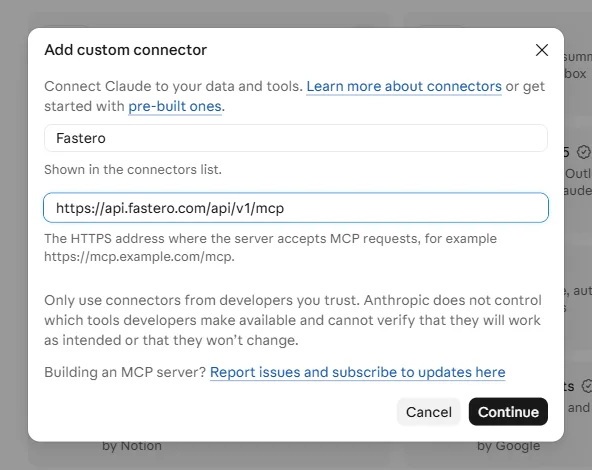
Adding a remote MCP server as a custom connector in Claude. Taken on a Free plan account, 5 November 2026.
Custom connectors are available on every plan: "Custom connectors using remote MCP are available on Claude, Cowork, and Claude Desktop for users on Free, Pro, Max, Ultra, Team, and Enterprise plans. Free users are limited to one custom connector." On Team and Enterprise plans an owner adds the connector for the organisation, and members then connect it.
One rule decides most "config file or connector?" questions: connectors connect from Anthropic's cloud, even in Claude Desktop. Anthropic's help article says your server "must be reachable over the public internet from Anthropic's IP ranges." A server on localhost, behind a VPN or on a private network fails as a connector. That is what the config file is for: "Local MCP servers configured in Claude Desktop via claude_desktop_config.json are a separate mechanism and do use your local network, but those aren't available in Cowork or claude.ai."
If you need a remote server that only your machine can reach, the community mcp-remote package bridges it into the config file by running locally:
{
  "mcpServers": {
    "remote-example": {
      "command": "npx",
      "args": [
        "mcp-remote",
        "https://remote.mcp.server/sse"
      ]
    }
  }
}
Use the server's /mcp address rather than an old /sse one; several vendors have retired their SSE addresses.
Desktop extensions: the no-JSON route
Desktop extensions package a local server so it installs like a browser extension, with a form for its API keys. In Anthropic's words: "Instead of manually configuring JSON files and managing dependencies, you can now install local MCP servers on your computer as easily as browser extensions." They were renamed in September 2025: "Claude Desktop Extensions now use the .mcpb (MCP Bundle) file extension instead of .dxt." Old .dxt files still install.
To install one, double-click the .mcpb file or drag it into the Claude window. Keys marked as sensitive are kept in the system keychain rather than in a plain JSON file, which is a good reason to prefer an extension when the server you want offers one.
Troubleshooting
| What you see | What to do |
|---|---|
| The server doesn't appear | Quit Claude completely and restart; check the JSON with a validator; use absolute paths |
spawn npx ENOENT or spawn uv ENOENT |
Claude can't find the program. Put its full path in command (find it with which uv on macOS/Linux or where uv on Windows) |
npx fails on Windows |
Use "command": "cmd" with "args": ["/c", "npx", "-y", "<package>"] |
| A Windows path breaks the JSON | Double every backslash, C:\\Users\\..., or use forward slashes |
| Works in the terminal, not in Claude | Add the variables it needs to env; Claude Desktop passes only a few through |
| Edits ignored on Windows | Check the packaged-install path described above |
| The server starts, then breaks | It is printing to standard output. A stdio server must log to standard error only |
| A remote URL in the file | Remove it and add the server as a custom connector |
Logs tell you which of these it is. mcp.log covers connections in general and mcp-server-<name>.log holds each server's own error output:
- macOS:
~/Library/Logs/Claude - Windows:
%APPDATA%\Claude\logs - Linux:
~/.config/Claude/logs
On macOS, tail -n 20 -F ~/Library/Logs/Claude/mcp*.log follows them live. In PowerShell, type "$env:AppData\Claude\logs\mcp*.log" prints them.
Claude Code: one command instead of a file
Claude Code adds servers from the terminal:
# A remote server
claude mcp add --transport http notion https://mcp.notion.com/mcp

# A local server, with a key
claude mcp add --env AIRTABLE_API_KEY=YOUR_KEY --transport stdio airtable \
  -- npx -y airtable-mcp-server
claude mcp list shows what's connected, and /mcp inside a session shows each server's status. claude mcp add-from-claude-desktop copies the servers from your Desktop config, though only on macOS and WSL. Connectors you've added in claude.ai also appear in Claude Code automatically when you sign in with the same account.
Adding a data server: Fastero
Fastero is a remote MCP server, so it is a connector, not a config entry. It is in Claude's directory: open Customize › Connectors, search for Fastero and click Connect, then sign in to your Fastero workspace. The same connection then works in Claude Desktop, at claude.ai and in Claude Code.
Once connected, Claude can read the metric definitions your team has saved, run read-only SQL on the databases connected to your workspace, draw the answer as a chart in the conversation and save it to a dashboard that colleagues open with their own Fastero login, without needing Claude. For Claude Code with a key instead of a sign-in:
claude mcp add --scope user --transport http fastero https://api.fastero.com/api/v1/mcp --header "Authorization: Bearer fst_pat_..."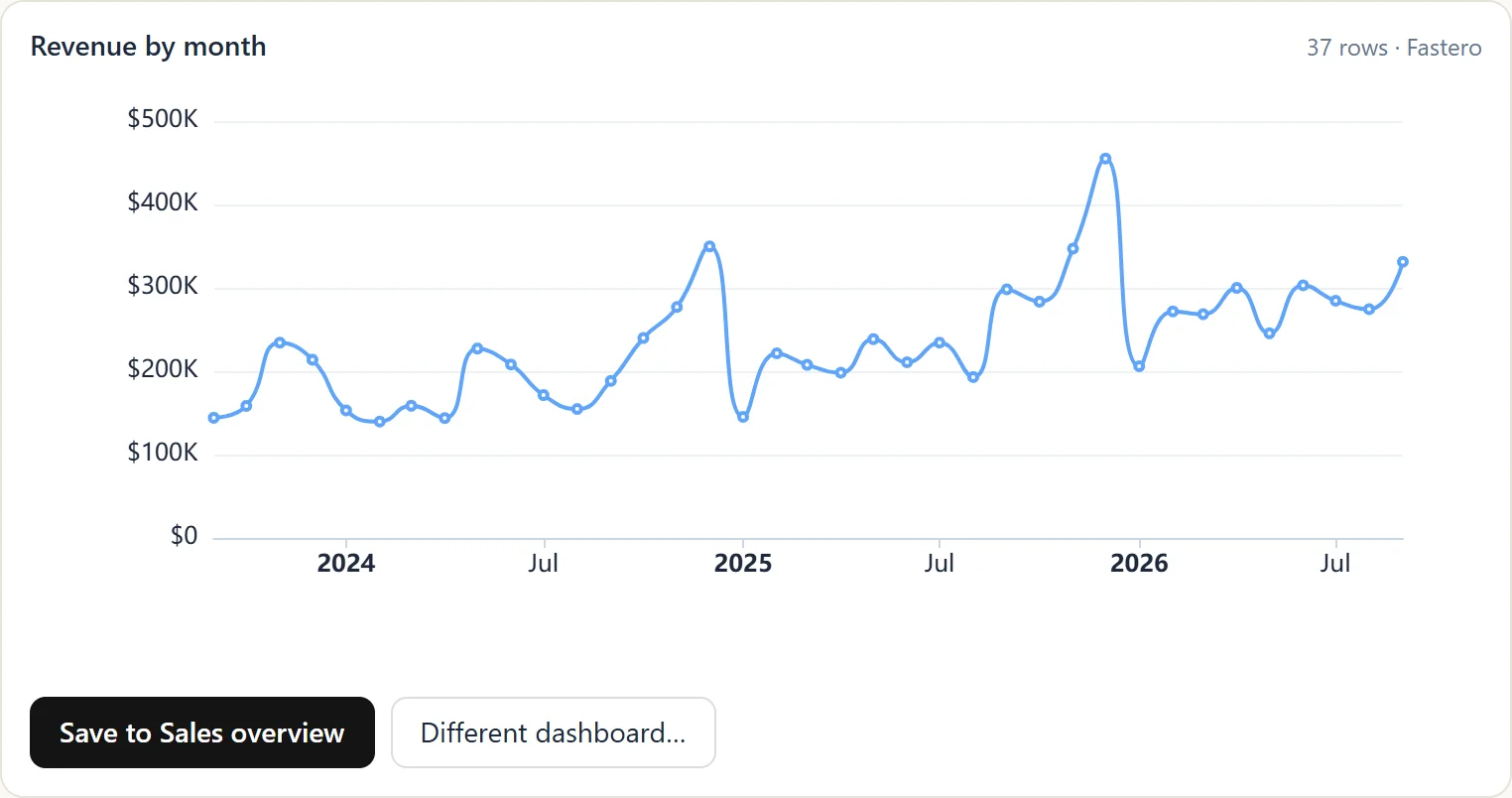
A chart Claude drew through Fastero's connector, ready to save to a dashboard. Sample data.
FAQ
Where is the Claude Desktop config file?
On macOS in ~/Library/Application Support/Claude/, on Windows in %APPDATA%\Claude\, and on Linux in ~/.config/Claude/. If it isn't there, open Claude Desktop's Settings, go to Developer and click Edit Config, which creates it.
Do I have to restart Claude Desktop after editing the config?
Yes. Quit it completely (Cmd+Q on a Mac, Quit from the tray icon on Windows) and start it again. Closing the window leaves it running with the old settings.
Can I put a remote MCP server URL in the config file?
No. The file is for servers Claude starts on your computer. Add a remote server as a custom connector under Customize › Connectors, or, if only your machine can reach it, wrap it with mcp-remote.
Why can't my localhost server work as a connector?
Connectors are reached from Anthropic's servers, not from your computer, so they need a public address. Run a local server from claude_desktop_config.json instead.
Do servers in the config file work in claude.ai or on my phone?
No. They run only in Claude Desktop on that computer. Connectors work everywhere you sign in to Claude.
What happened to .dxt files?
Desktop extensions now use the .mcpb (MCP Bundle) extension. Existing .dxt files still install; new ones are built with the mcpb command-line tool.
Related reading:
- MCP server examples
- Claude connectors
- Postgres MCP server
- Best MCP servers for Claude Code
- MCP security
Sources: Connect to local MCP servers, Build an MCP server, MCP debugging guide, MCP reference servers, Getting started with custom connectors, Getting started with local MCP servers on Claude Desktop, Desktop extensions, MCP Bundles, Claude Code MCP docs, mcp-remote, Windows config path report, url entry report. Checked 5 November 2026.
Try Fastero free — connect a database, add Fastero from Claude's directory, and get charts and dashboards your team can open. No credit card required.