 Fastero Dev Team
Claude Code works on Jupyter notebooks out of the box: it reads .ipynb files and edits them cell by cell. What it does with outputs, and how it runs anything, is less obvious, and the guides that rank for this topic get several details wrong. We tested the commands below on Windows 11 with Python 3.14, nbconvert 7.17, papermill 2.7 and Claude Code 2.1.
The short answer: Claude Code reads a notebook's cells with their saved outputs and edits them with its NotebookEdit tool, which replaces, inserts or deletes one code or markdown cell at a time. On its own it doesn't run cells. To run a notebook it uses the shell, with jupyter nbconvert --to notebook --execute --inplace or papermill, and for a live kernel you add a tool: the VS Code extension can run code in the open notebook's kernel after you confirm, and in JupyterLab an MCP server gives Claude the running server. Clear outputs or pair the notebook with a .py file first: outputs are most of a notebook's bytes, and Claude Code hides any output over about 10,000 characters, most charts included.
Fastero
Point Claude at your database.
Add Fastero to claude.ai or Claude Code. Claude builds the dashboard, deploys the app or publishes a live page, and your team opens it in Fastero.
Try free →How Claude Code reads a notebook
Claude Code's documentation says .ipynb files "return all cells with their outputs, including code, markdown, and visualizations." In practice each cell arrives with its ID and its saved text output; for a cell that saved both HTML and plain text, such as a pandas table, Claude sees the plain text.
The visualizations have a limit the docs don't mention. In our test, small images were shown, but any single output over roughly 10,000 characters was replaced with a note:
Outputs are too large to include. Use Bash with: cat <notebook_path> | jq '.cells[4].outputs'An ordinary matplotlib line chart came to 33,600 characters of base64, so Claude didn't see it. A 9,000-character print was shown and a 12,000-character one was hidden. If you want Claude to look at a chart, have the notebook save it as a PNG file: Claude Code reads image files as images.
There are size limits too: Claude Code won't read a notebook over 100 MB, and caps how much of a large notebook's cell content it takes in at once. It also refuses binary files it can't read as text, including .xlsx and .parquet; it reaches those with Python instead.
How it edits: NotebookEdit
"NotebookEdit modifies a Jupyter notebook one cell at a time, targeting cells by their cell_id." It has three modes: replace, the default, which overwrites a cell's source; insert, which adds a cell and "requires cell_type set to code or markdown"; and delete. There's no raw cell type, no parameter to run a cell, and Claude must read the notebook before editing it.
Three side effects showed up in our test:
- Replacing a cell clears its saved output and execution count. The cells around it keep theirs.
- The edited cell's source is saved as one string rather than Jupyter's usual list of lines.
- The file loses its final newline. The notebook still validates; your git diff gets noisier. An open issue in Claude Code's tracker, #100982, reports the same.
Permissions follow edit rules: "A rule like Edit(notebooks/**) covers NotebookEdit calls on files in that directory." A deny rule for reading doesn't stop NotebookEdit, so protect notebooks with an Edit deny rule.
Letting Claude run the notebook
Claude Code runs a notebook the way you would from a terminal. These commands are the ones we tested:
# run the notebook and save its outputs into it
jupyter nbconvert --to notebook --execute --inplace analysis.ipynb

# or write the result to a copy, with a time limit per cell
jupyter nbconvert --to notebook --execute analysis.ipynb --output analysis_run.ipynb \
  --ExecutePreprocessor.timeout=600

# papermill: run with parameters (the notebook needs a cell tagged "parameters")
papermill analysis.ipynb analysis_north.ipynb -p region North
What we learned running them:
- There's no time limit by default. nbconvert's prose mentions 30 seconds, but its configuration reference gives the timeout a default of none, and a 40-second cell finished. Set
--ExecutePreprocessor.timeoutyourself. Claude Code's own shell commands time out after two minutes unless it asks for longer, up to ten. - A failing cell behaves differently in each tool. nbconvert stopped with
CellExecutionErrorand wrote no file; add--allow-errorsto keep going and store the error in the cell. papermill also failed, but still wrote the output notebook, with the error in a banner cell at the top. - papermill adds a cell after the one tagged
parameters, holding the values you passed.
So commit before asking Claude to run anything with --inplace, and tell it which of the two tools to use.
A live kernel: VS Code, JupyterLab and MCP servers
Running from the shell starts a fresh kernel each time. To let Claude work in the kernel you already have open:
- VS Code. The Claude Code extension can run code in the active notebook: its tool "Runs Python code in the active Jupyter notebook's kernel." It always asks first, with an Execute or Cancel prompt, and "the code is inserted as a new cell at the end of the active notebook." It refuses when there's no open notebook, when Microsoft's Jupyter extension isn't installed, or when the kernel isn't Python.
- JupyterLab, through Jupyter AI's MCP server. The Jupyter AI project's
jupyter-server-mcpgives a terminal agent the running Jupyter server. Its documented setup is one command:claude mcp add jupyter-mcp -- uvx --from jupyter-server-mcp jupyter-server-mcp-proxy. - Datalayer's Jupyter MCP Server, an open-source alternative that runs cells in a JupyterLab with the collaboration extension installed; images in outputs are off unless you switch them on.
- Jupyter AI 3, which brings agents into JupyterLab's chat. It ships with none, "Jupyter AI does not ship with any agent by default", so you install Claude Code and its adapter alongside it. More in our Jupyter AI guide.
We read the setup for these three; we didn't test them end to end.
Point Claude at your database.
Connect Claude →Tips that save time and tokens
- Clear outputs before Claude reads a big notebook. Our test notebook was 1,676 bytes without outputs and 39,994 bytes after one run, 84% of it the chart's image.
nbstripoutbrought it back to 1,921 bytes,jupyter nbconvert --clear-output --inplaceto 3,020. - Save charts as files (
plt.savefig("charts/revenue.png")) when you want Claude to look at them. - Pair the notebook with a script.
jupytext --set-formats ipynb,py:percent analysis.ipynbkeeps a.pycopy that Claude can edit as plain code;jupytext --sync analysis.pybrings the edits back, and the notebook kept its outputs in our test. - Keep outputs out of git with
nbstripout --install. It writes your Python environment's full path into the repository's git settings, so the filter breaks if that environment moves. - Write the rules down. A few lines in
CLAUDE.mdsave repeating yourself:
## Notebooks
- Edit cells with NotebookEdit; never hand-edit the JSON.
- Run notebooks with: jupyter nbconvert --to notebook --execute --inplace <file> --ExecutePreprocessor.timeout=600
- Save any chart you need to see to charts/<name>.png.
- Clear outputs (nbstripout <file>) before committing.
Notebooks that run without your laptop
Everything above happens on your machine: the notebook runs while your terminal is open, against data you have locally, and the result lives in your repository. When the notebook should run every morning on the team's database, and colleagues should open its results, it needs to live somewhere else.
Fastero is an AI and data platform where people and AI agents work together on a team's data. Through its connector, Claude can create a notebook in a shared workspace, write its cells, run it, read the output and put it on a schedule. We tried it: asked for monthly revenue by product category from the demo workspace's sample sales database, Claude created the notebook, wrote a SQL cell and a chart cell, ran it in 12 seconds and read back the results.
- SQL cells read a workspace connection, so the database password never appears in the notebook or the chat.
- Schedules run it on any cron schedule, on the Free plan, with no laptop involved.
- Colleagues open it with their own sign-in; viewers are free.
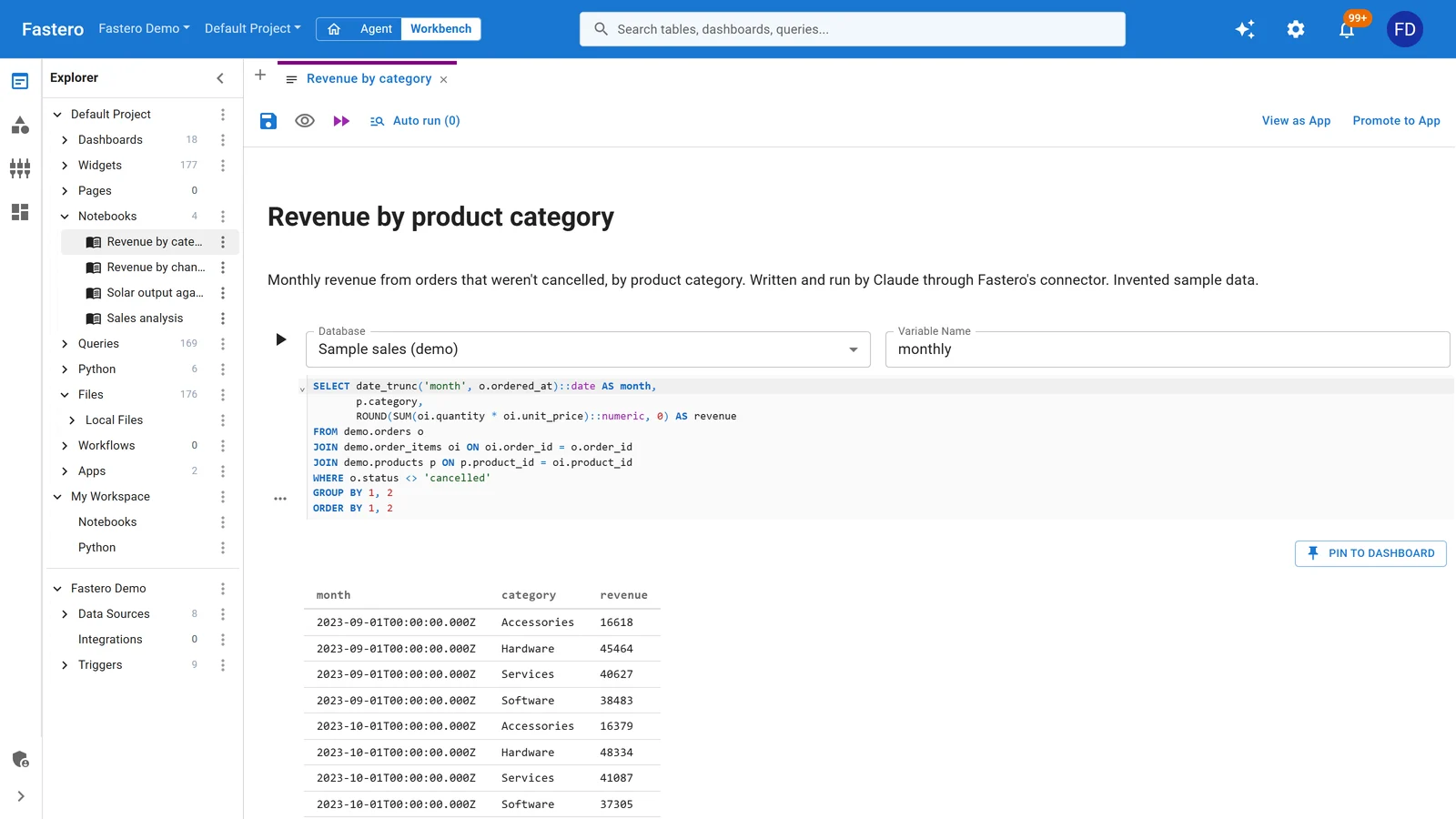
A notebook Claude wrote and ran in Fastero through the connector. Sample data.
More on Claude Code for data analysis and scheduling a Jupyter notebook.
FAQ
Can Claude Code run Jupyter notebooks?
Not with its own notebook tools: NotebookEdit edits cells but has no way to run them. Claude Code runs a notebook from the shell with jupyter nbconvert --execute or papermill, and in VS Code the extension can run code in the open notebook's kernel after you confirm.
Can Claude Code edit .ipynb files?
Yes, one cell at a time with NotebookEdit: replace a cell's source, insert a code or markdown cell, or delete a cell. Replacing a cell clears that cell's saved output.
Can Claude Code see the charts in my notebook?
Only small ones. In our test, any output over about 10,000 characters was replaced with a note telling Claude to read it with jq, which hid an ordinary matplotlib chart. Save charts as PNG files if Claude needs to see them.
Does Claude Code work in JupyterLab?
Yes, from JupyterLab's terminal like any other, editing and running notebooks through files and the shell. For the running kernel, add Jupyter AI's jupyter-server-mcp proxy or Datalayer's Jupyter MCP Server.
Is there a Claude extension for JupyterLab?
Jupyter AI 3 brings agents into JupyterLab's chat, and works with Claude Code through an adapter you install. Several community extensions exist; none comes from Anthropic.
How do I stop notebook outputs from filling Claude's context?
Strip them with nbstripout or jupyter nbconvert --clear-output before asking Claude to read the notebook, or pair it with a .py file using jupytext and let Claude work on the script.
Does nbconvert have a cell timeout?
Not by default. Set one with --ExecutePreprocessor.timeout=600 (seconds) so a stuck cell can't hang the run.
Sources
Read on 6 November 2026:
- Claude Code — Tools reference, Permissions, VS Code, Changelog, Issues mentioning Jupyter
- Jupyter — nbconvert: executing notebooks, nbconvert configuration options, Jupyter AI getting started, jupyter-server-mcp
- Tools — Datalayer Jupyter MCP Server, jupytext, nbstripout, papermill
- Our own tests: Claude Code 2.1.284, nbconvert 7.17.2, papermill 2.7.0, jupytext 1.19.6, nbstripout 0.9.1, Python 3.14.3 on Windows 11
Try Fastero free — let Claude write, run and schedule notebooks on your team's data, in a workspace your colleagues can open. No credit card required.